The Time clock tab at the bottom of the app, and the item of the same name in the menu, is your working day: this is where you clock in each morning and out at the end of the day.
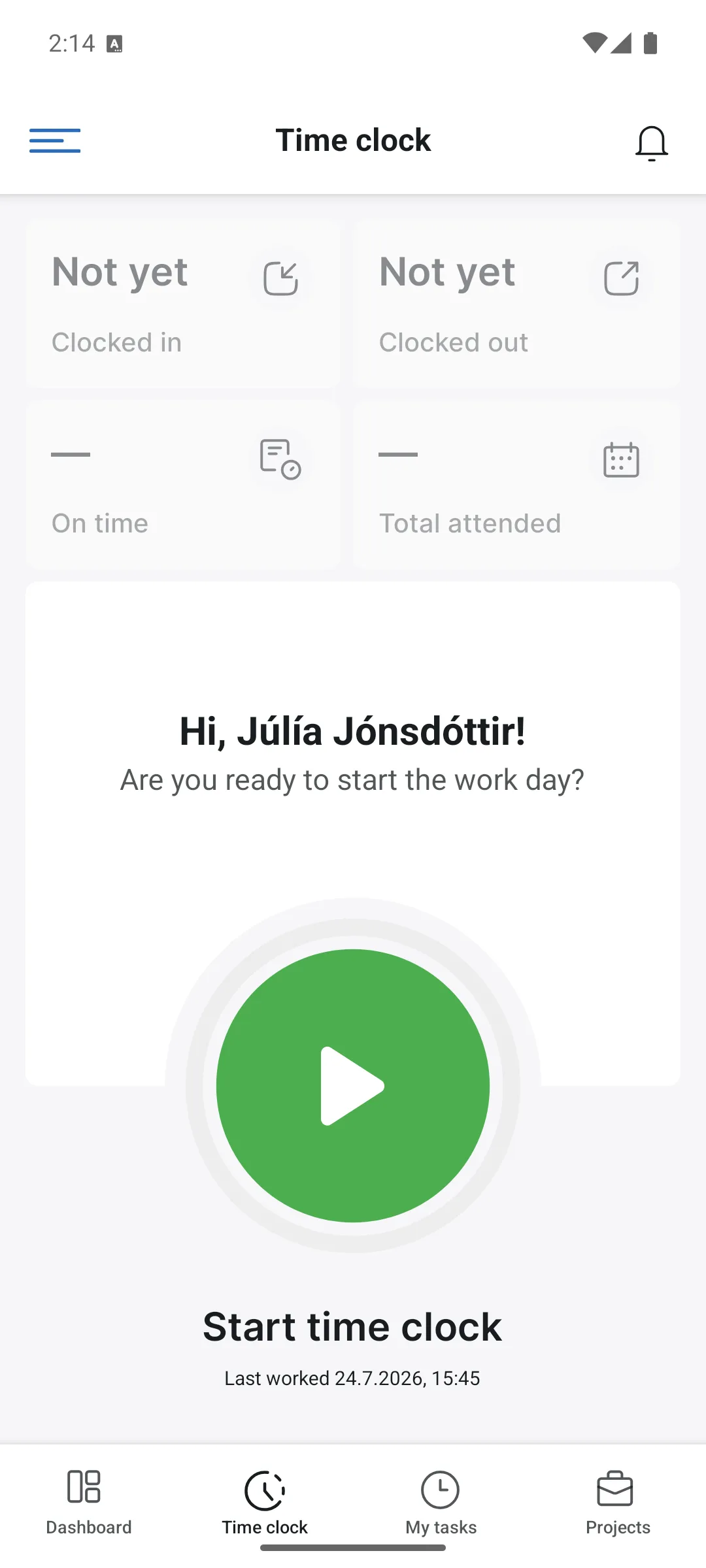
The four cards
- Clocked in: when you clocked in today. It says Not yet until you start.
- Clocked out: when you clocked out.
- On time: how your arrival compares with your shift.
- Total attended: total attendance for the day.
Clocking in and out
- Open Time clock.
- Tap the green button, Start time clock.
- At the end of the day, tap the button again to clock out.
Below the button, Last worked shows the date and time of your last entry, so you can see at once if you forgot to clock out.
While the clock is running
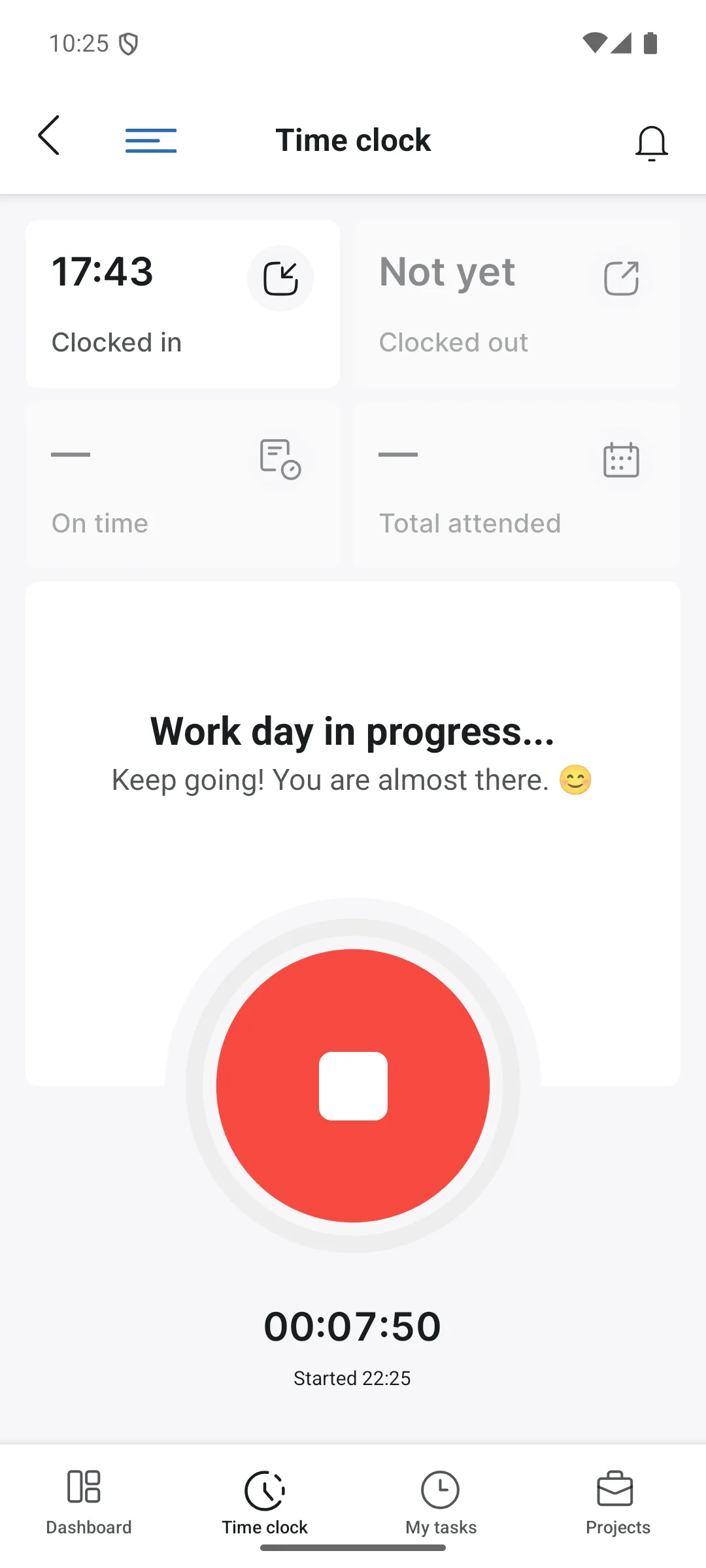
While you are clocked in, the button turns red and the counter below it shows how long the working day has lasted. At the top it says Work day in progress..., the Clocked in card gets your time, and the others fill in when the day ends. At the end of the day, tap the red button to clock out.
The GPS permission
The first time you clock in with GPS logging enabled, the phone asks for permission to use your location. Choose While using the app: the app then only uses your location while it is open, when you clock in and out.
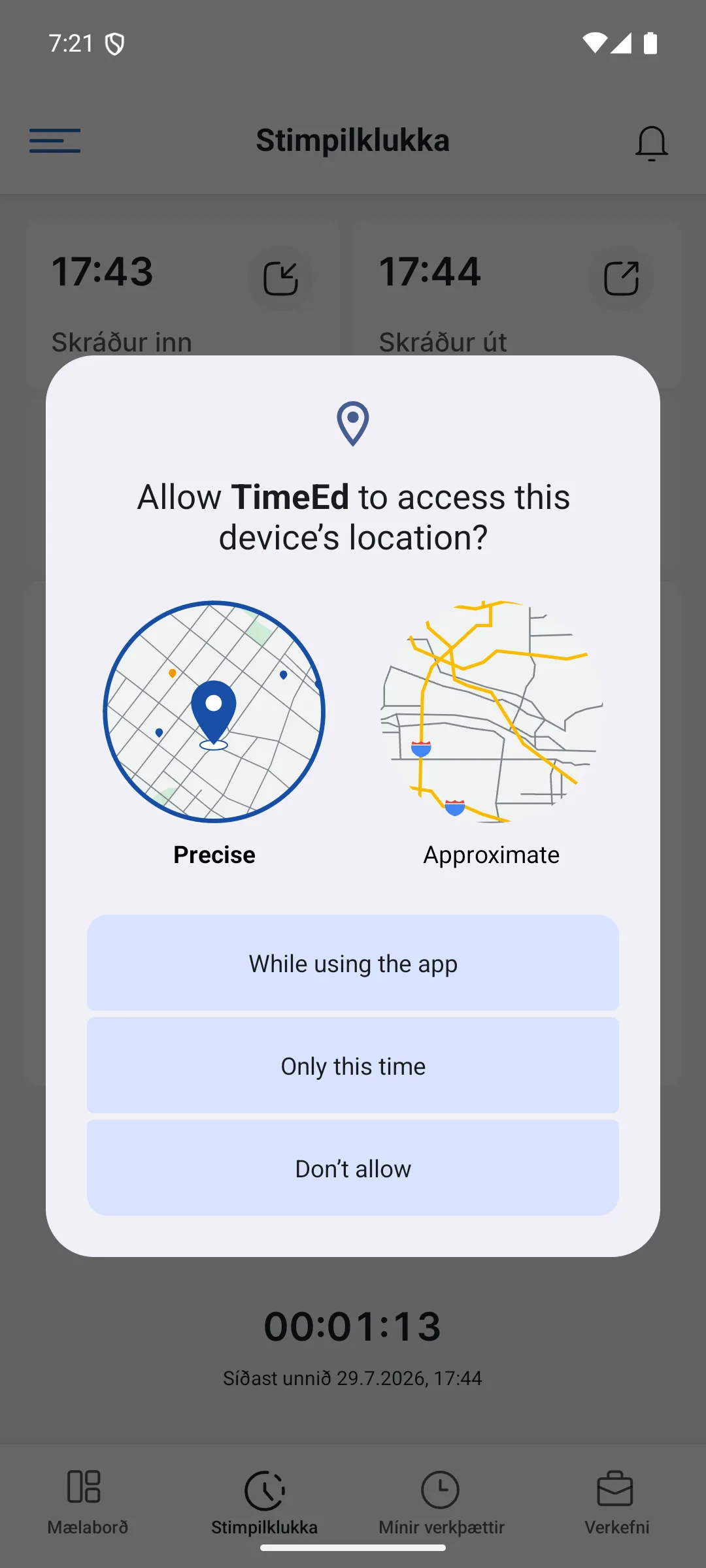
If an administrator has enabled GPS logging, the app records your location when you clock in and out. The coordinates appear in the work report on the web, see Task reports.
Entries made in the app go into the same time clock report as entries from the tablet and the web.