At the bottom of the app's menu is your name. Tap it to open My profile.
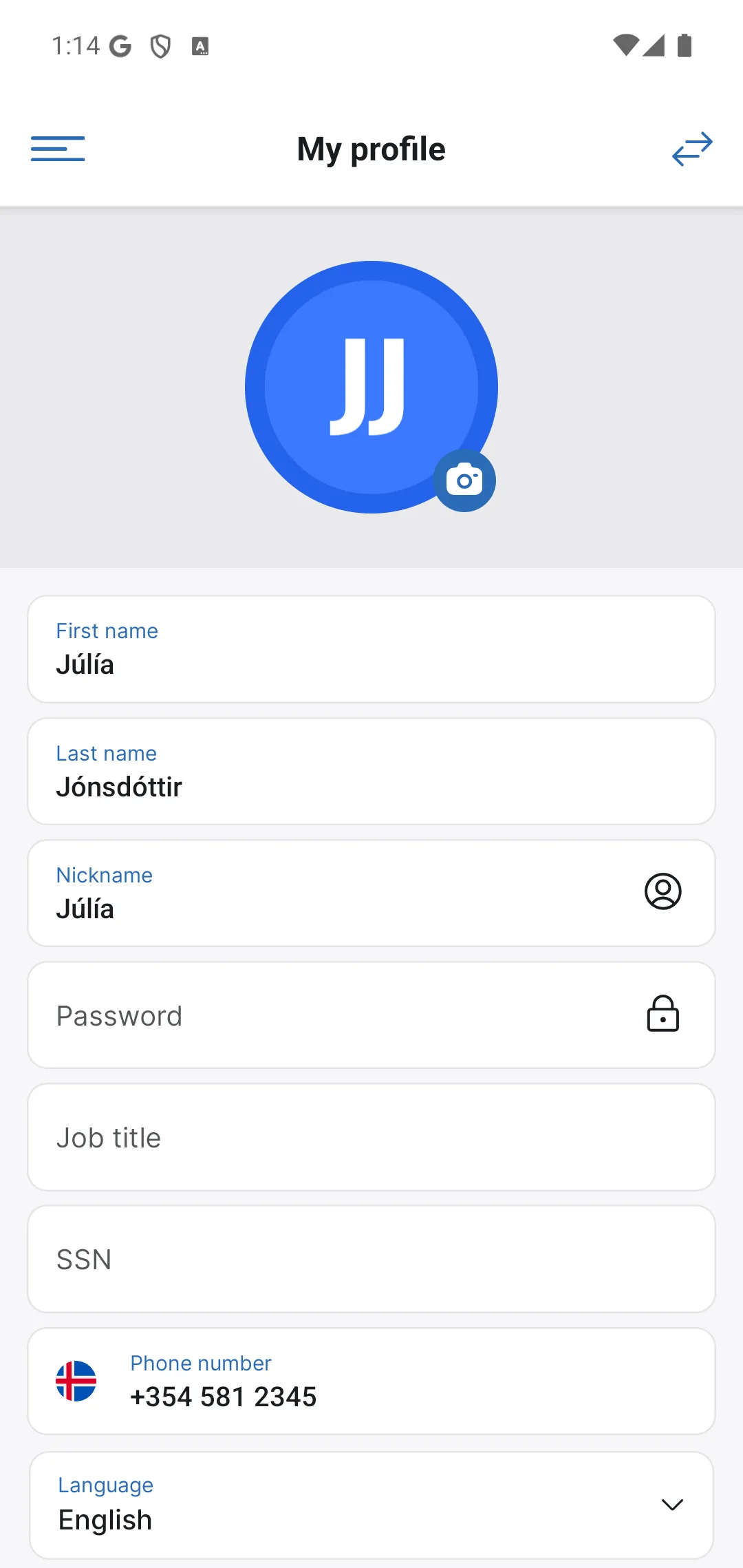
Fill in every field
Tap the camera icon on the circle to upload a profile photo, and fill in every field:
- Role: free text everyone on the team can see, e.g. Managing director, Plumber or Electrician.
- Nickname: optional, a shorter name you would like people to use day to day.
- National ID number: needs to be correct so that payroll and the company's documents point to the right employee.
- Password: the same password as on the web, app.timeed.is; changing it in the app applies there too.
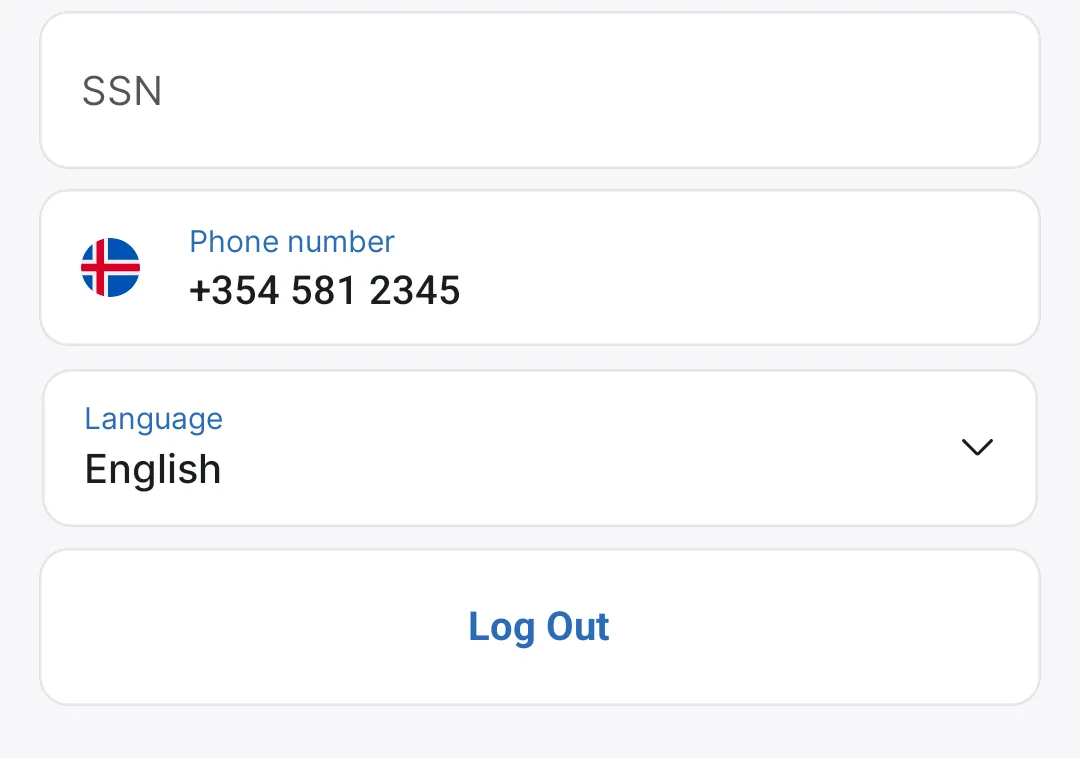
- Phone: with a registered mobile number you can next sign in with an SMS code instead of a password, see Signing in to the app.
Whenever you change something in the profile, Save appears in the top right corner, tap it for the change to take effect.
Language
In the Language field you switch the interface language, and TimeEd is available in nine languages. Confirm the choice with Save in the top right corner. The setting is stored on your user, not the phone, so it also applies when you sign in on the web.
Time on the lock screen (iPhone)
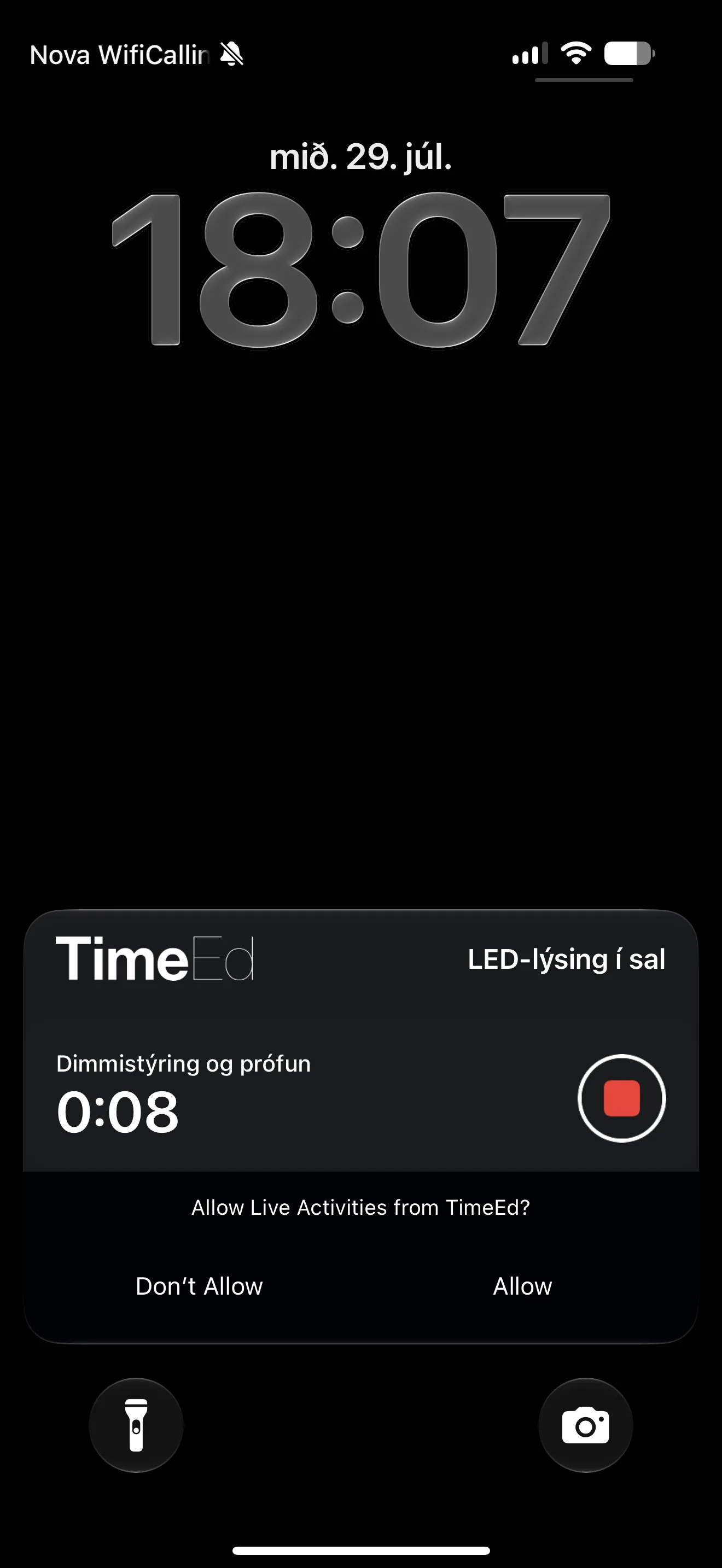
On iPhone the profile has the toggle Show task time on lock screen. Turn it on and choose Allow when the phone asks; the running task time then appears on the lock screen, and you are less likely to forget to clock out. For now this option is only in the iPhone version.
Switching teams
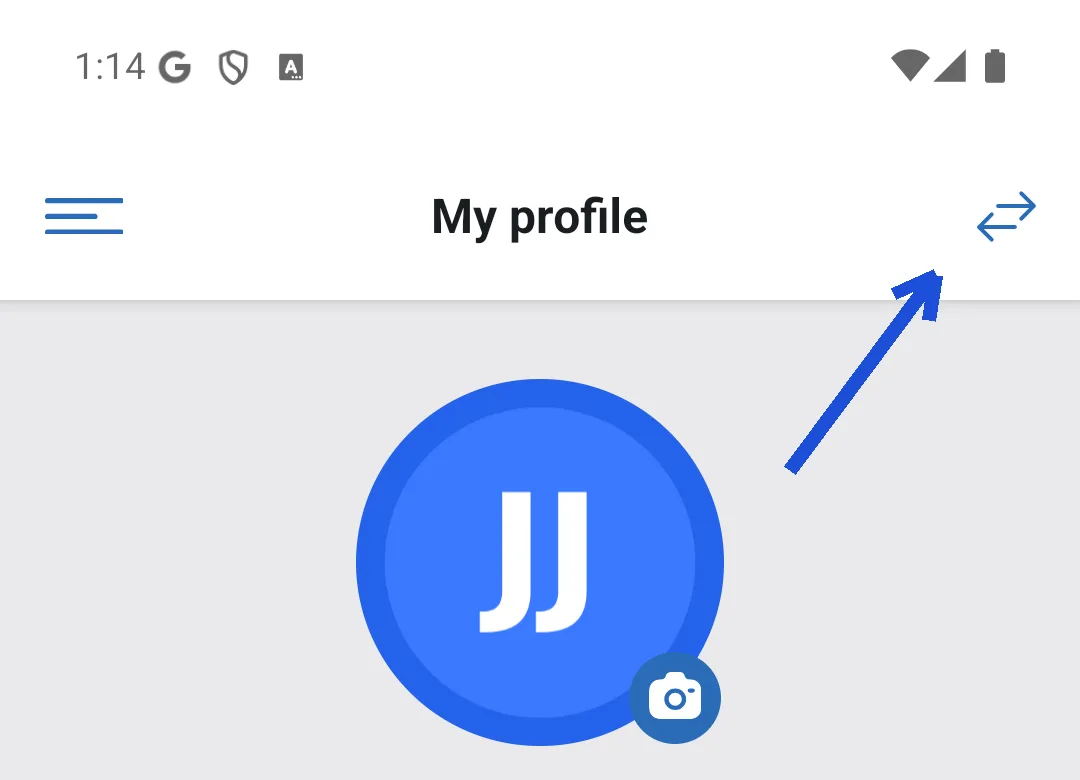
The two arrows in the top right of the profile switch teams. The same email address can be registered with more than one company, e.g. a contractor working for two companies, and here you jump between teams without signing out.
Signing out
At the bottom of the profile screen is Sign out, which signs you out of the app on this device.