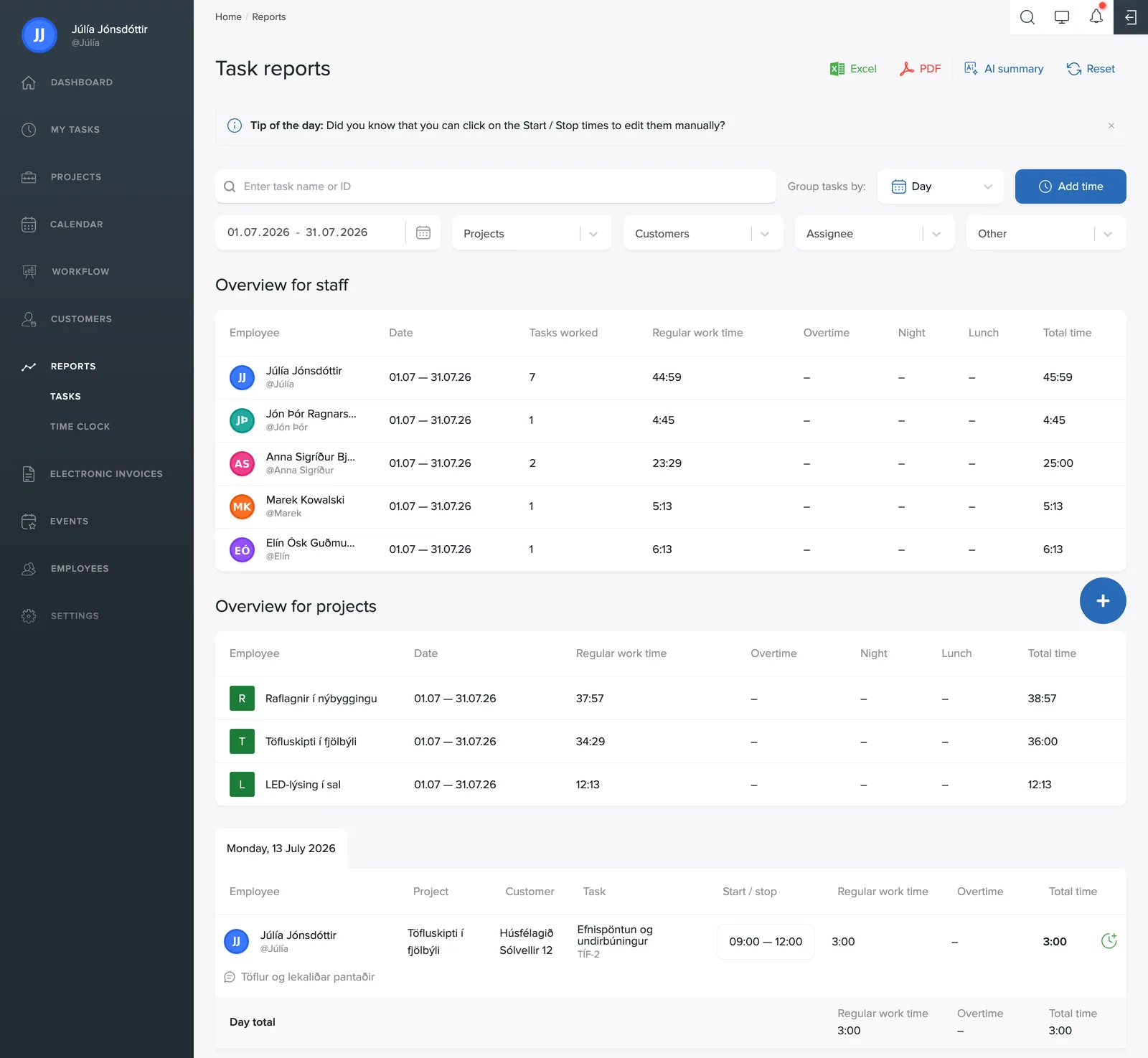
Reports → Tasks is the main report in TimeEd. It shows all logged time for the selected period.
The summaries at the top
Employee overview sums up each employee's time for the period: the number of tasks worked on, regular hours, overtime, night work, lunch break and total. Project overview shows the same totals by project. The See more button expands all rows.
The breakdown
Below the summaries, each day is itemized: every entry shows the employee, project, customer, task, time period (Start / stop), regular hours, overtime and total. Comments written by employees at clock-out appear under the entries. At the bottom of each day is a Day total, and at the very bottom the total for the whole period.
GPS coordinates for clock-in and clock-out
If you clock in and out in the TimeEd app with location enabled, GPS coordinates are attached to the time entry. A small map icon then appears in the row, between the task name and the Start / stop field.
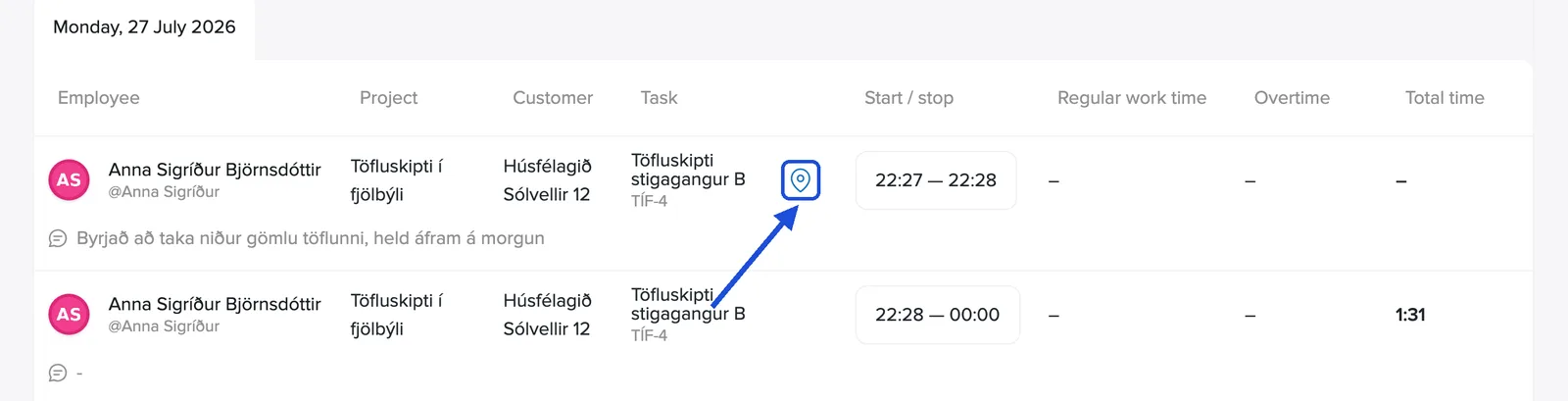
The icon only appears on entries that have coordinates recorded. Time logged on the web, or where location was turned off on the phone, has no icon.
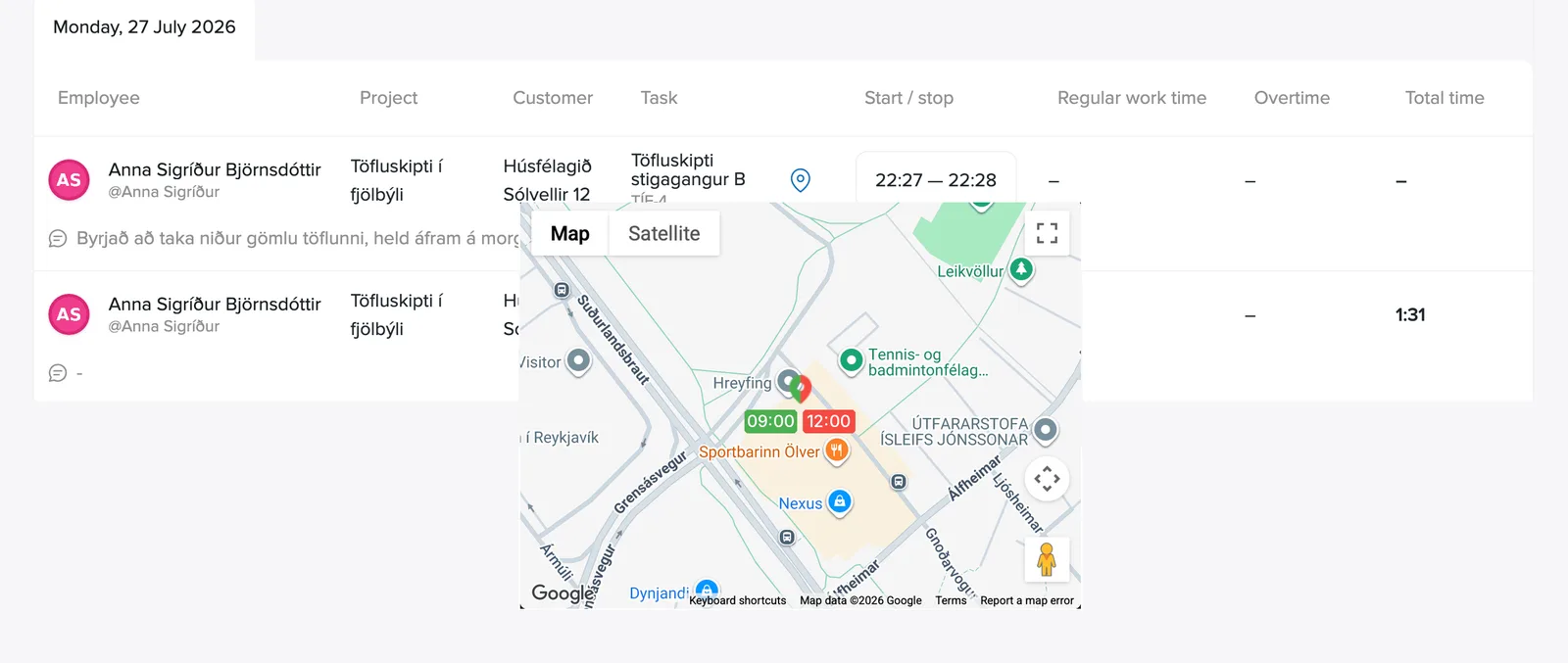
Click the icon to open the map. The green marker shows where the user clocked in and the red one where they clocked out, each with its time of day. Map and Satellite switch the map type, and the button in the top right corner expands the map.
GPS logging is turned on under Settings → General → Enable time tracking on the apps, and the user must personally grant location access on their phone. Location is only recorded at the moment of clocking in or out, never while time tracking is running. For more on how this data is handled, see Security, privacy and data retention.
Fixing time entries
Click directly on the times in the Start / stop column to correct an entry, or use the + button in the top right to log a new entry. See the Time tracking & clock-in category for details.