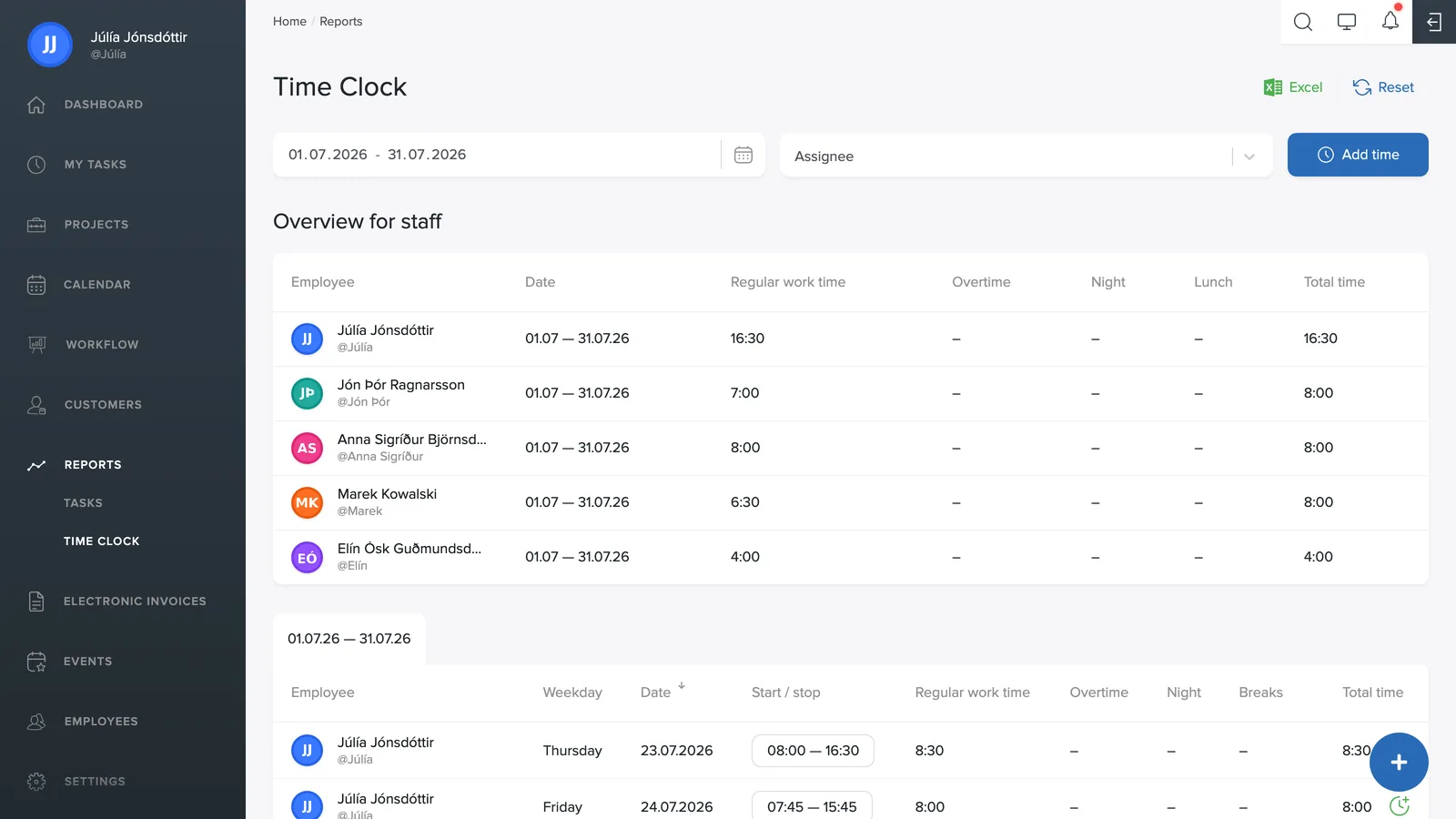
Under Reports → Time clock you see all the team's clock-in records, independent of tasks, i.e. the general time clock that tracks attendance.
Filters and periods
Pick a date range with the calendar picker and narrow the report down to specific employees with Assigned to. Clear resets all filters.
Adding time
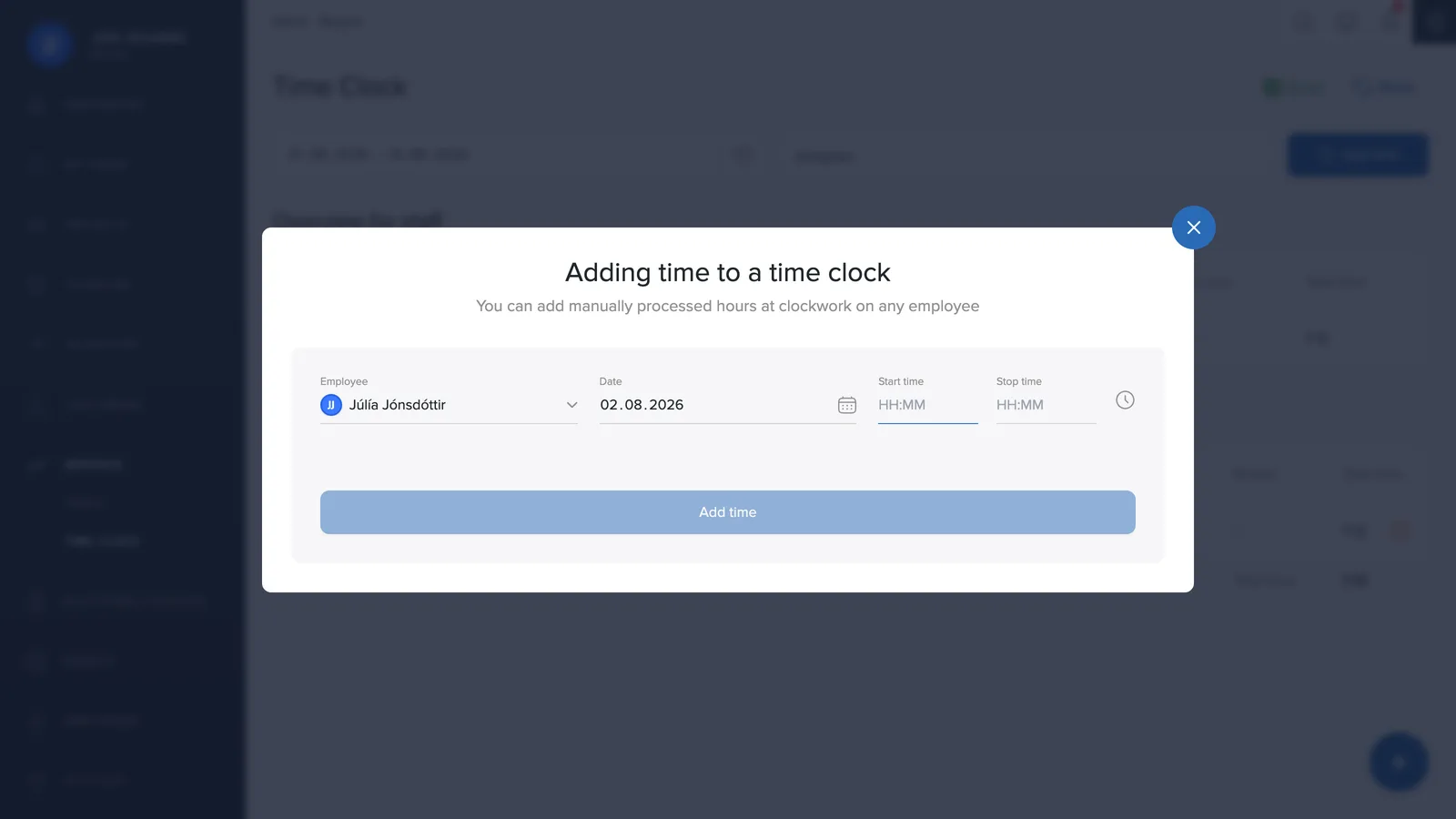
Click Add time in the top right, e.g. if an employee forgot to clock in. Pick the employee, the date and the start and end times, and confirm.
Editing or deleting a clock-in entry
Clock-in entries are edited the same way as other time entries: click the times in the Start / stop column, fix the values in the dialog that opens, or delete the entry with the red button. The steps are covered in Correcting logged time.

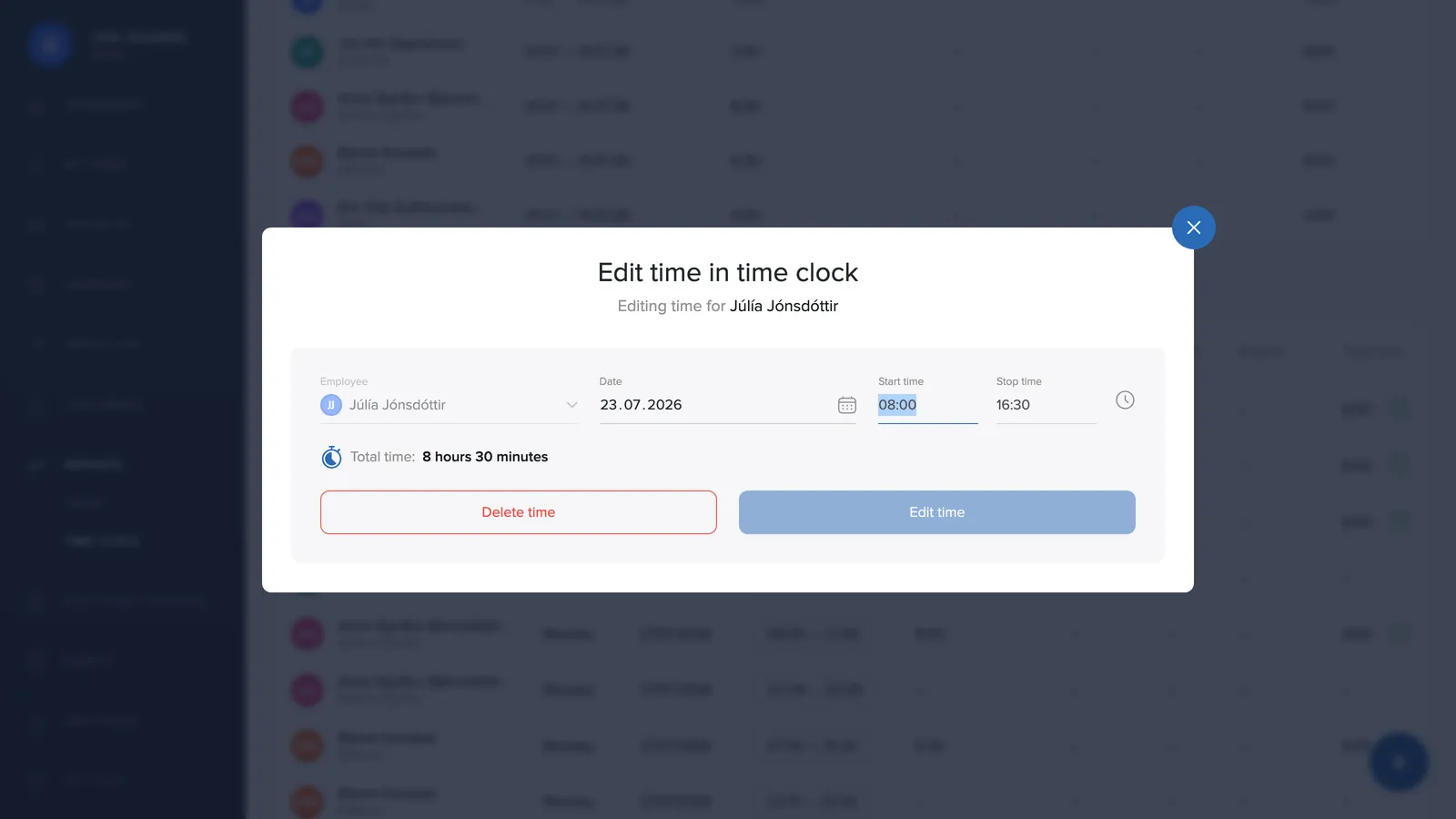
A green icon at the end of a row means the time was added manually, and an orange icon means the time has been changed after the fact. Hover over the orange icon to see the original time. More details in The icons in the report.

Excel and payroll
The Excel button exports the report as an Excel file, e.g. for payroll processing. In the Exports and AI summary article you can then see how clock-in entries are transferred straight to a connected payroll system.