The app offers two ways to sign in. Pick the one that suits you on the start screen.
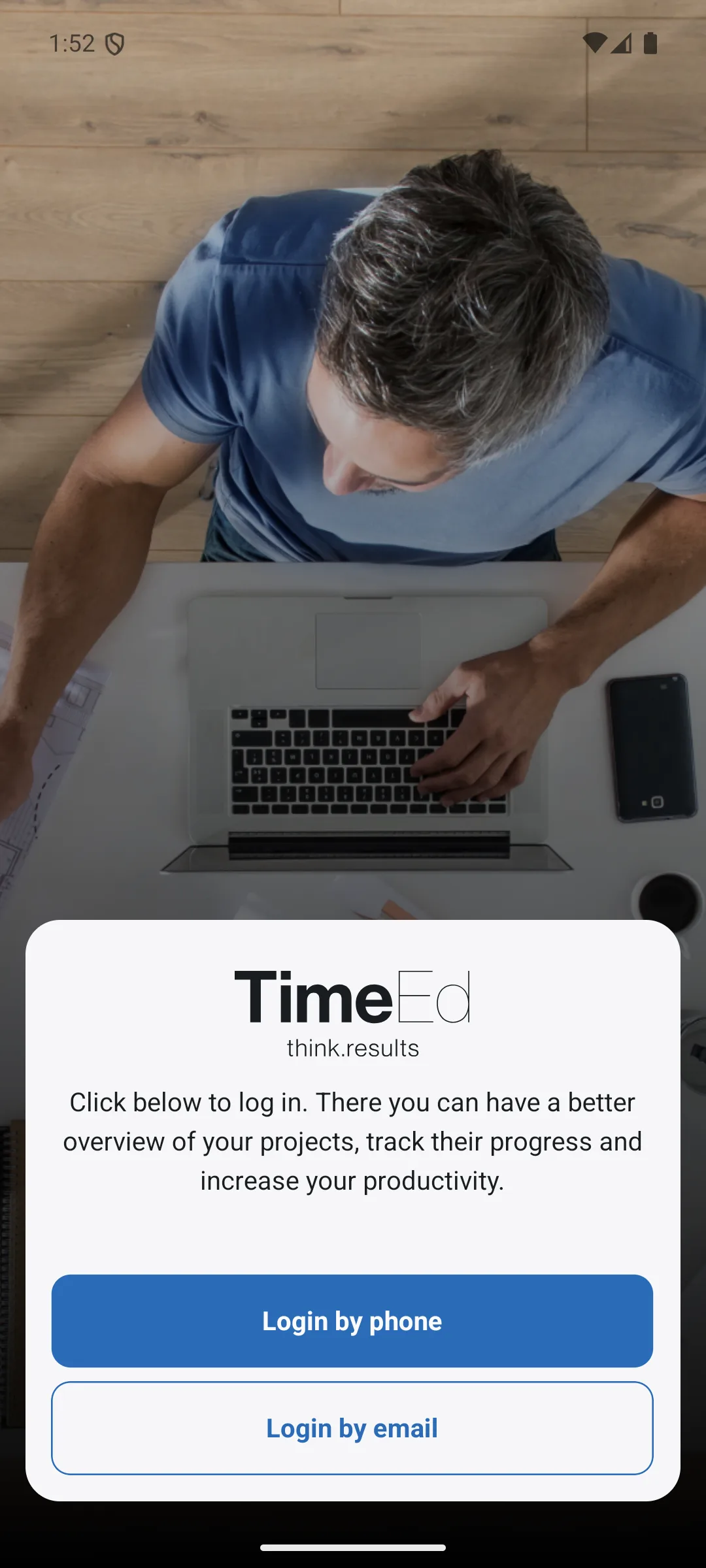
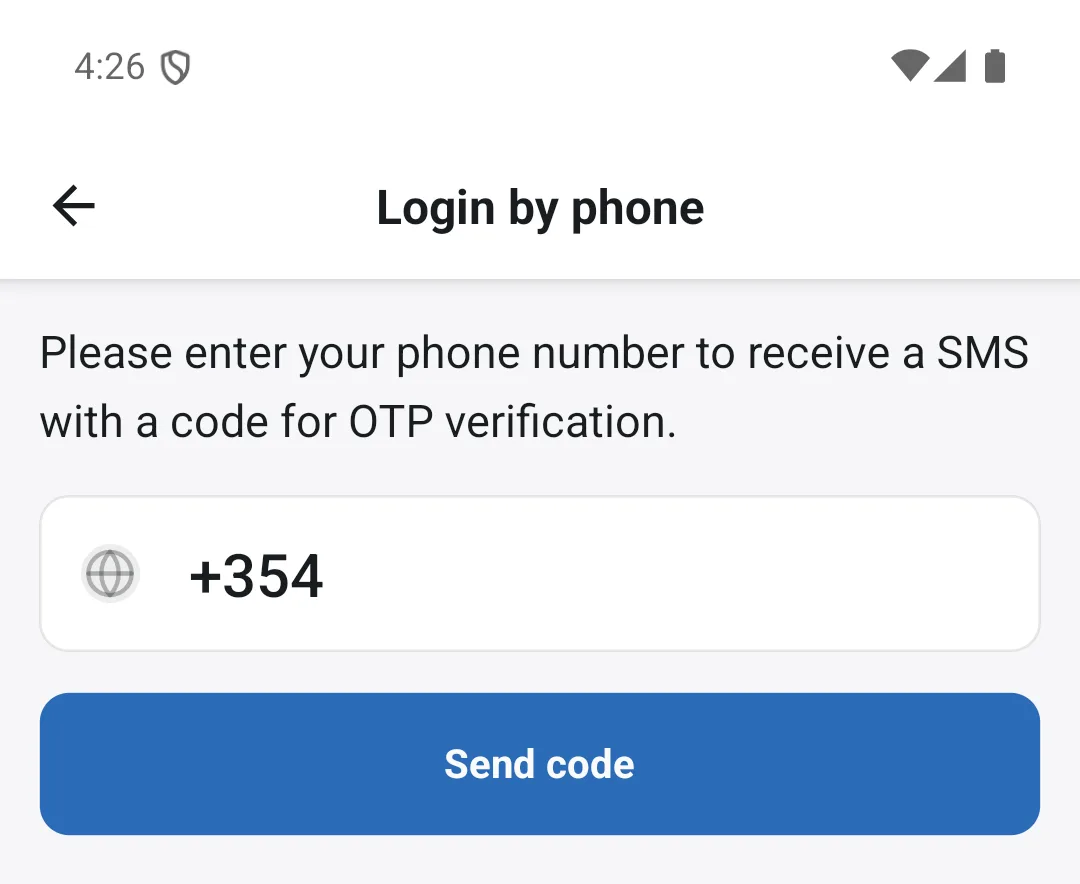
Signing in with a phone number (SMS code)
The quickest way in the app, with no password needed:
- Choose Sign in with phone number.
- Enter your phone number (e.g. +354 …) and tap Send SMS.
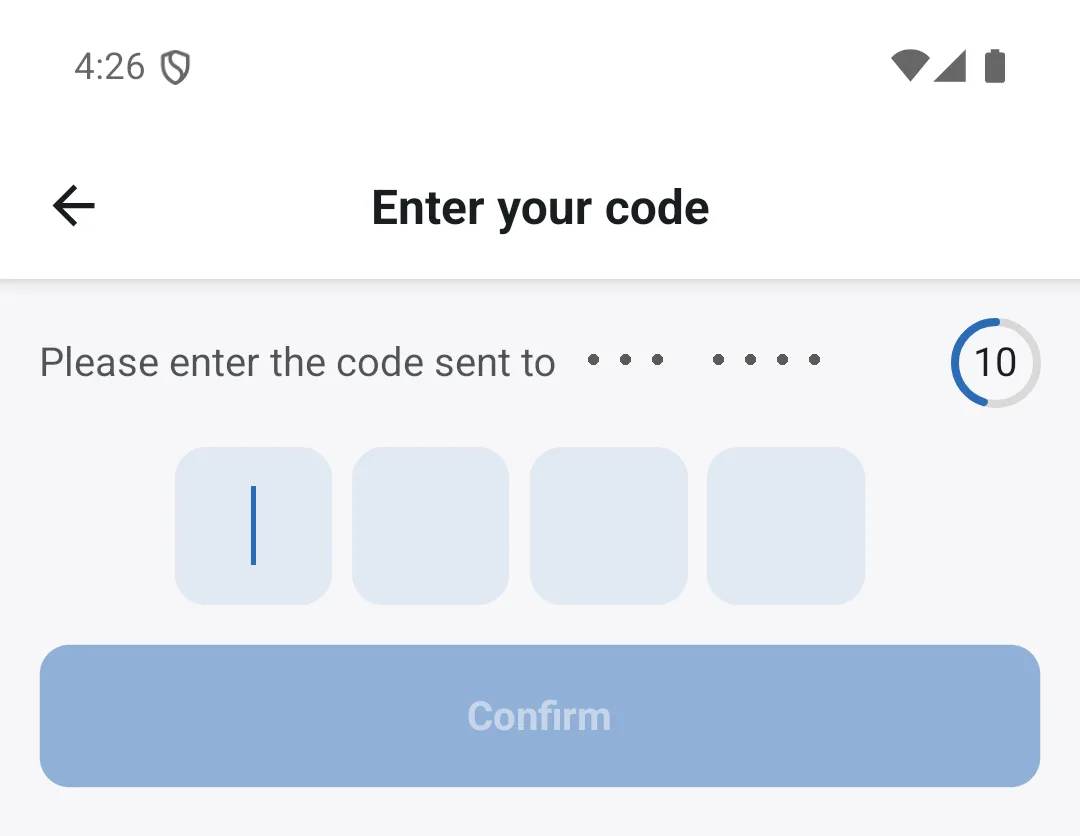
- You'll get an SMS from TimeEd with a four-digit verification code (OTP).
- Enter the code and tap Confirm. iPhone usually offers to fill in the code automatically from the message.
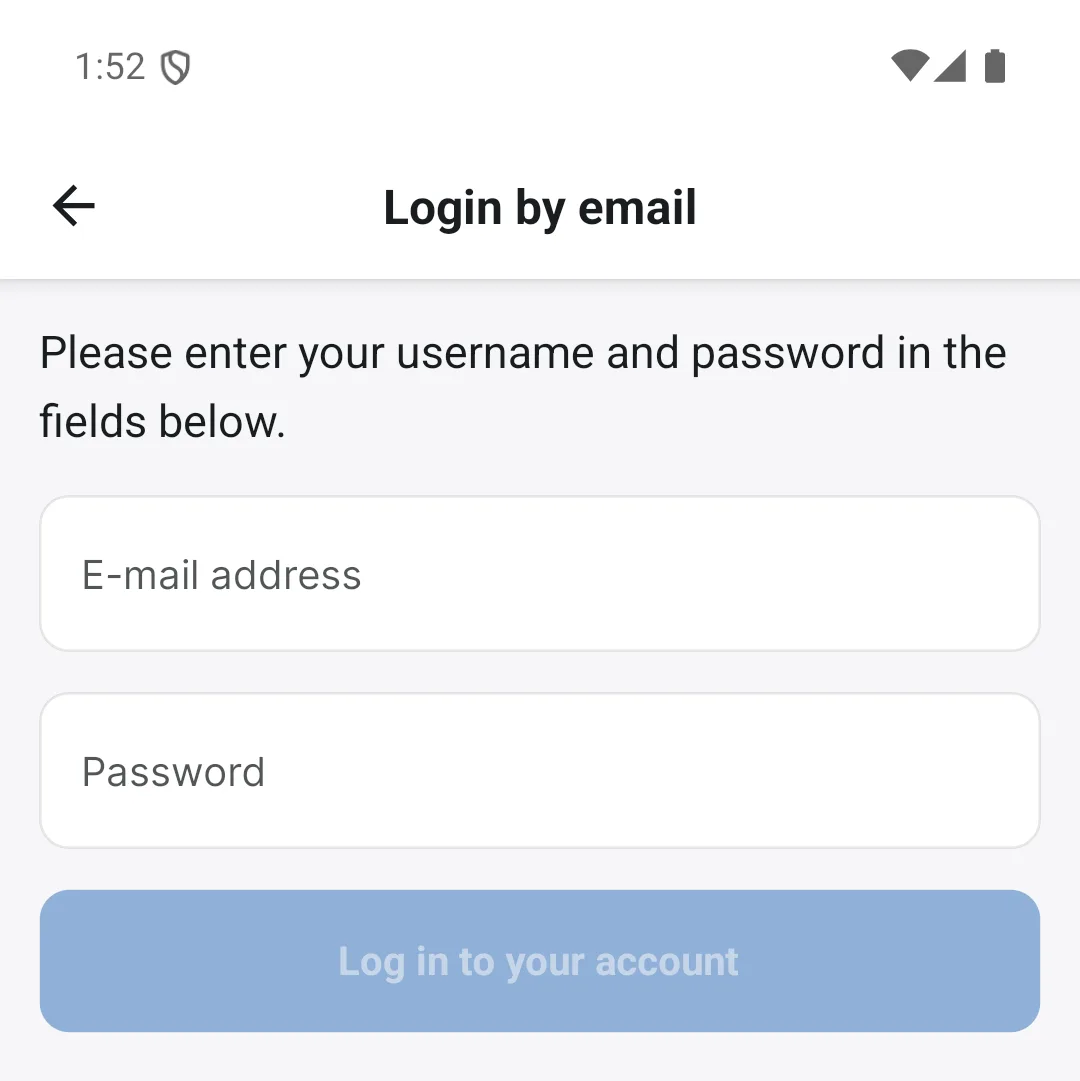
Signing in with email
The same sign-in as on the web:
- Choose Sign in with email.
- Enter your email address and password.
- Tap Sign in.
SMS sign-in is available in the app and in the time clock on tablets. On the web (app.timeed.is) you sign in with email and password. Your phone number needs to be registered on your TimeEd user for the code to reach you.
One mobile number, one device: for security reasons, each mobile number can only be signed in with an SMS code on one device at a time, whether that is the TimeEd mobile app or the tablet time clock. If the number is used on a new device, the sign-in on the previous one is released. Administrators who need both solve it like this: sign in to the mobile app with email and password and keep no mobile number on your own account. Then create a separate user with its own mobile number for the tablet.
The intro screens
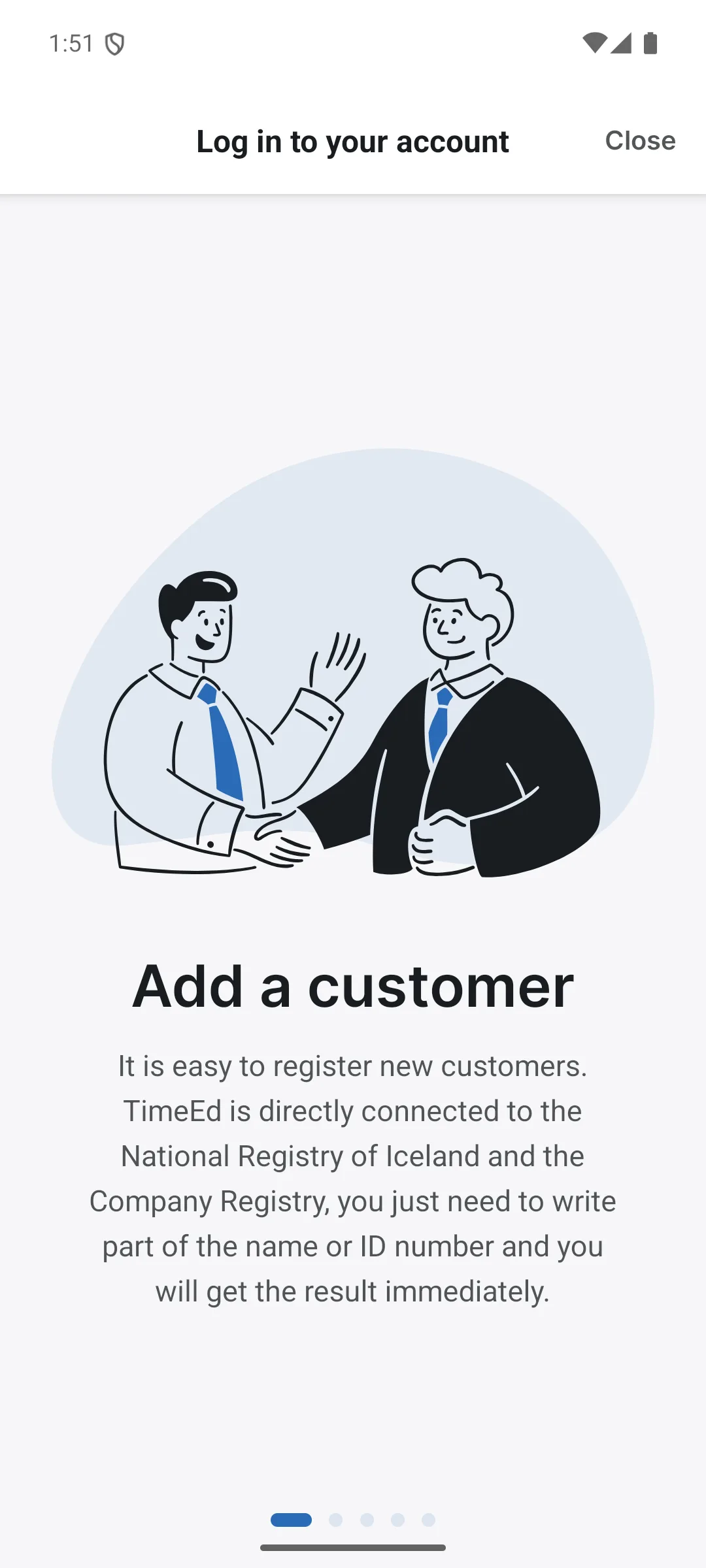
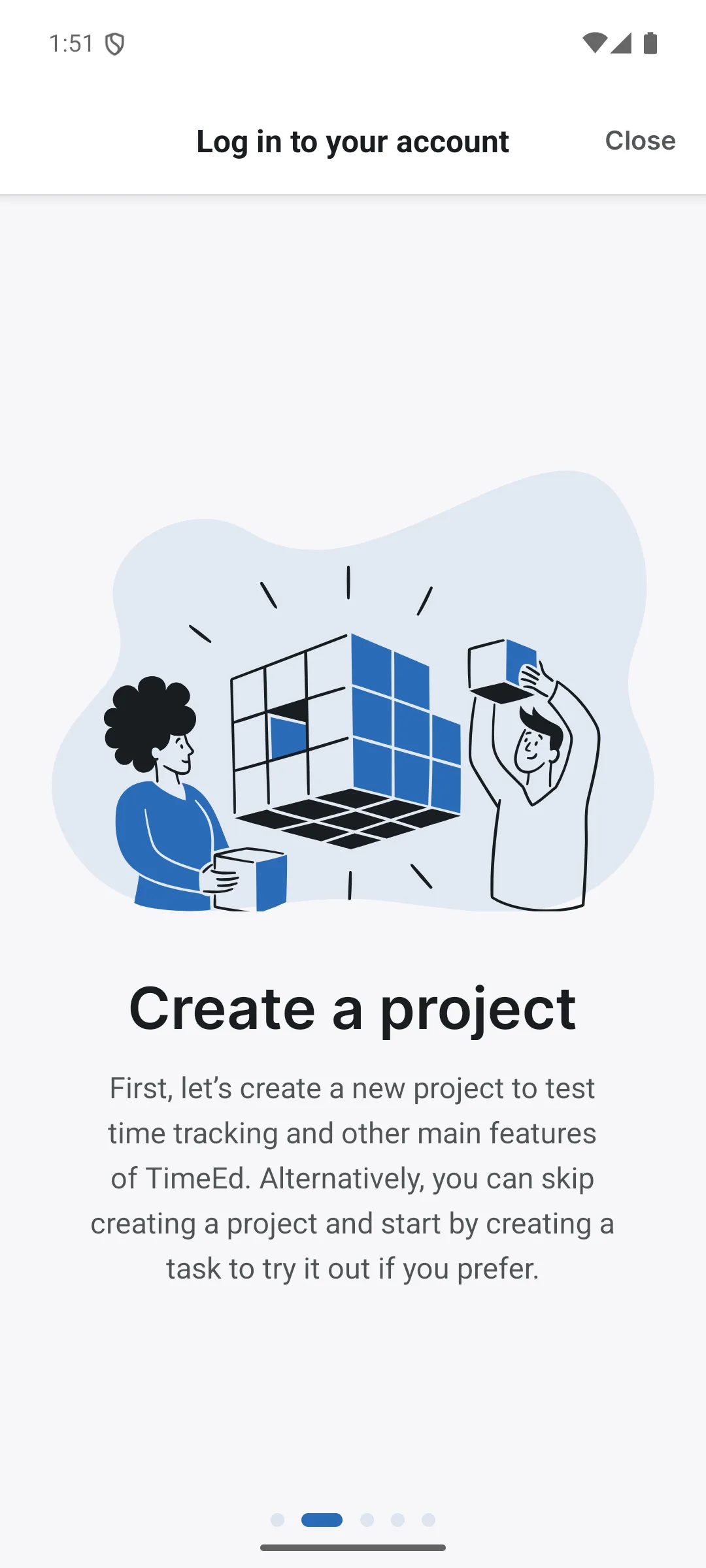
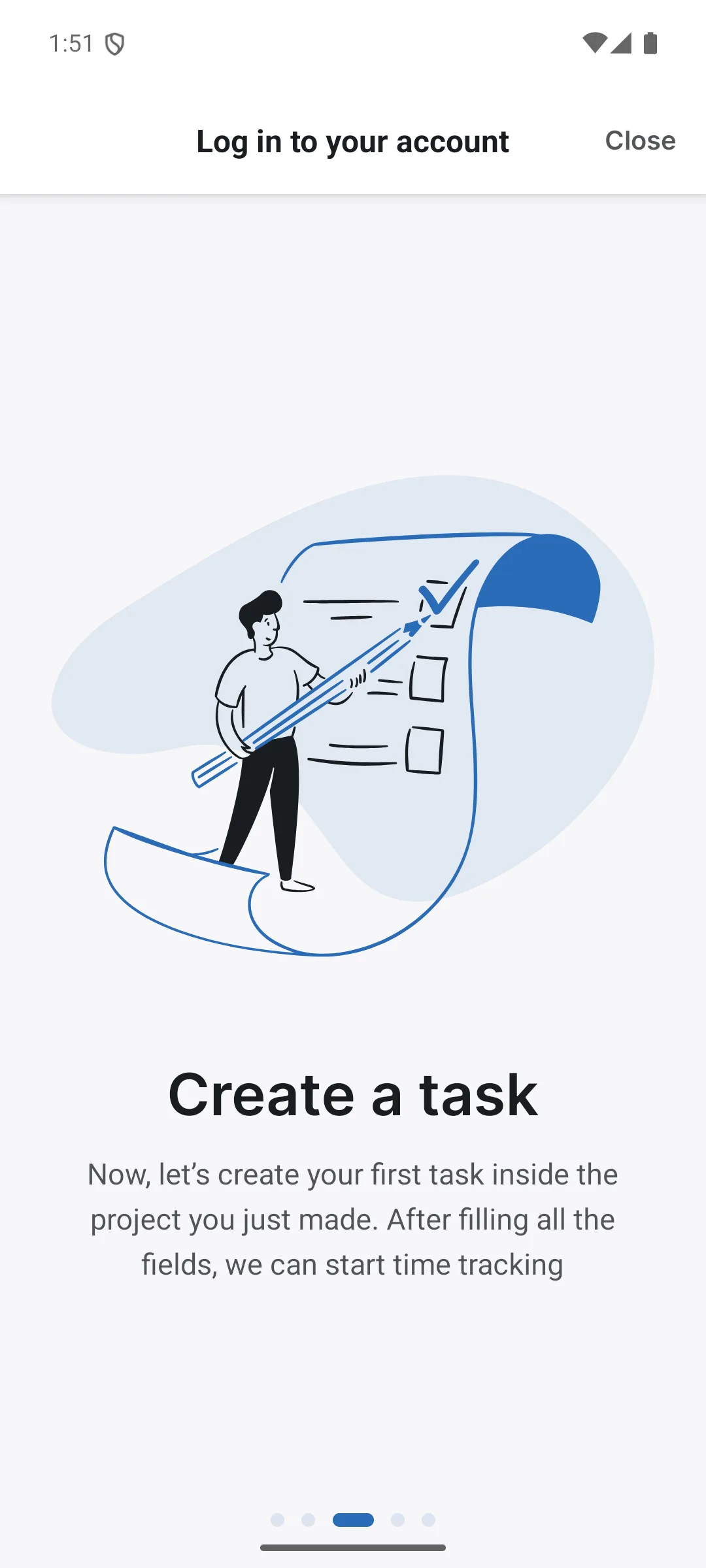
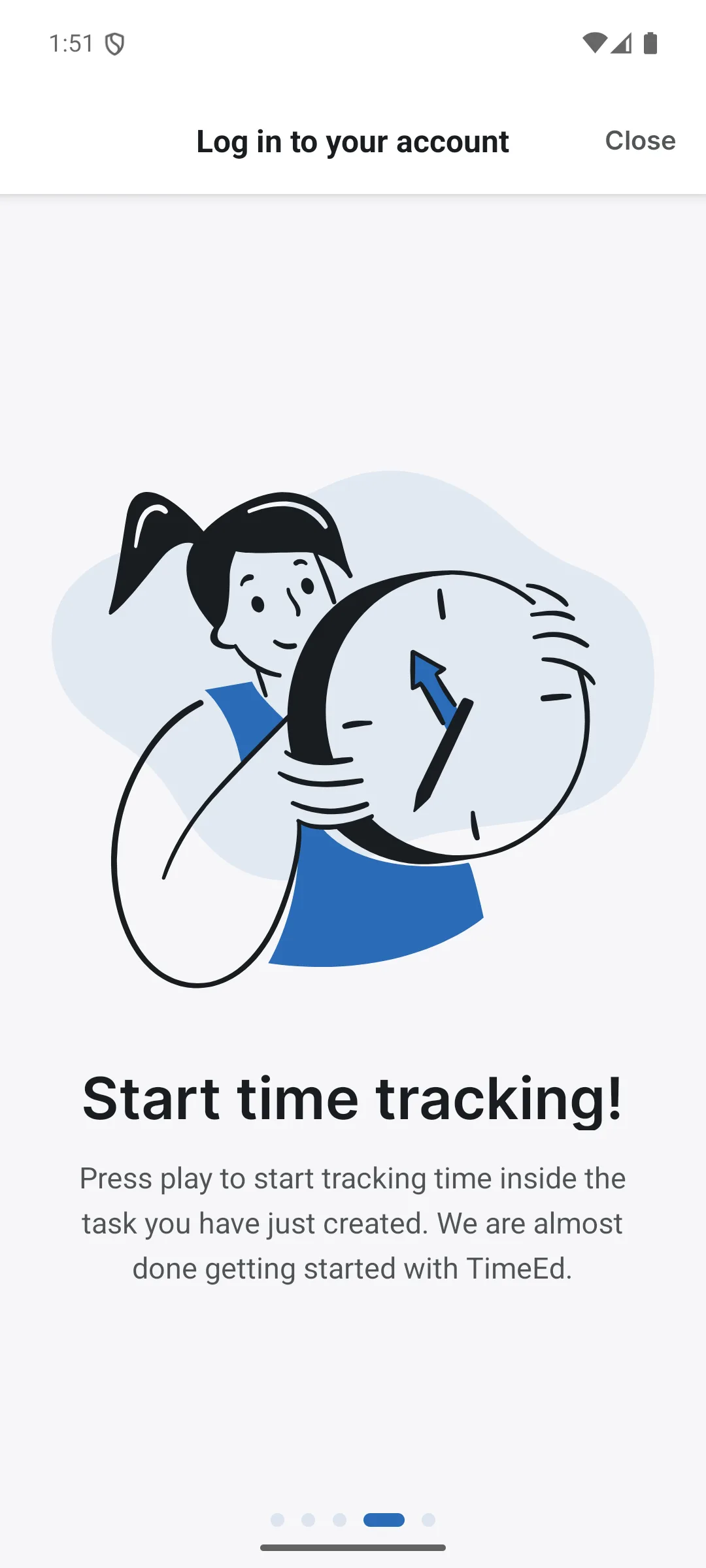
On your first sign-in, the app walks you through a short introduction to the basics: creating a customer (connected directly to Registers Iceland (Þjóðskrá) and the company registry), creating a project, and creating your first task. You can swipe through or tap Close and get started right away.