When you open the TimeEd app, the dashboard appears.
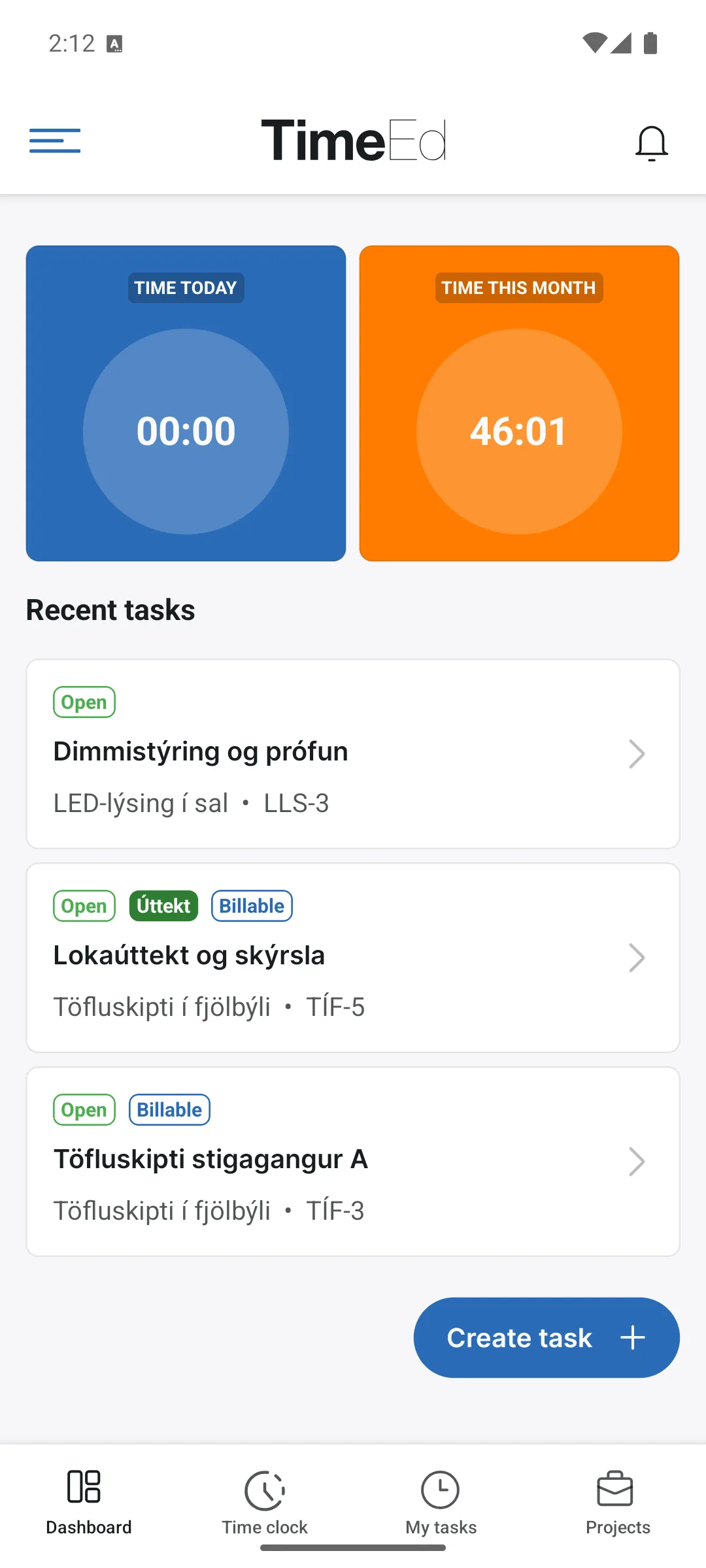
What you see
- TIME TODAY (the blue circle): the time logged today.
- HOURS THIS MONTH (the orange circle): the month's total.
- Recent tasks: the tasks you worked on most recently, with status, labels and ID. Tap a task to open it.
- Create task +: the blue button at the bottom creates a new task straight from the app.
At the bottom is the tab bar: Dashboard, Time clock, My tasks and Projects. The bell in the top right shows notifications.
The menu
The lines in the top left open the main menu:
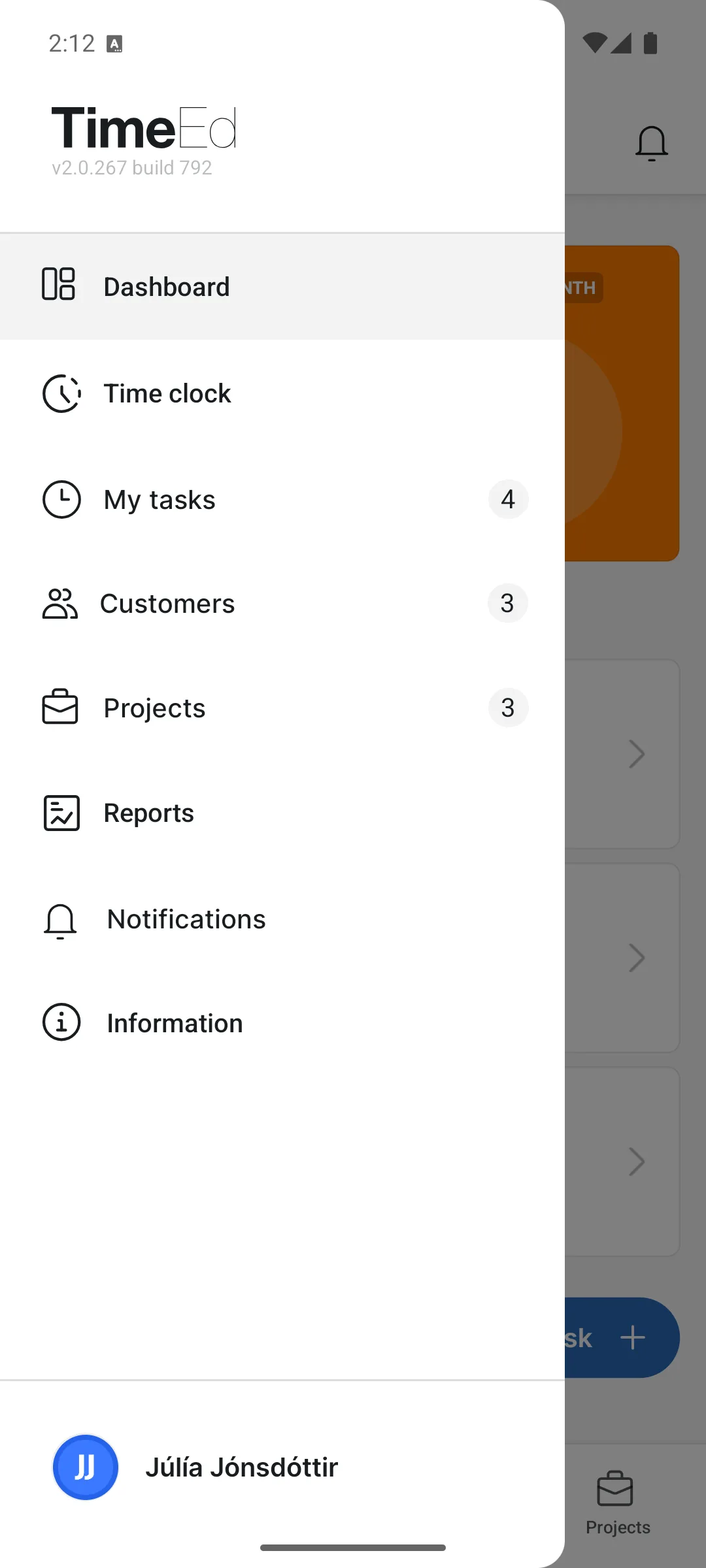
From there you can reach Dashboard, Time clock, My tasks, Customers, Projects, Reports, Notifications and Information, with a counter next to each item. At the bottom you see the signed-in user, and at the top the app's version number.
Notifications
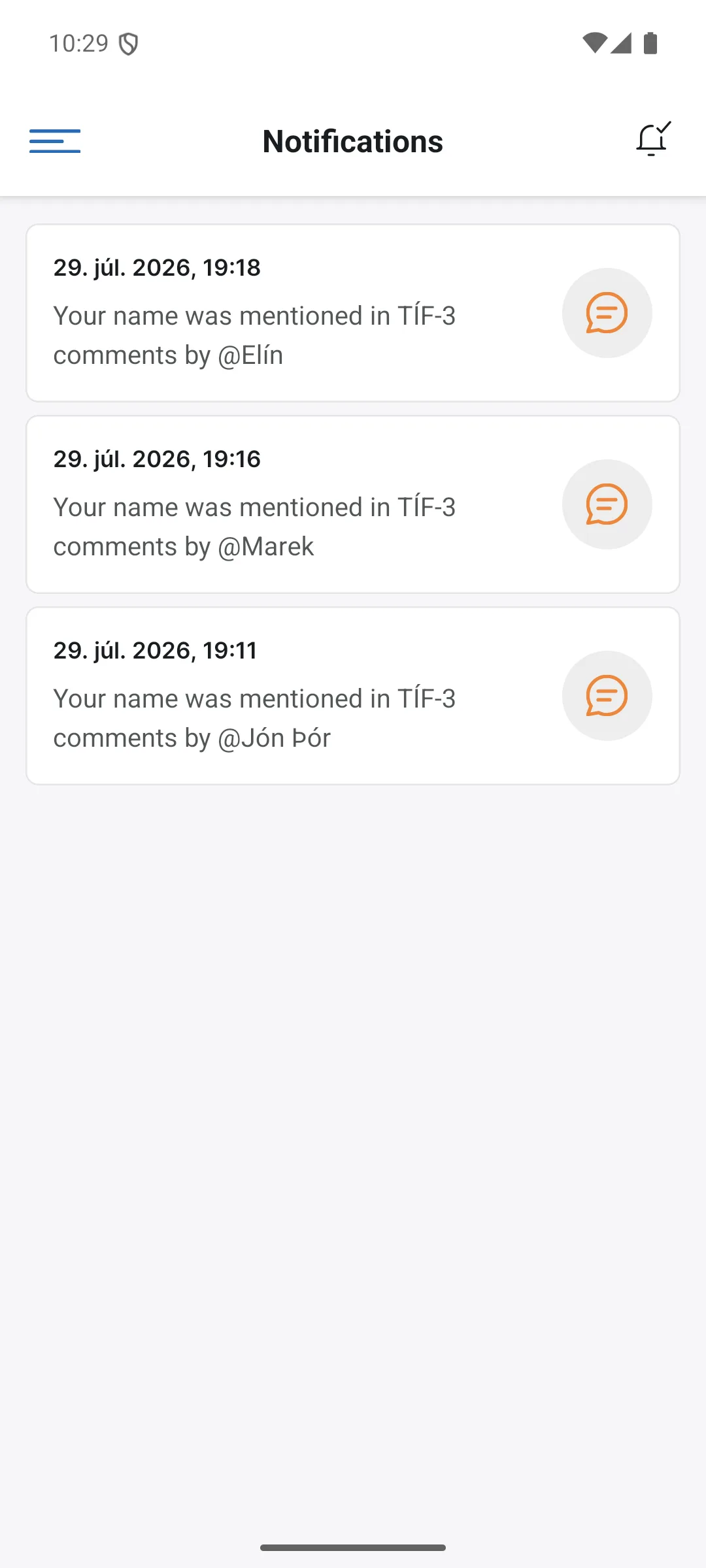
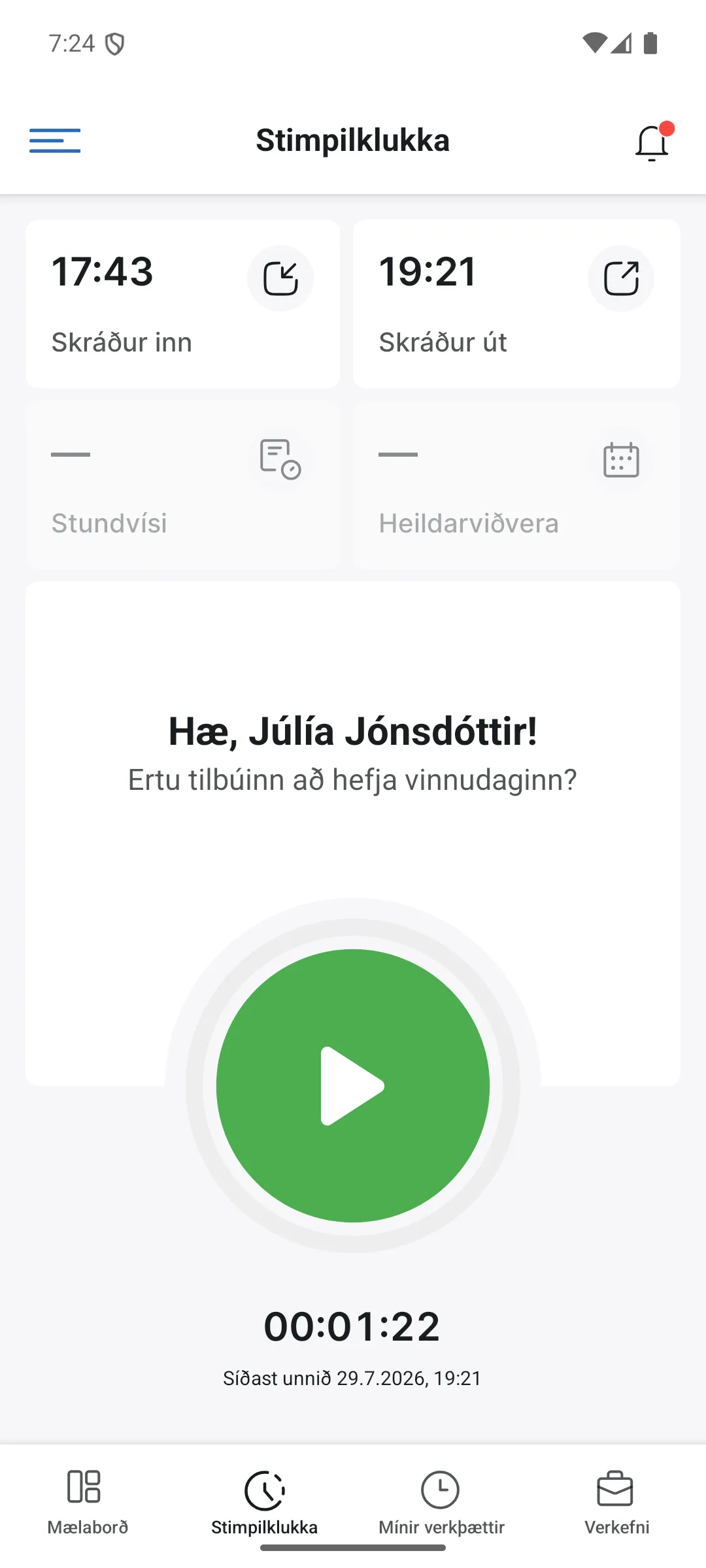
The bell in the top right and the Notifications item in the menu open the notification list. A red dot on the bell means an unread notification is waiting for you.
When a colleague mentions you with @ in a comment on a task, you get a notification on your phone and it appears in the list, e.g. Your name was mentioned in TÍF-3 comments by @Elín. Tap the notification to open the task. When there is nothing new it says You have no notifications.