Under Reports in the app's menu you'll find your task report.
How it works
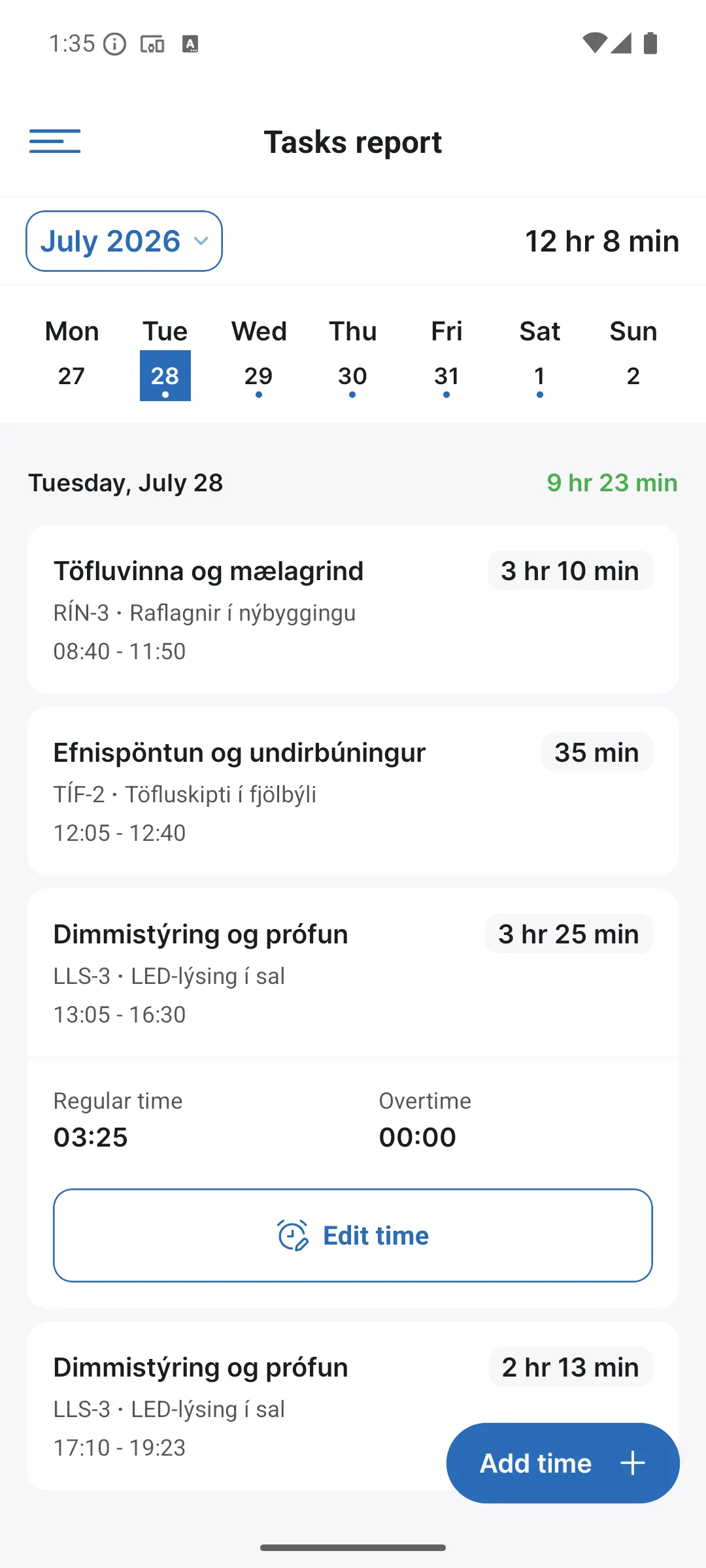
- Pick a month at the top and a day in the week bar. A dot under a day means time was logged.
- Each entry shows the task, its ID, the project and the time period (e.g. 08:40–11:50), with the day's total in the top right.
- The Add time + button at the bottom logs time manually on a task. As on the web, the Add time manually setting must be enabled.
This is an overview of your own times, and this is also where you fix them: edit an entry or add a new one if logging was forgotten.
Choosing a period
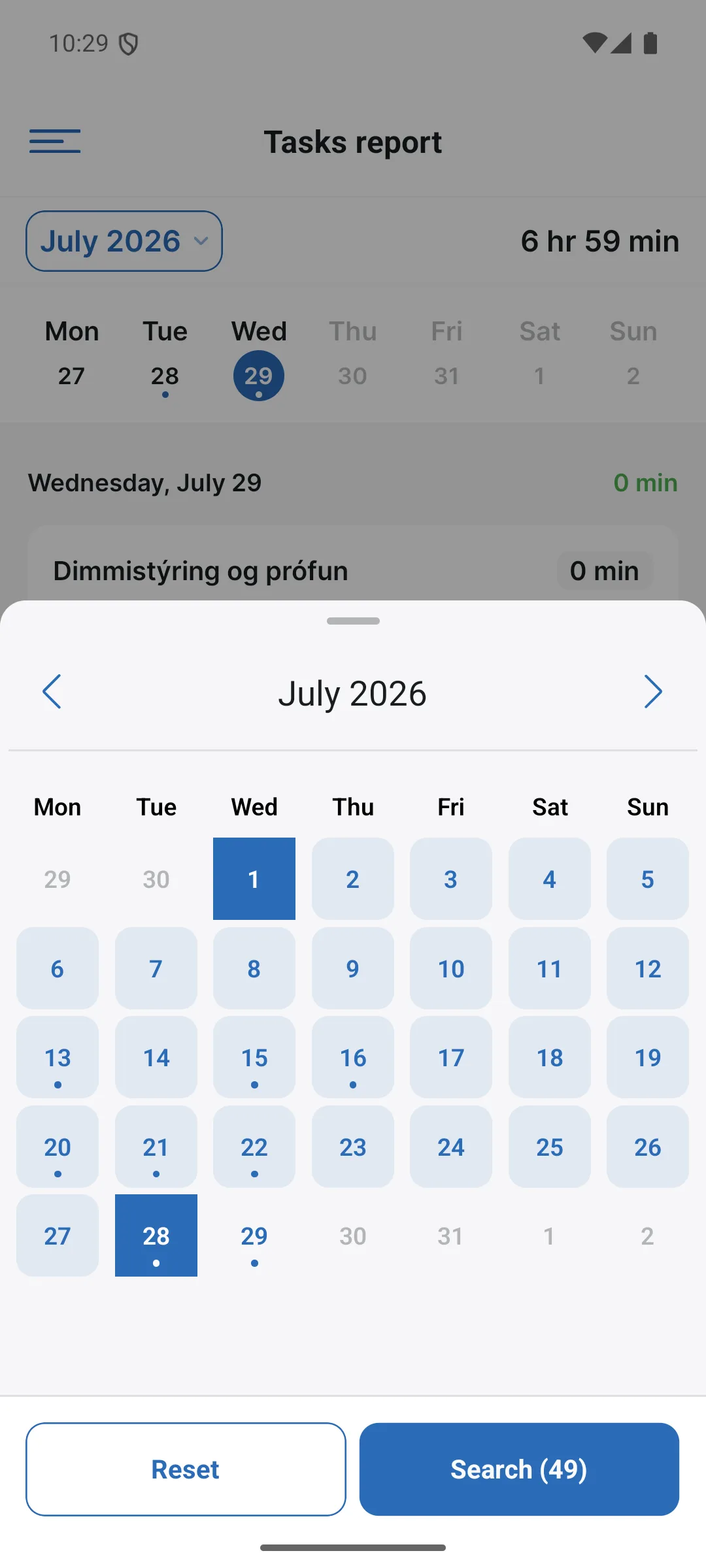
Tap the month in the top left (e.g. July 2026) and the calendar opens. Pick the first and last day of the period, e.g. the 1st to the 28th, and tap Search; the number on the button shows how many entries fall within the period. Reset clears the selection.
Editing and deleting a time entry
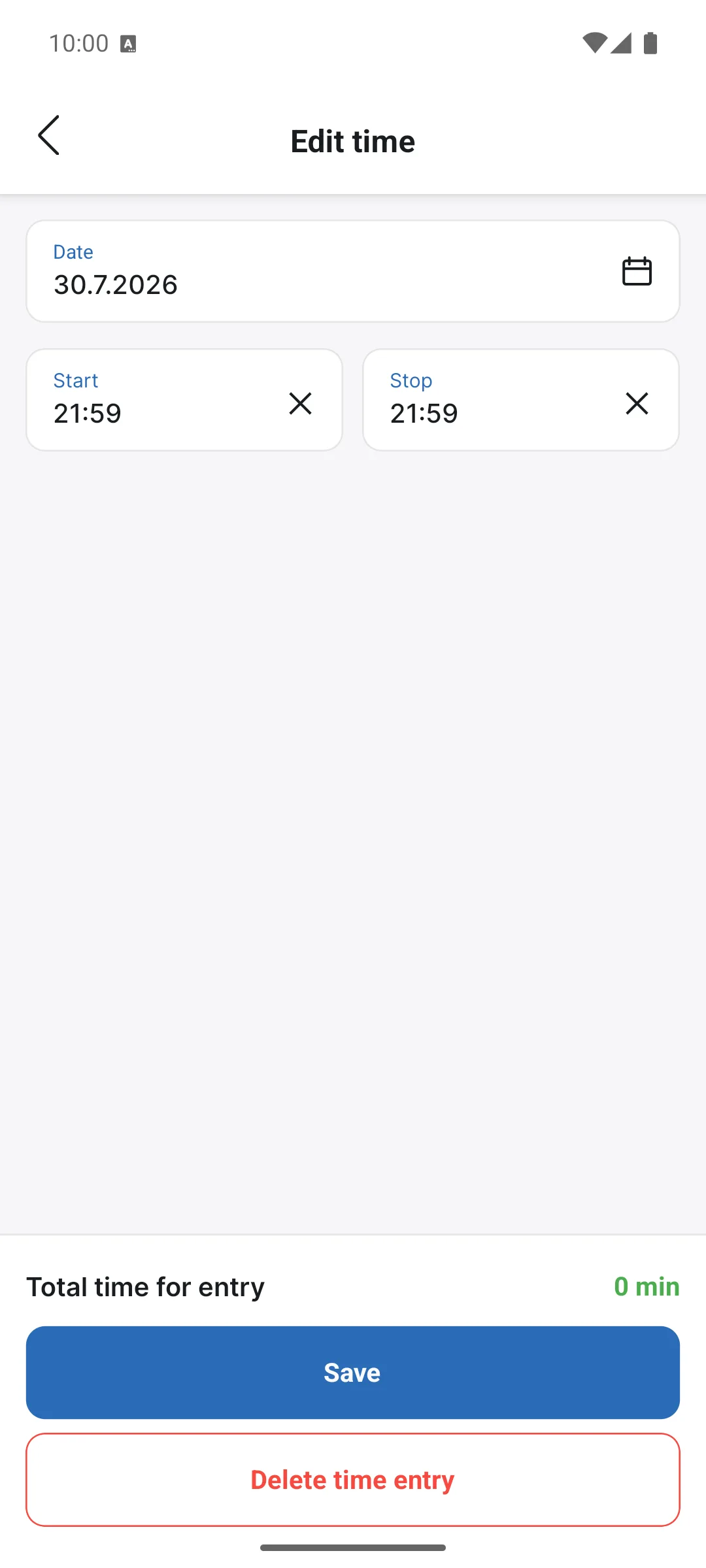
Tap an entry in the report and then Edit time to open the edit screen. There you adjust the date, the start and end times and the description. Then save with the blue button.
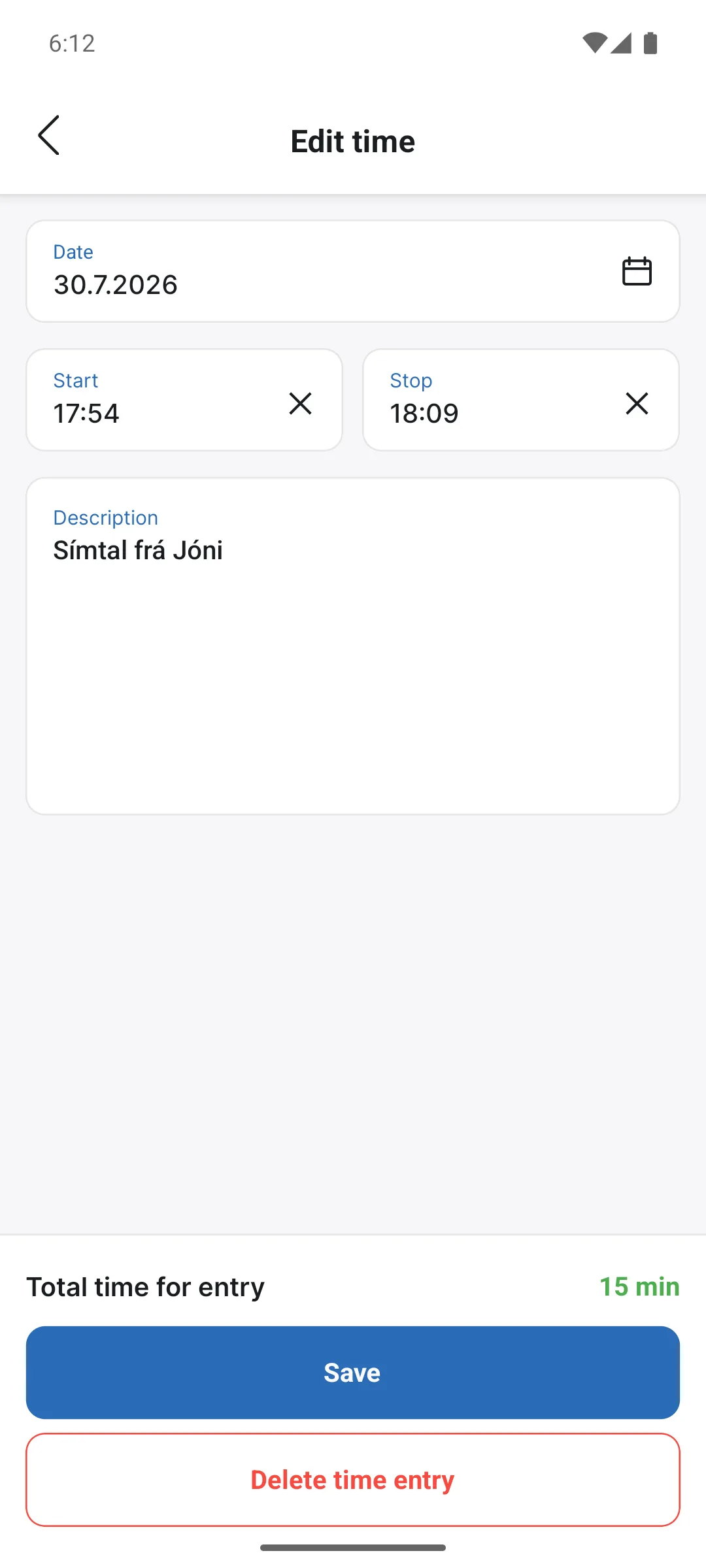
At the bottom is the red Delete time entry button. Only the owner or a project manager can delete entries; regular employees can only edit them. Deletion cannot be undone.
The time clock report
The Reports item in the menu has two sub-items: Task reports, described above, and Time clock. The latter shows your clock-ins and clock-outs by day, so you can always look up when you arrived and left. It is the same overview an administrator sees in the time clock report on the web, just your own punches.
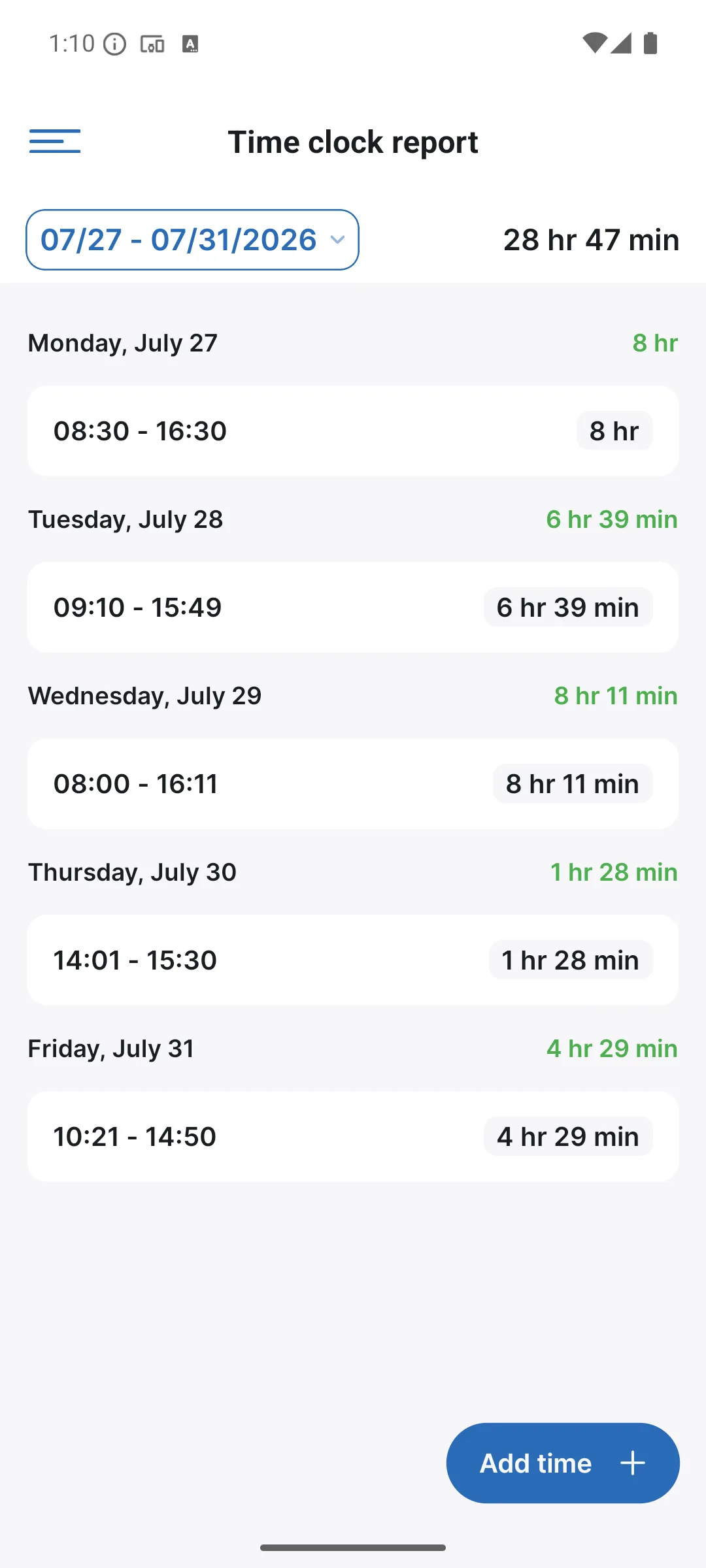
Tap a punch in the list and then Edit time to open the same kind of edit screen. There you adjust the clock-in and clock-out times or delete the punch with the red button (owner and project managers only).
The reports are the same as on the web, so everything you log on your phone flows straight into the company's reports and invoicing.