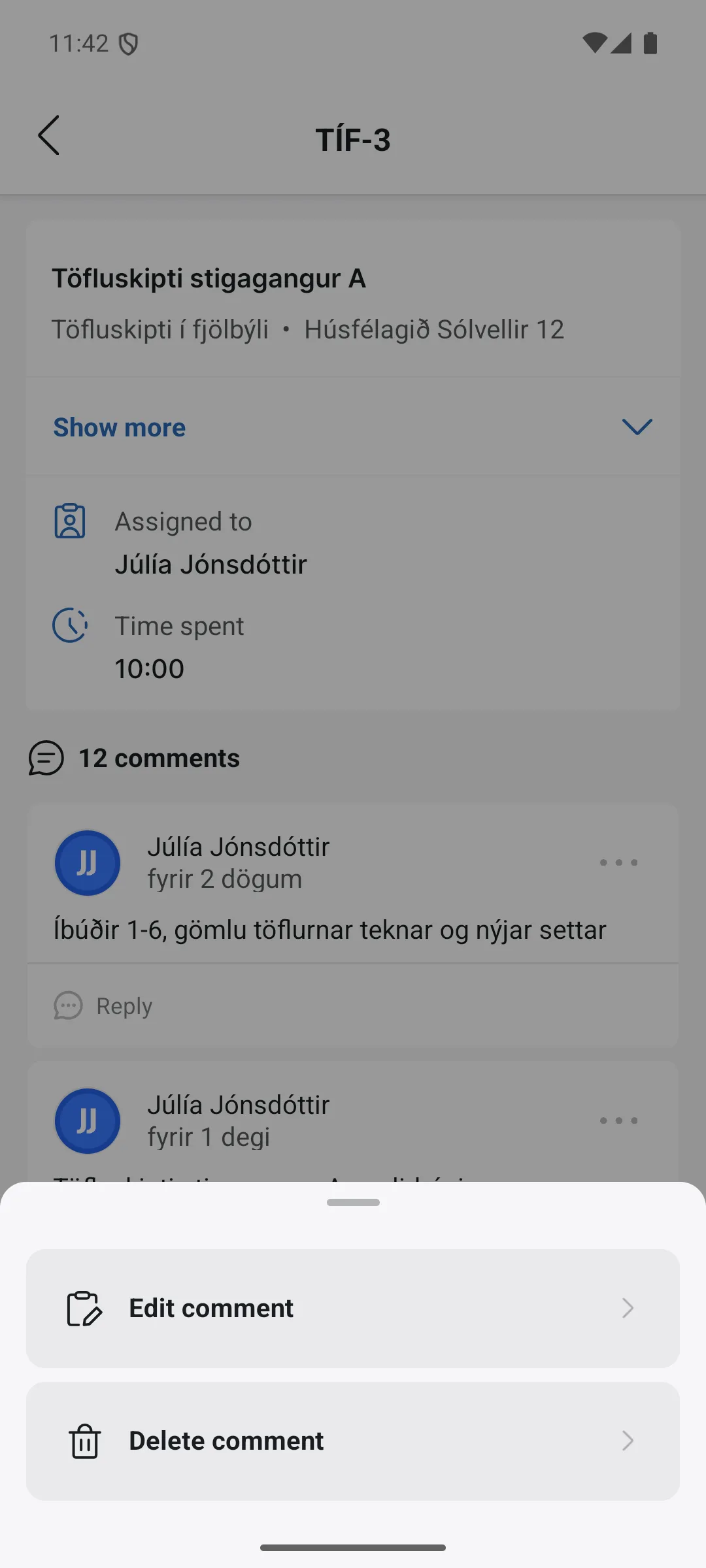
My tasks
The My tasks tab shows your tasks as cards with status, labels, project and ID. The search field at the top searches by task number or task name.
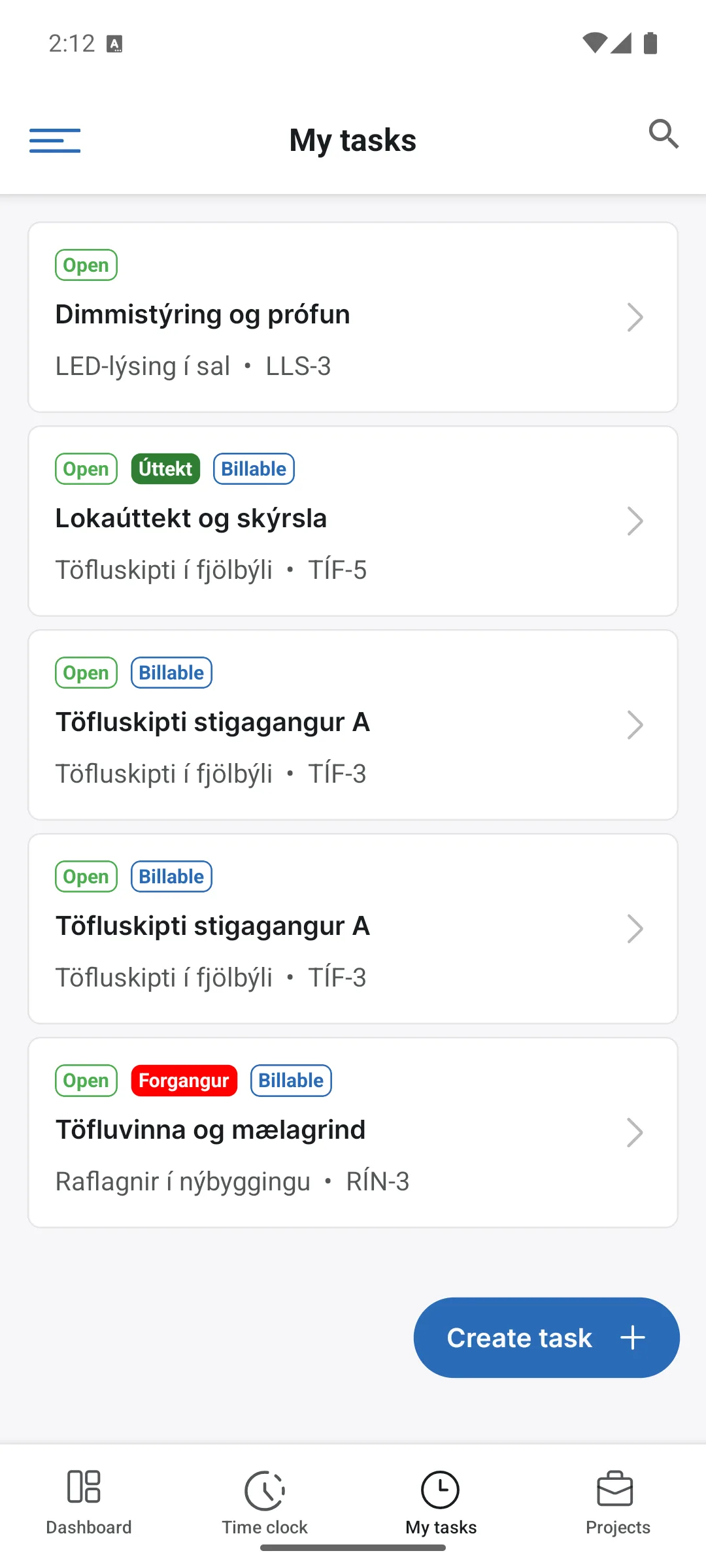
The search returns results as you type; here we search for the task number LLS:
The search works within each area: in My tasks you search tasks, in Customers customers and in Projects projects.
The task page
Tap a task to open it:
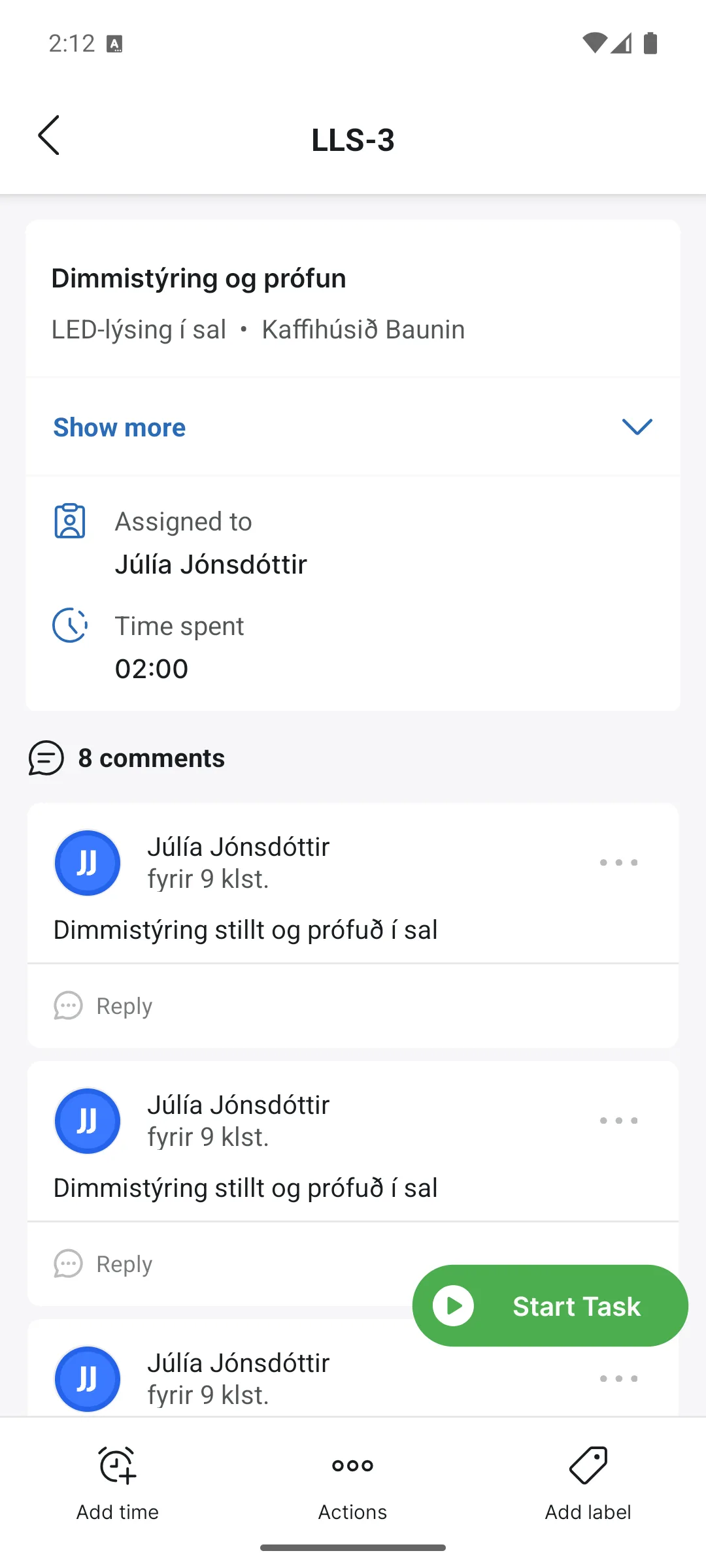
- Start task: the green button starts time tracking on the task.
- Add product: log materials and products on the job, just like on the web.
- See more: the arrow at the top hides and shows the info lines, including Assigned to (the person responsible) and Time spent (the total logged time).
- Attachments: images and documents attached to the task; tap to view.
- At the bottom: Add time (manual entry), Actions and Labels.
Add time
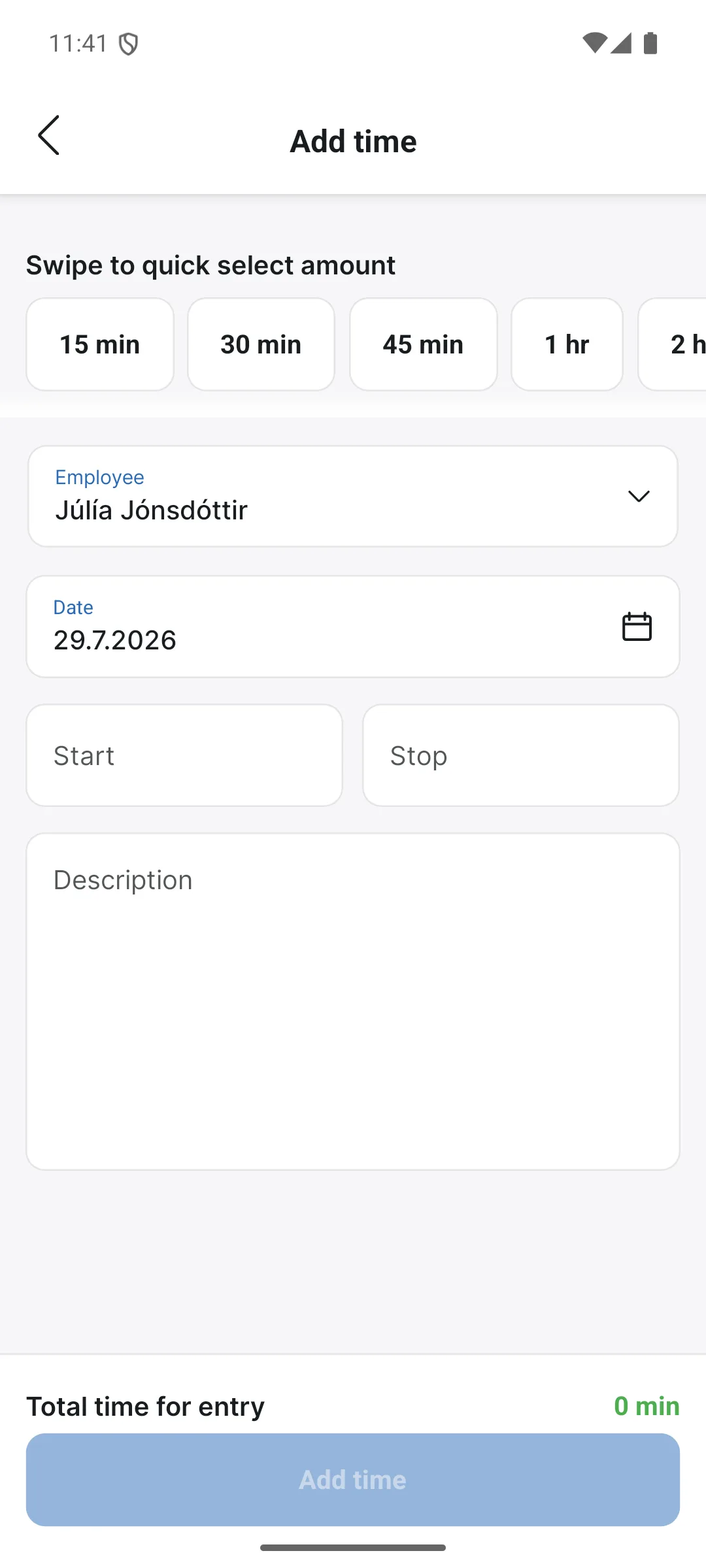
Add time logs time on the task after the fact. At the top is a row of quick buttons, 15 min, 30 min, 45 min, 1 hr and onwards; swipe the row sideways and it reaches up to 8 hrs. One tap fills in the period, but you can also enter Start and Stop manually. Note that a work description must accompany the entry, without at least a brief text in the field it will not save.
Actions: edit or close a task
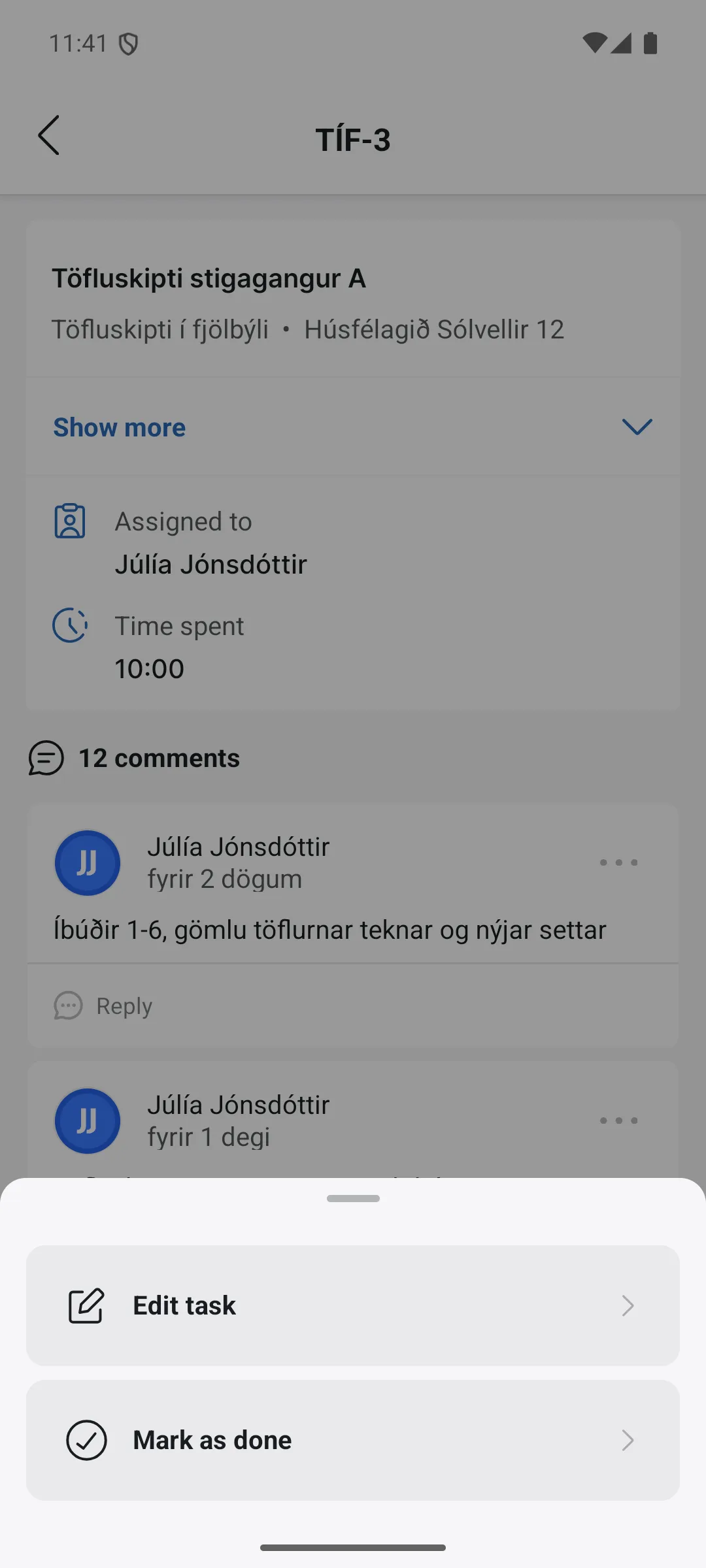
The Actions button opens a sheet with two options: Edit task and Task done, which closes the job directly.
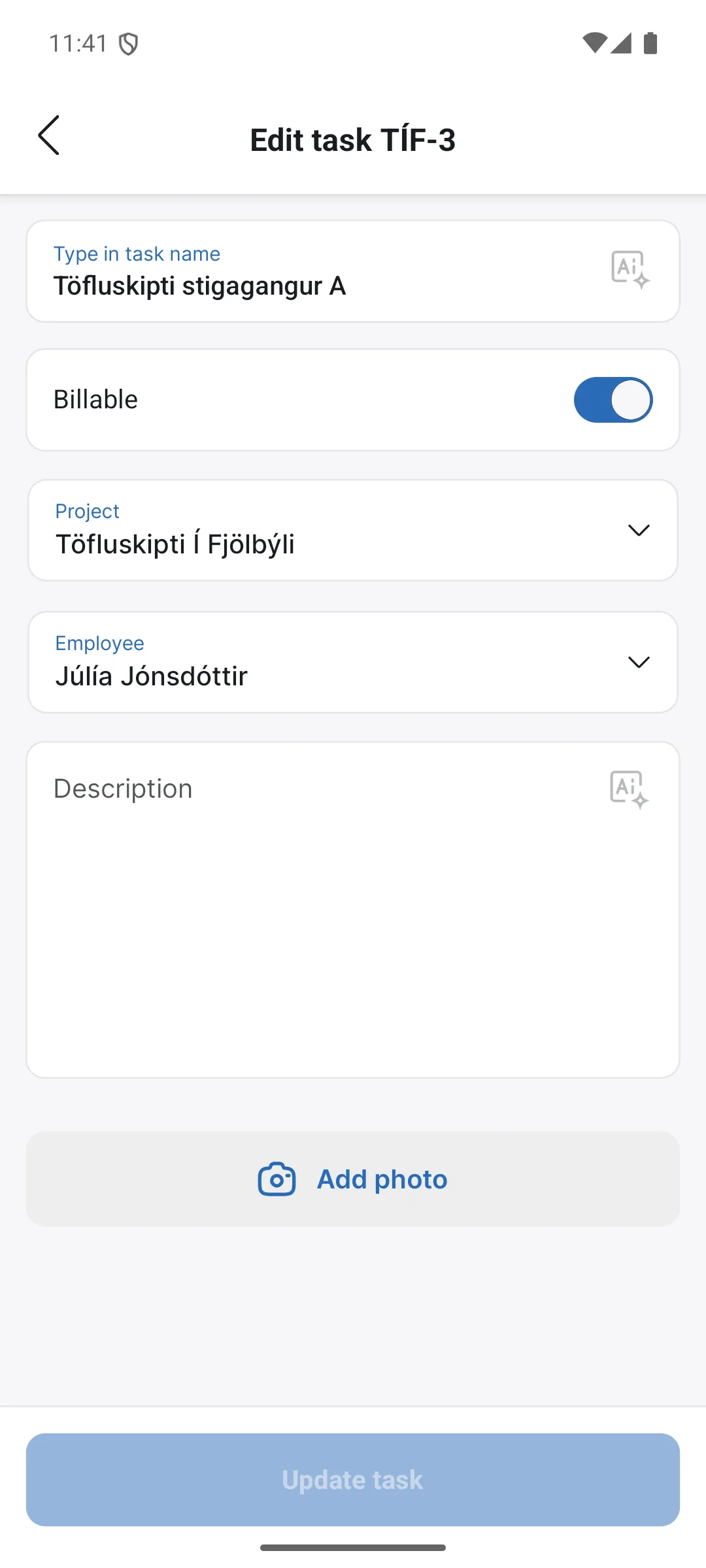
On the edit screen you change the name, project, employee and description, switch Billable on or off, and upload a photo with Add photo. You can also reopen a closed task there.
Labels
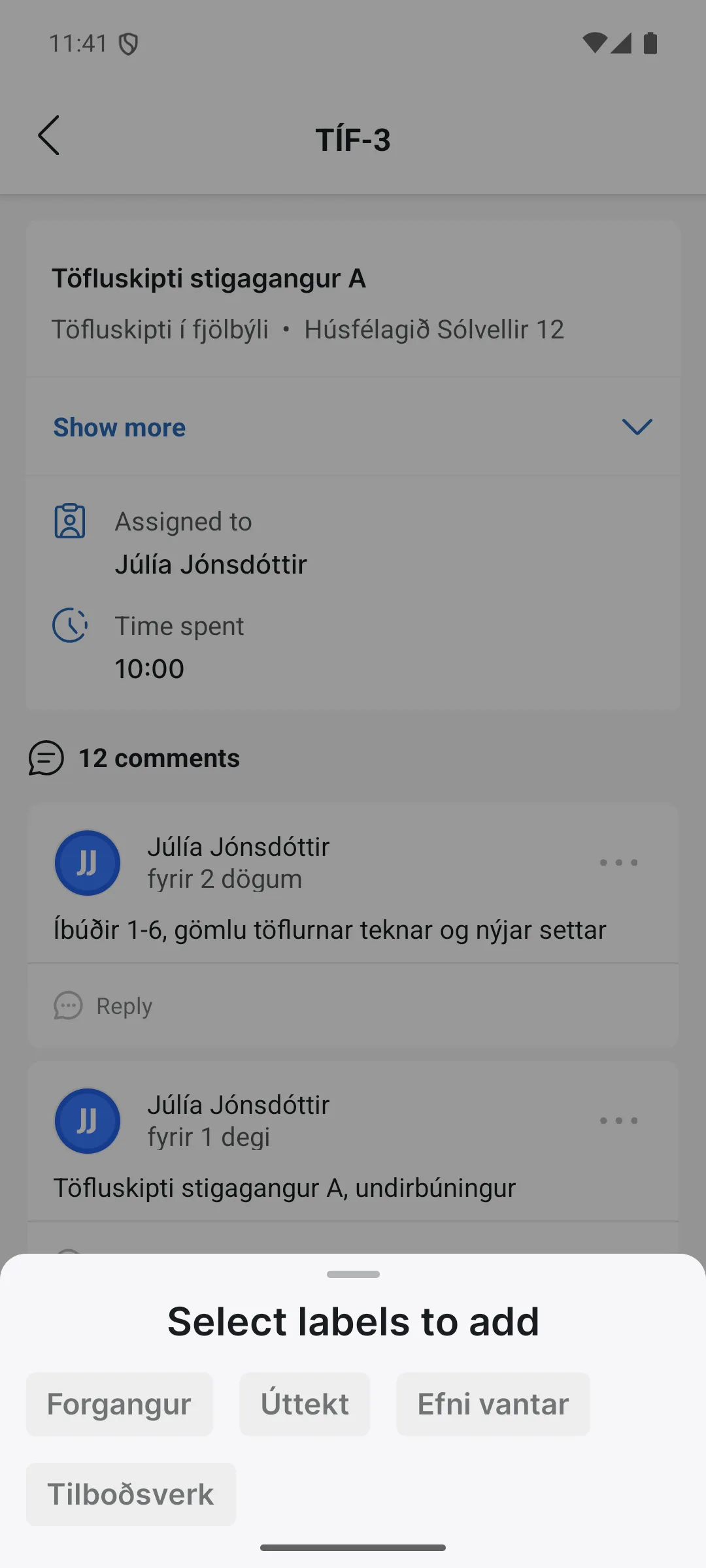
Labels opens the Select labels to add sheet. Labels make your jobs easier to find: you filter lists by them, see at a glance what is waiting, and group reports. They work best few and clear; we recommend that the company keeps to ten labels or fewer in total. More in Labels.
Comments
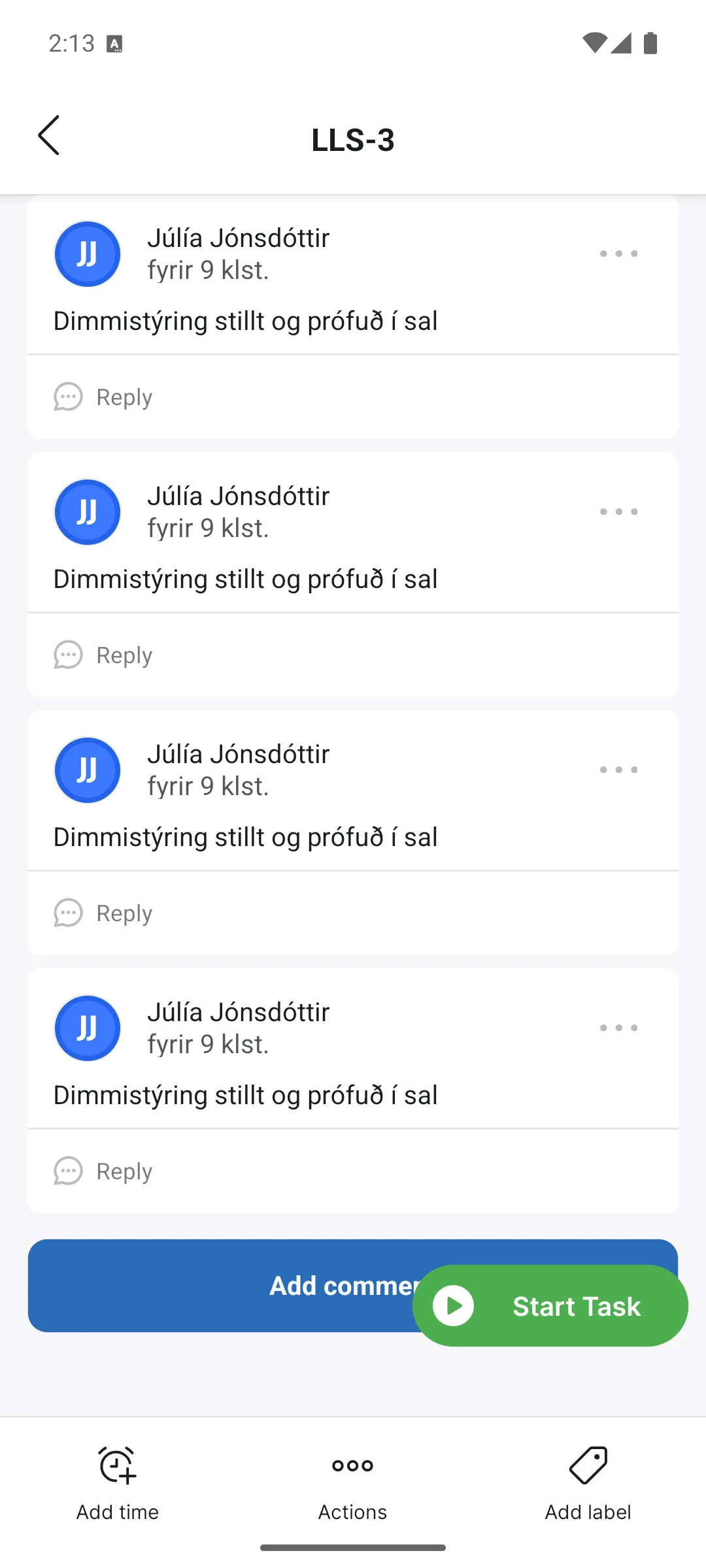
Further down the task page is the comment thread, the same thread as on the web. You can reply to comments right in the app:
The camera icon by the input field puts a photo in the comment, e.g. of the state of the work:
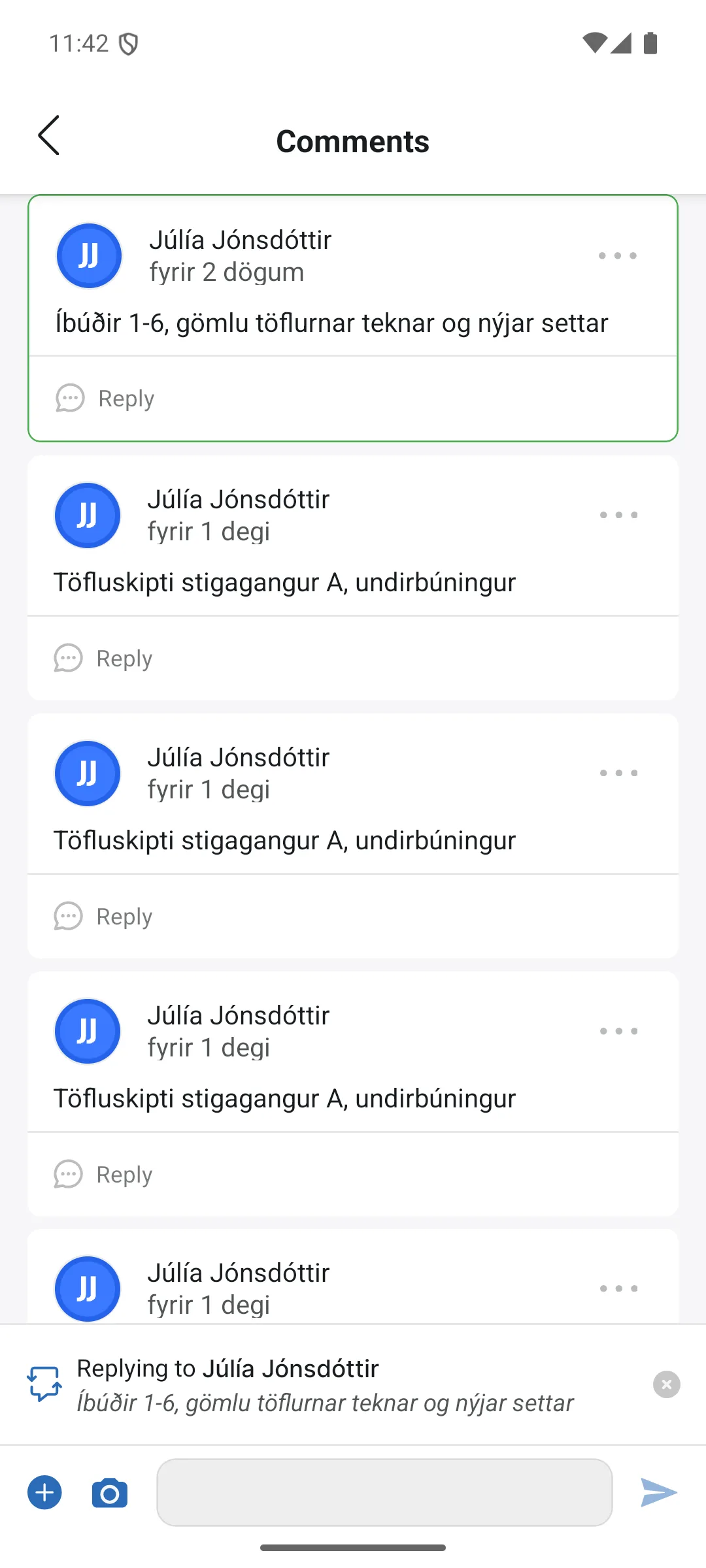
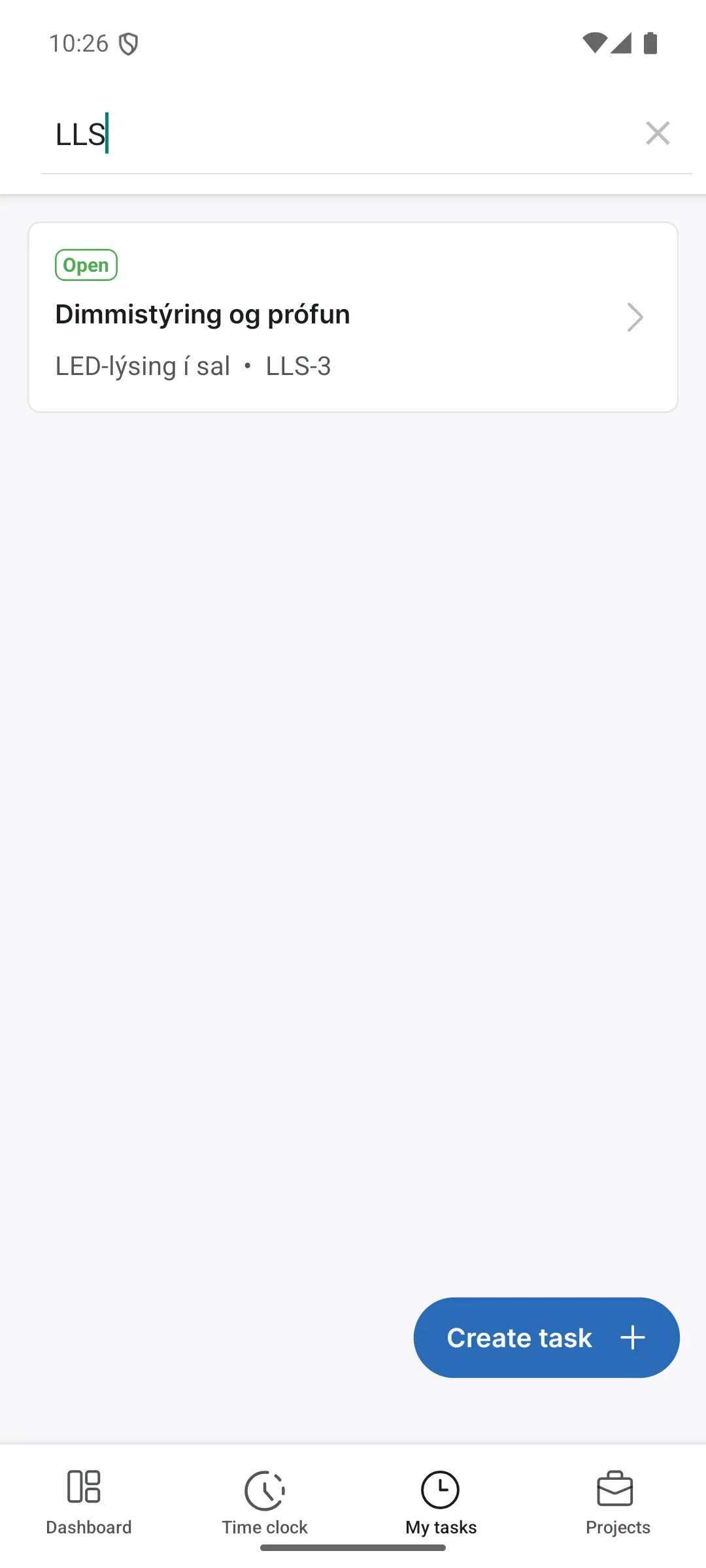
Write @ and a name to mention a colleague; they then get a notification on their phone. The three dots on a comment open Edit comment and Delete comment, but only on your own comments; nobody can edit other people's comments.