Logged time can be edited after the fact in the reports.
How to correct time
- Go to Reports → Tasks.
- Find the entry that needs fixing. Each entry shows the employee, the task and the time period in the Start / stop column.
- Click directly on the times in the Start / stop column and enter the correct values.

A dialog then opens where you enter the correct values and confirm with Edit time.
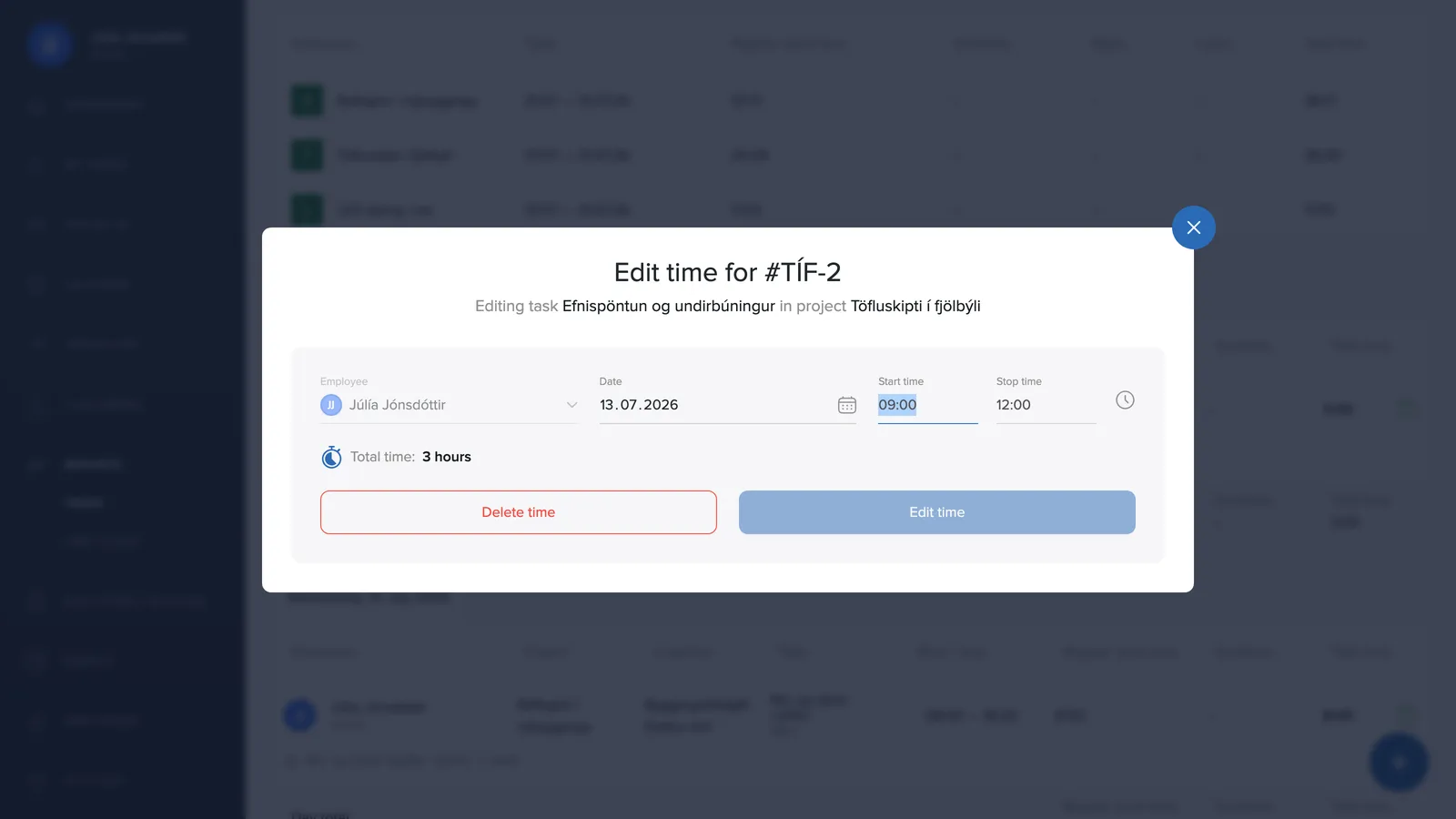
In the same dialog a project manager or the owner can also delete the entry entirely with the red button if it was logged by mistake, both their own entries and other employees'. Regular employees can edit entries but not delete them. The same applies to clock-in entries in the time clock report.
The system reminds you of this at the top of the report: "Did you know you can click the Starts / Ends times to edit them manually?"
The icons in the report
At the end of a row a small icon can appear that shows how the entry came to be:
- A green icon means the time was added manually, it did not come from a clock-in or the employee's own time entry.
- An orange icon means the time has been changed after the fact. Hover over the icon to see the original time, e.g. "Time has been changed from 0:00 to 1:28".


A row without an icon is an unchanged clock-in entry or time entry exactly as the employee logged it. That way you always see what has been adjusted after the fact, which is good for transparency toward the team and for payroll processing.
Editing a comment
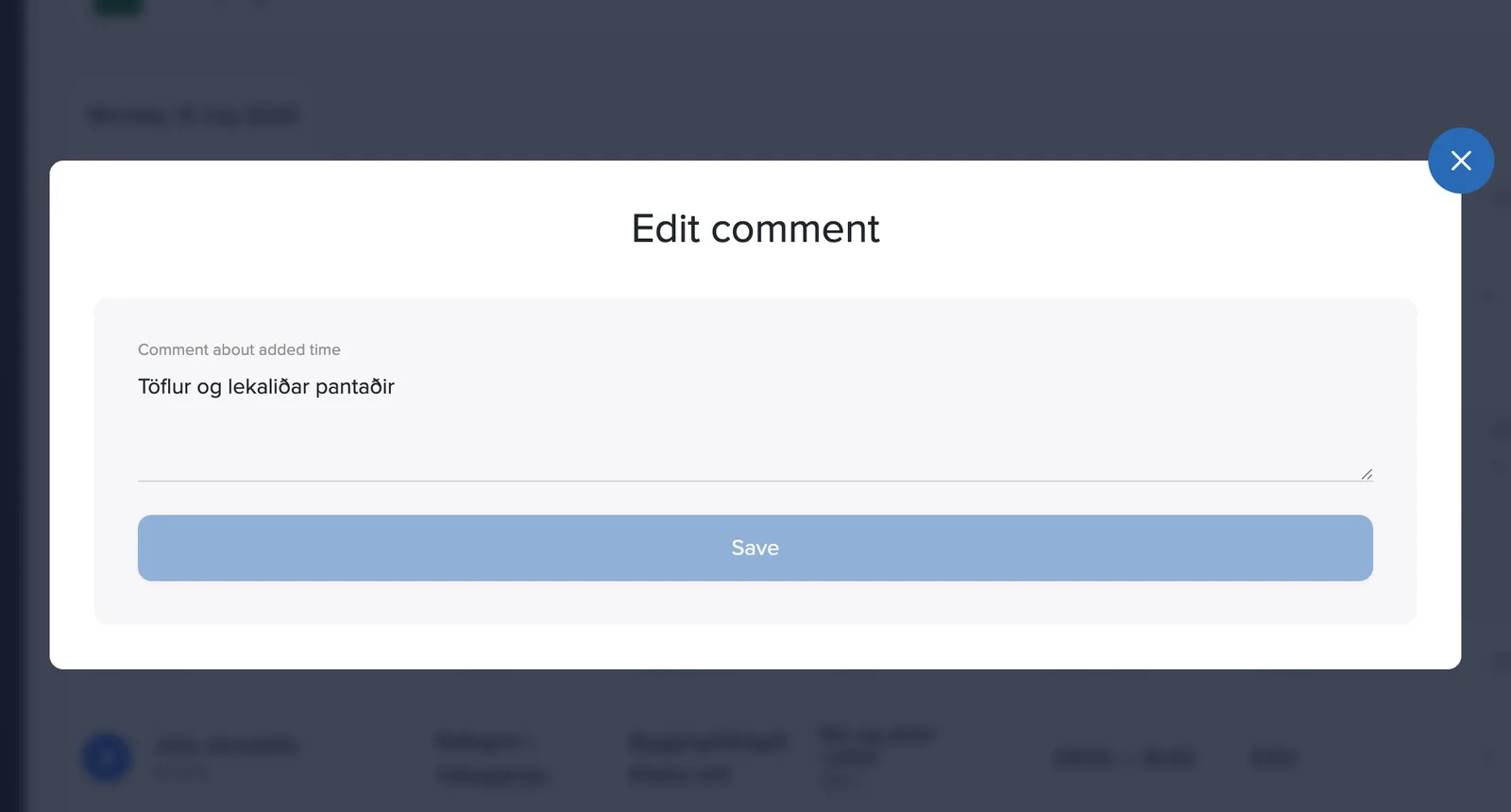
The entry's comment appears below the row in the report. Click the text itself and the Edit comment dialog opens, where you fix the text and confirm with Save.
Who can make corrections?
The permission follows the Add time manually setting (Settings → General): when it's on, the team can manually log and correct time on tasks. Comments attached to entries are visible in the report, so it's a good idea to note the reason for a correction in a comment.