There are two ways to log time in TimeEd: the general time clock and time tracking on a specific task.
The time clock on the dashboard
The dashboard has a time clock card showing your latest activity: when you started, when you stopped, and your total for the month.
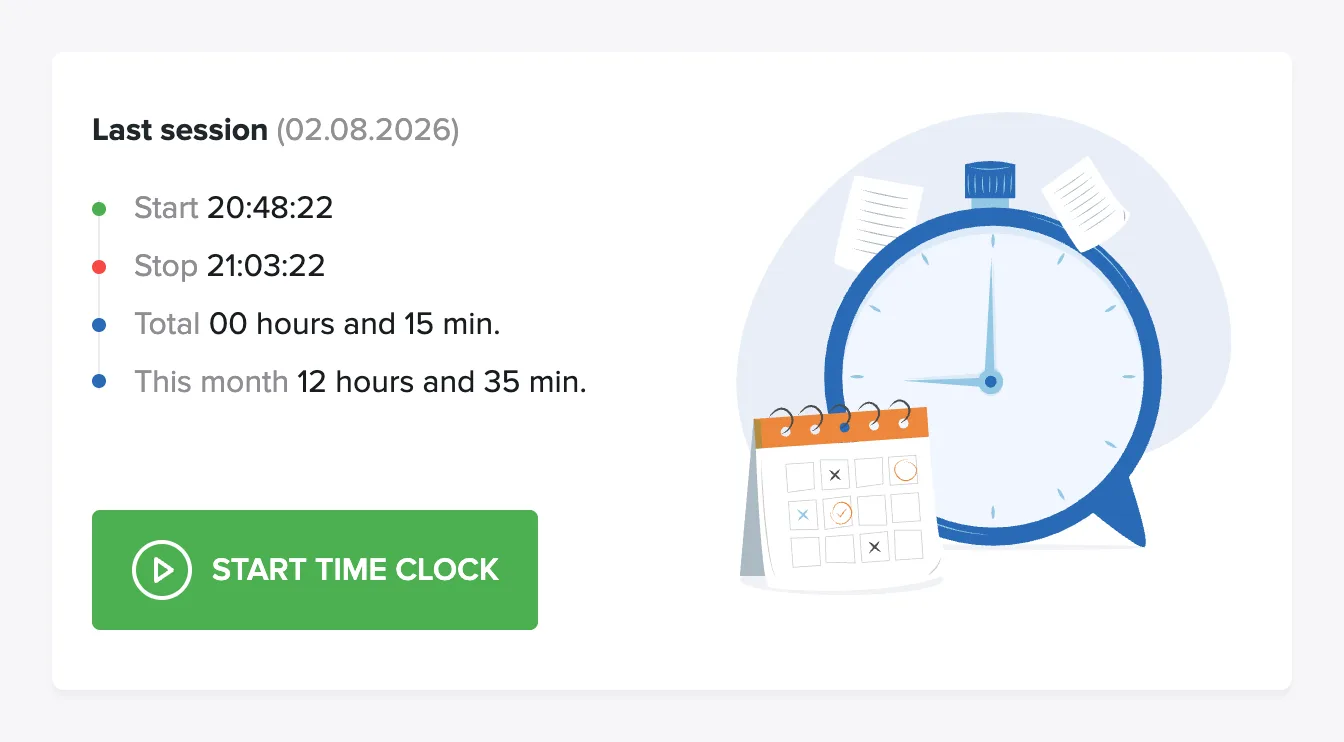
- Click the green Start time clock button to start your workday.
- The button turns into a red counter showing the elapsed time.
- At the end of the day, click the red button to clock out.
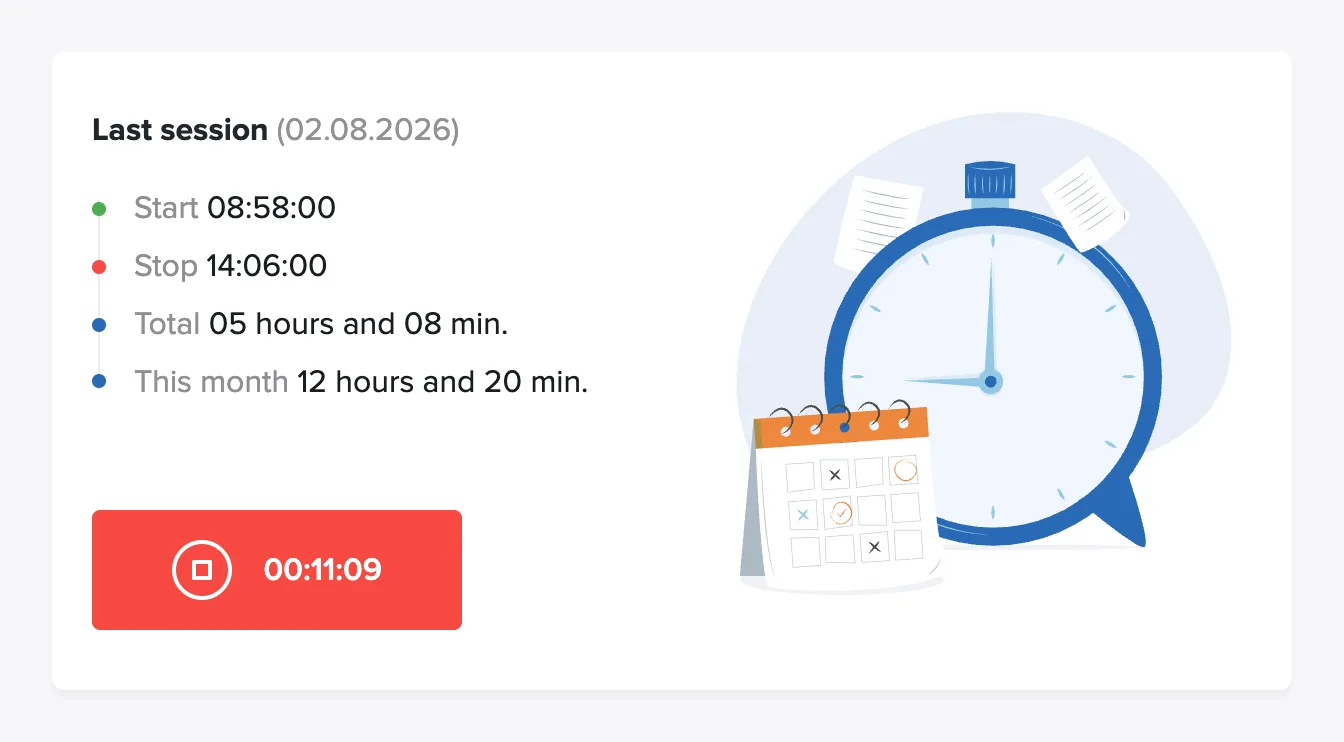
The general time clock is independent of tasks and is well suited for tracking regular working hours. An administrator turns it on for the team under Settings → General → Enable time clock for the team.
Time tracking on a task
To log time on a specific piece of work, press the green Start button next to the task: on the dashboard, in My tasks, or on the task itself (Start task).
While time tracking is running, the task appears at the top of the screen with a counter and a red stop button, wherever you are in the system. Under Online users in the menu you can also see who is working on what.
Time clock on a tablet
The time clock can also run as a standalone solution on a tablet, for example at the workplace entrance, where all employees clock in and out on the same screen.
Here's how to set it up:
- Create a user with a registered mobile number, usually the owner.
- Open TimeEd on the tablet and choose sign in with phone number.
- An SMS code (OTP) is sent to the number. Enter it and the time clock is ready.
After signing in, the tablet works as a shared clock-in station and doesn't need to be signed in again day to day.
GPS in the app
In the TimeEd app you can enable GPS logging on clock-in and clock-out, and the entries then get a map marker in the task report. See GPS coordinates in the task report.