Forgot to clock in? You can add time to a task after the fact.
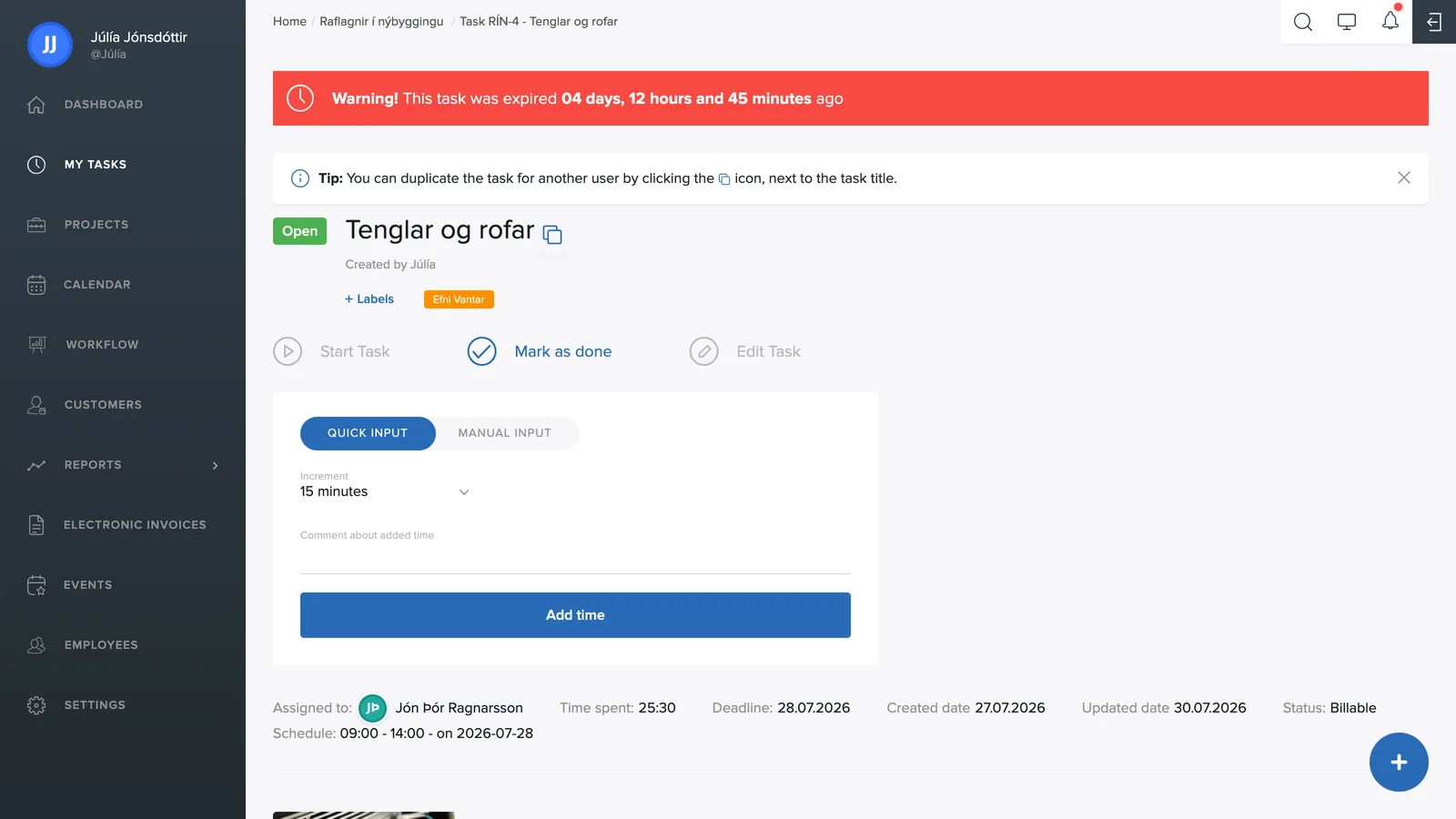
On the task
- Open the task and click Add time.
- Choose Quick input to add a fixed amount of time: 15, 30 or 45 minutes, 1 or 2 hours.
- Or choose Manual input to enter an exact start and end time.
- Click Add time.
In the reports
Under Reports → Tasks there is also a + button in the top right to add time, which comes in handy when reviewing and correcting the period's entries.
Setting
Manual time entry is optional: an administrator turns it on under Settings → General → Add time manually. When the toggle is off, employees can still log time with the time clock or by running a task; the setting only controls adding time manually on a task.