Workflow shows your tasks as cards on a board and arranges them into columns by where they stand in the work process. Instead of looking up the status of each task, the whole team sees at a glance what is waiting, what is under way and what is finished.
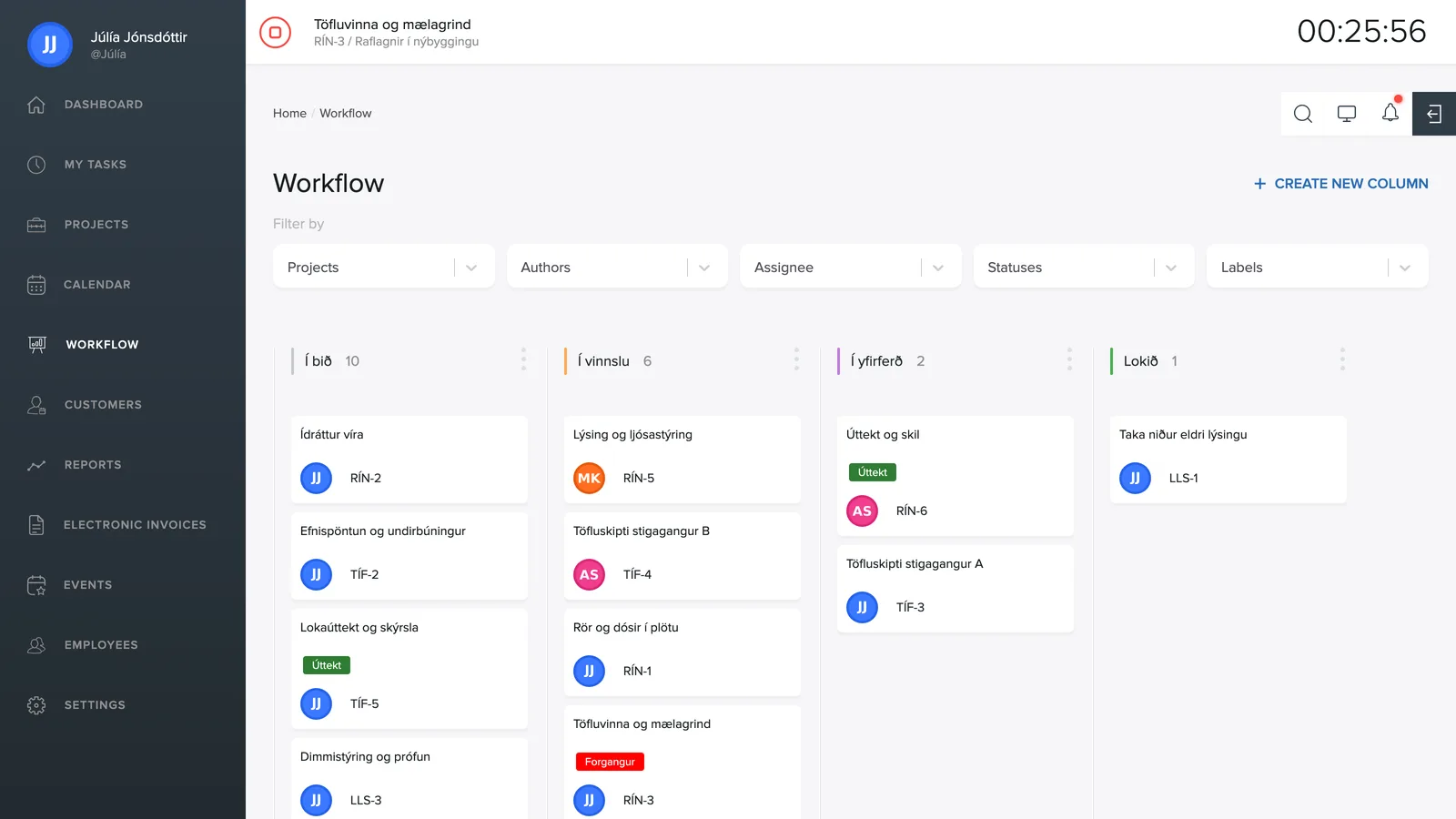
The board is shared across the company rather than set up per project, so tasks from every project land in the same columns. You then narrow down the view with the filters at the top.
How the board works
You create the columns yourself, and they are simply the steps that work goes through at your company. An example setup: To do, In progress, Need review and Done.
A task moves between steps when you drag its card from one column to another. The card stays where you drop it, for everyone on the team, until someone moves it again.
Each column can also be linked to a task status. When a card is dragged into a column linked to the status In progress, the task gets that status automatically, without anyone opening it. That keeps the board and the task's status in sync, whether you work on the board or inside the task itself.
The cards
Each card shows the task's name, its ID (e.g. TIM-4), the labels on it and the avatar of the person it is assigned to. Click a card to open the task itself, with its description, hours and comments.
The number next to the column name shows how many tasks are in that column, which is a quick way to see where work is piling up.
Creating a column
Click + Create new column in the top right. A small form opens above the board:
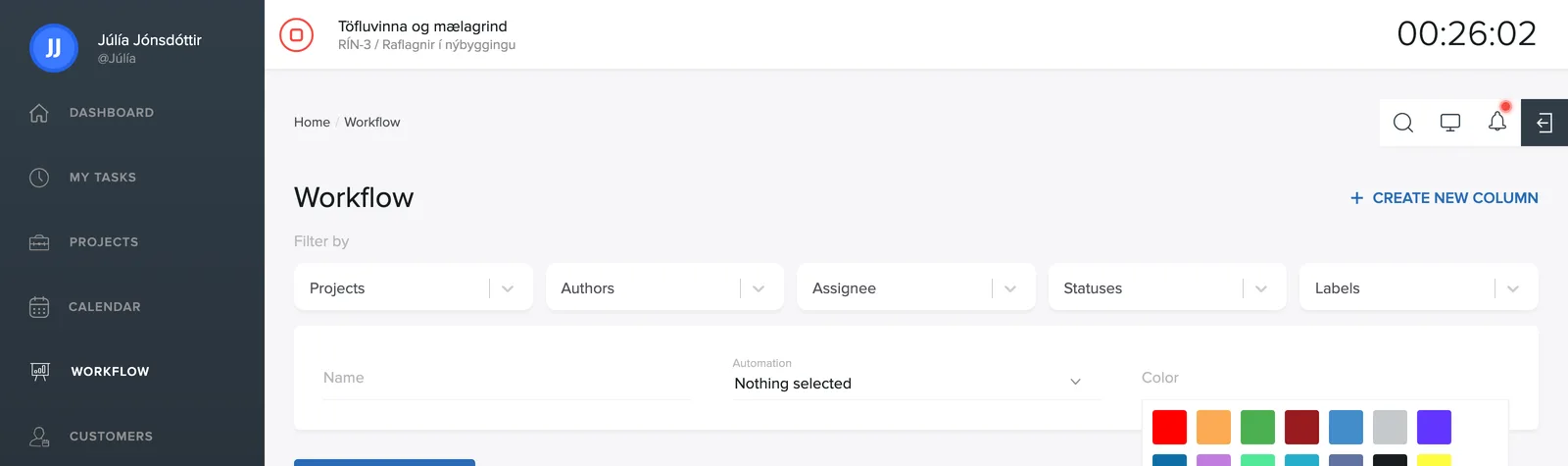
- The Name of the column, e.g. "Need review".
- Automation: choose Open, In progress or Done if tasks should get that status when they are dragged into the column. Choose Nothing selected if the column is only there for organization and should not change any status.
- Color: click the color box and pick from the palette. The color appears as a stripe next to the column name and makes the board quicker to read.
Click Create to save, or Cancel to back out.
Editing or deleting a column
The three-dot icon to the right of the column name opens a menu with four actions:
- Remove tasks takes the tasks out of the column but does not delete them.
- Edit column opens the same form as above so you can adjust the name, color or automation.
- Delete column removes the column from the board. The tasks themselves do not disappear, they are simply no longer on the board.
- Clear all tasks empties the column in one go.
Filters
At the top of the page are dropdowns: Project, Created by, Assigned to, Status and Labels. They work together, so you can, for example, see only the tasks of one project that are assigned to a particular employee and labeled Priority. The filters only affect what you see, not what others see.
Who sees the board
Workflow appears in the menu for those who have permission for it. If an employee cannot see it, the feature needs to be turned on, see features in settings.