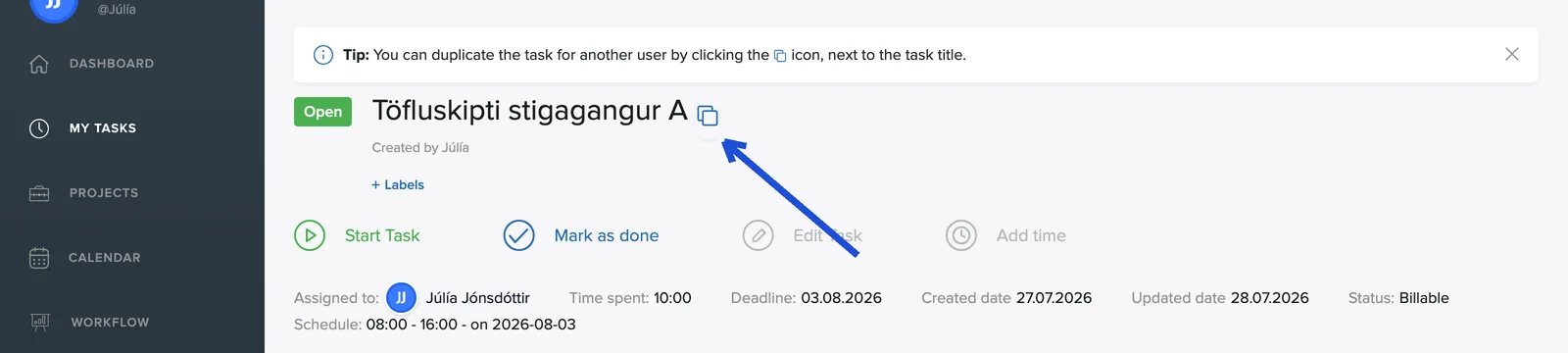
The task page is the hub for each piece of work. At the top is the task's name, its status and who created it.
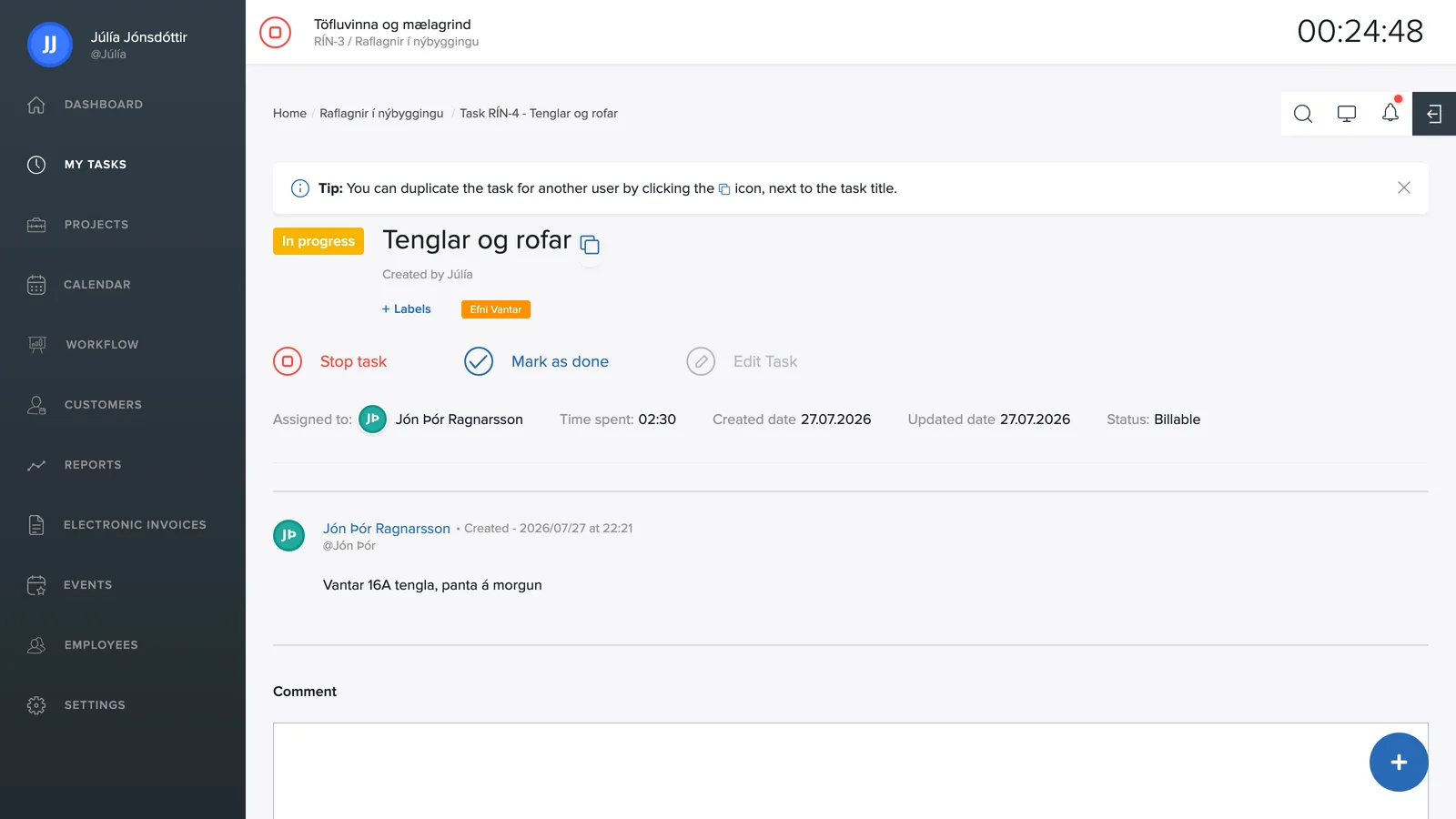
The task number
Every task automatically gets a unique number when it is created. The prefix comes from the project and the number runs in sequence: if the project Miðvangur 1 is created, its first task gets the number MID-1, the next one MID-2 and so on. You never have to make up a number yourself and no number is ever used twice.
The number is the quickest way to point to the right piece of work. Type it into the search and you jump straight to the task, mention it in a comment or a phone call so everyone is talking about the same job, and on work reports and invoices it shows exactly which task is behind each line.
The actions at the top
- Start task: starts time tracking on the task.
- Mark as done: closes the task.
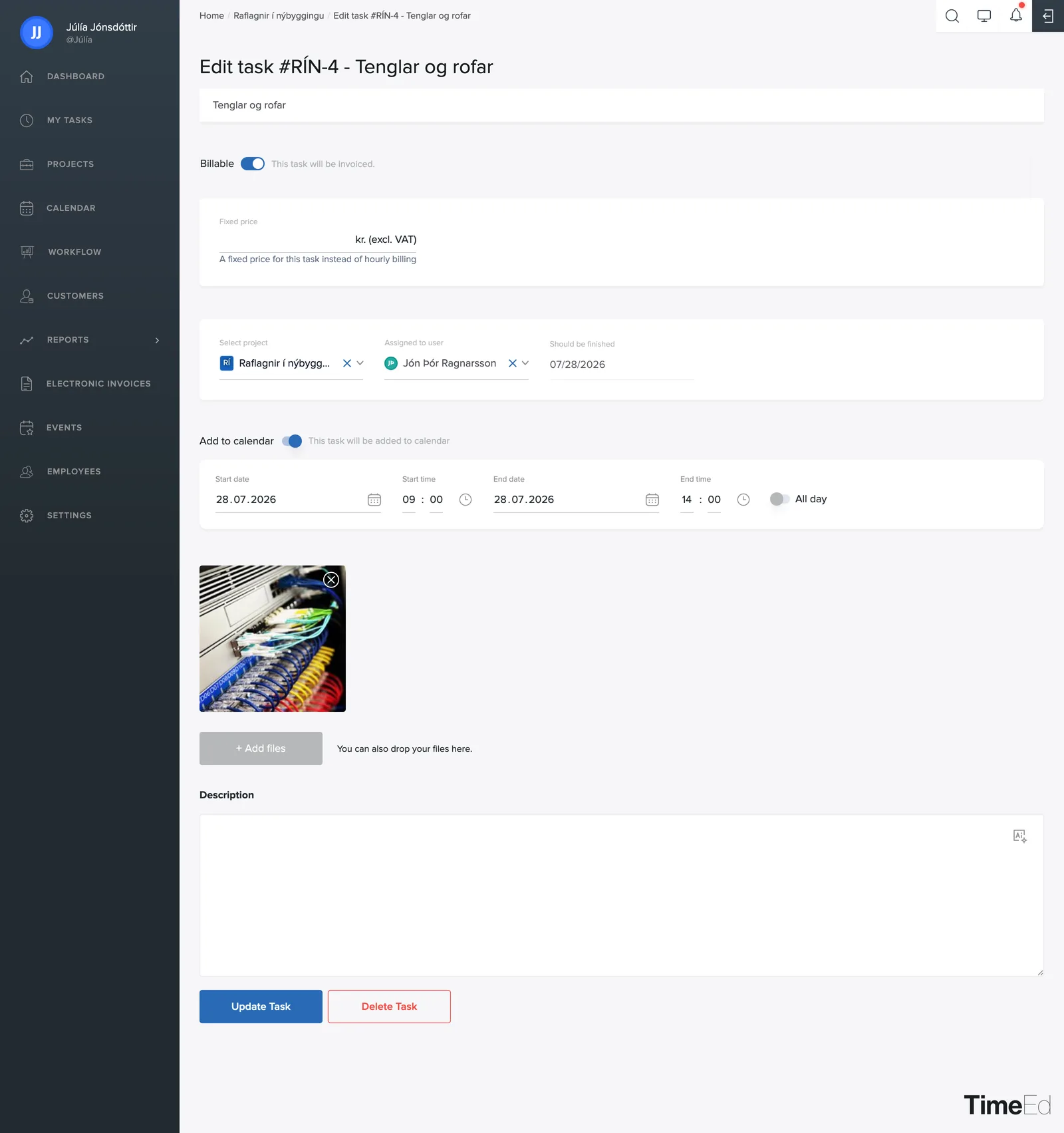
- Edit task: opens the editing page (name, assignment, price and more).
- Add time: manual time entry after the fact.
The task's key details
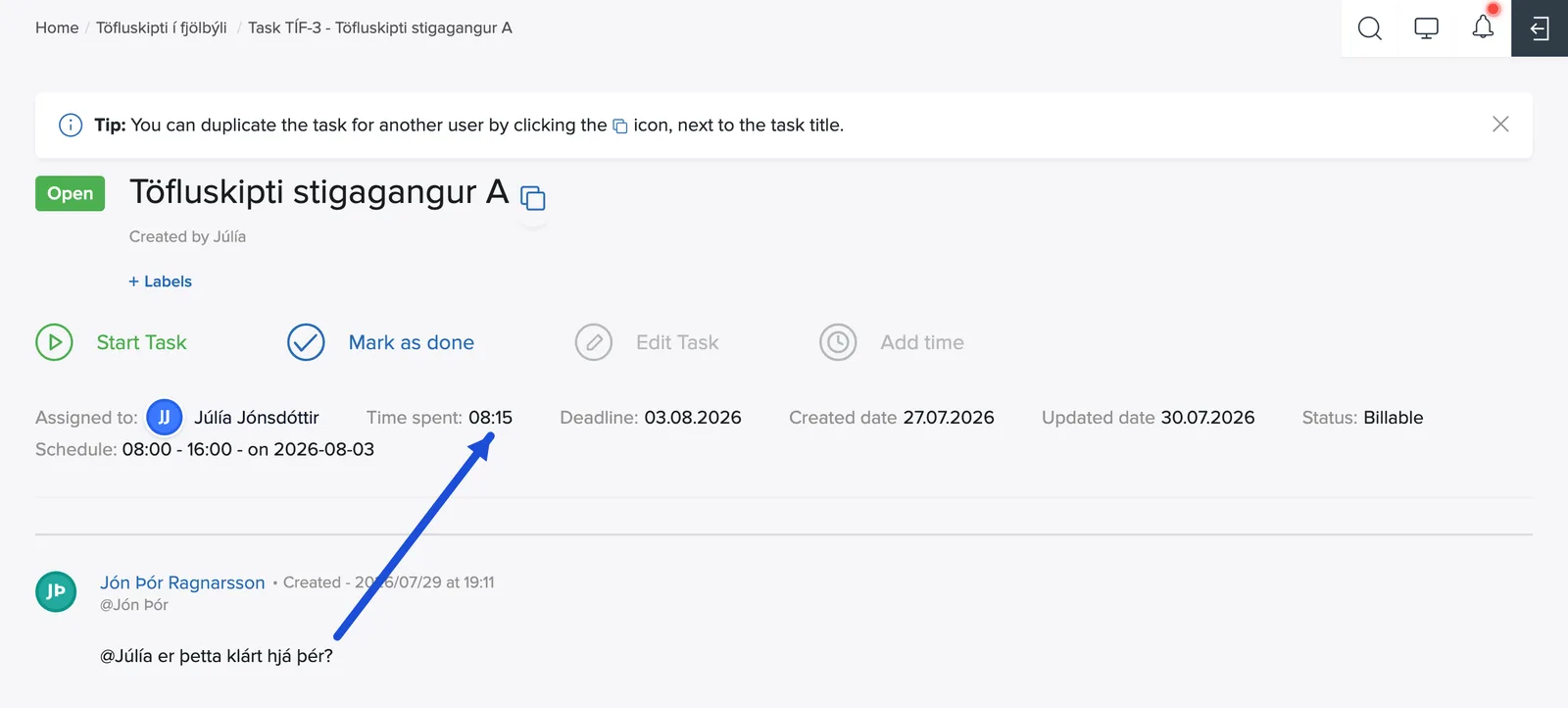
Below the actions you'll see Assigned to (which employee is responsible), Time (total logged time), the Created and Updated dates, and the Status, for example whether the task is billable or not.
The time is more than a number: click it and you go straight to the task work report, filtered to this task, where you can view, edit or delete individual time entries. The steps are covered in Correcting logged time.
Labels
Click + Labels below the name to label the task, e.g. "High Priority", "Bug" or "iOS". Labels make filtering easier in lists, the workflow and reports, see more in Labels.
Products
With Add products you attach products to the task. See the article Products on a task.
Description, comments and files
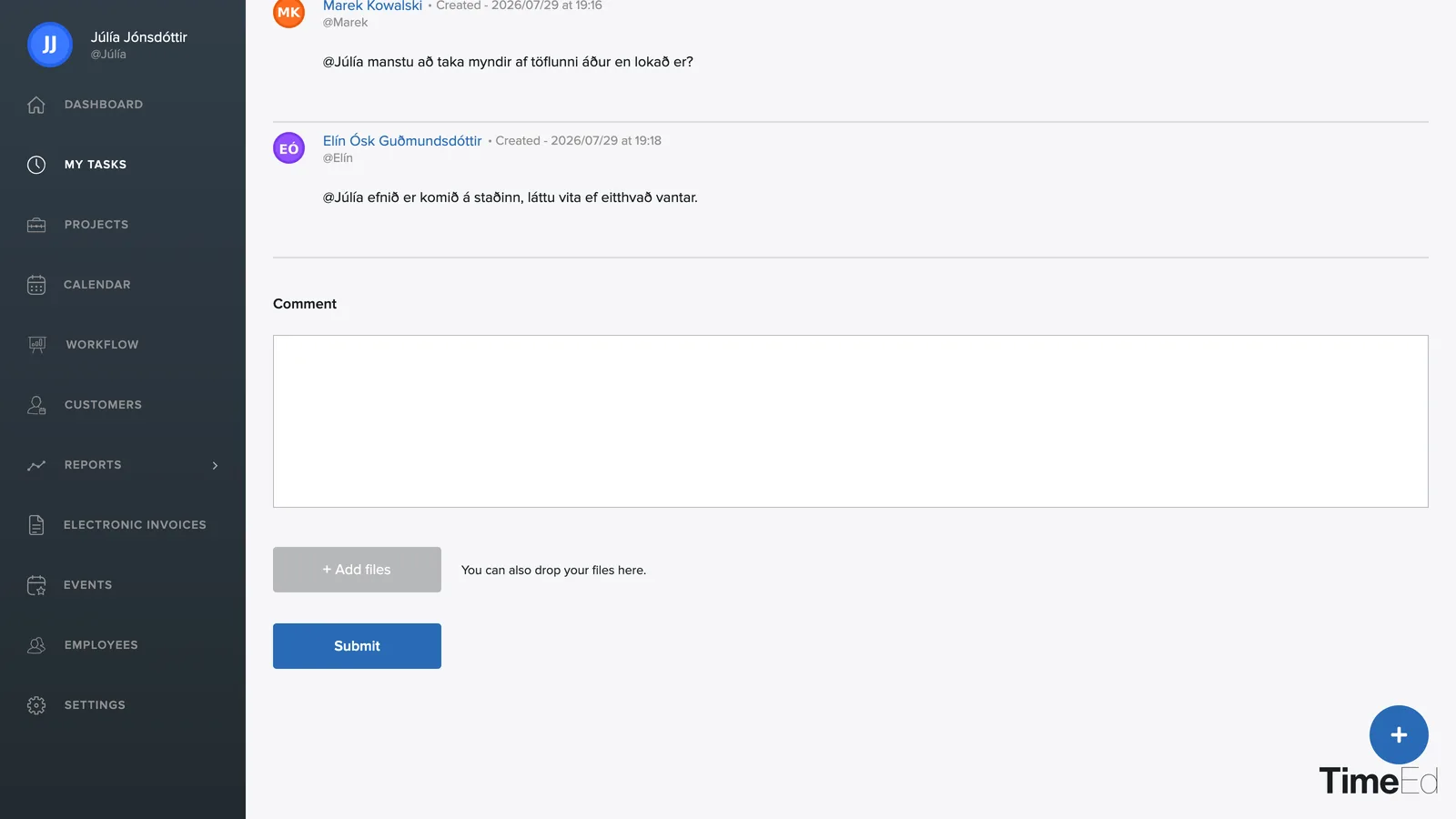
Below the info bar is the task description, followed by a comment thread where the team can discuss the work. You can mention colleagues with @username, and they'll get a notification. At the bottom is + Add file for attaching images or documents to the task.
Click an image in the attachments to open it larger. The arrows on either side move between images and the X closes the view. The Download all attachments as one zip file link downloads all of the task's attachments at once.
You can edit or delete your own comments: hover over the comment and the pencil and trash icons appear on the right.
Copying a task
The tip at the top of the page points to the copy icon next to the task's name. With it you can copy the task for another user.