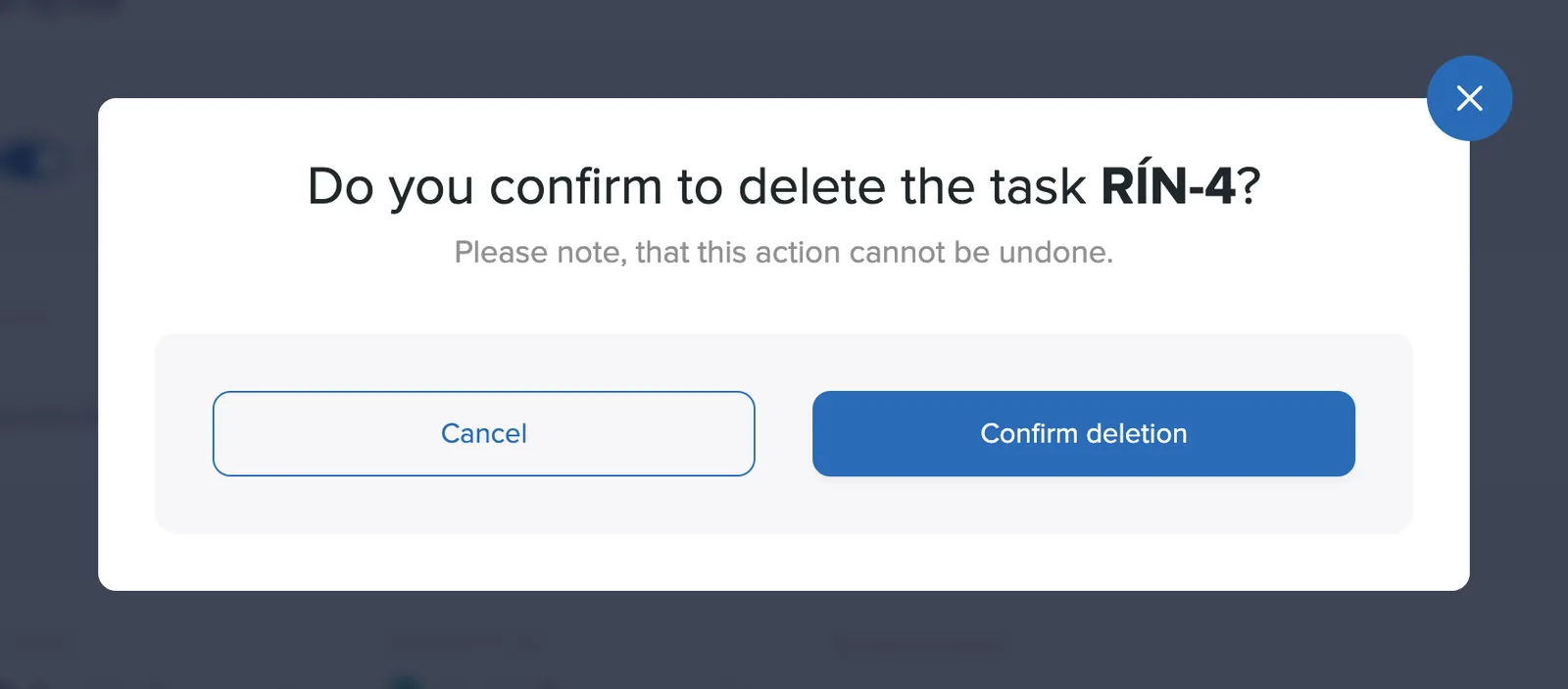
Click Edit task on the task page to open the editing page.
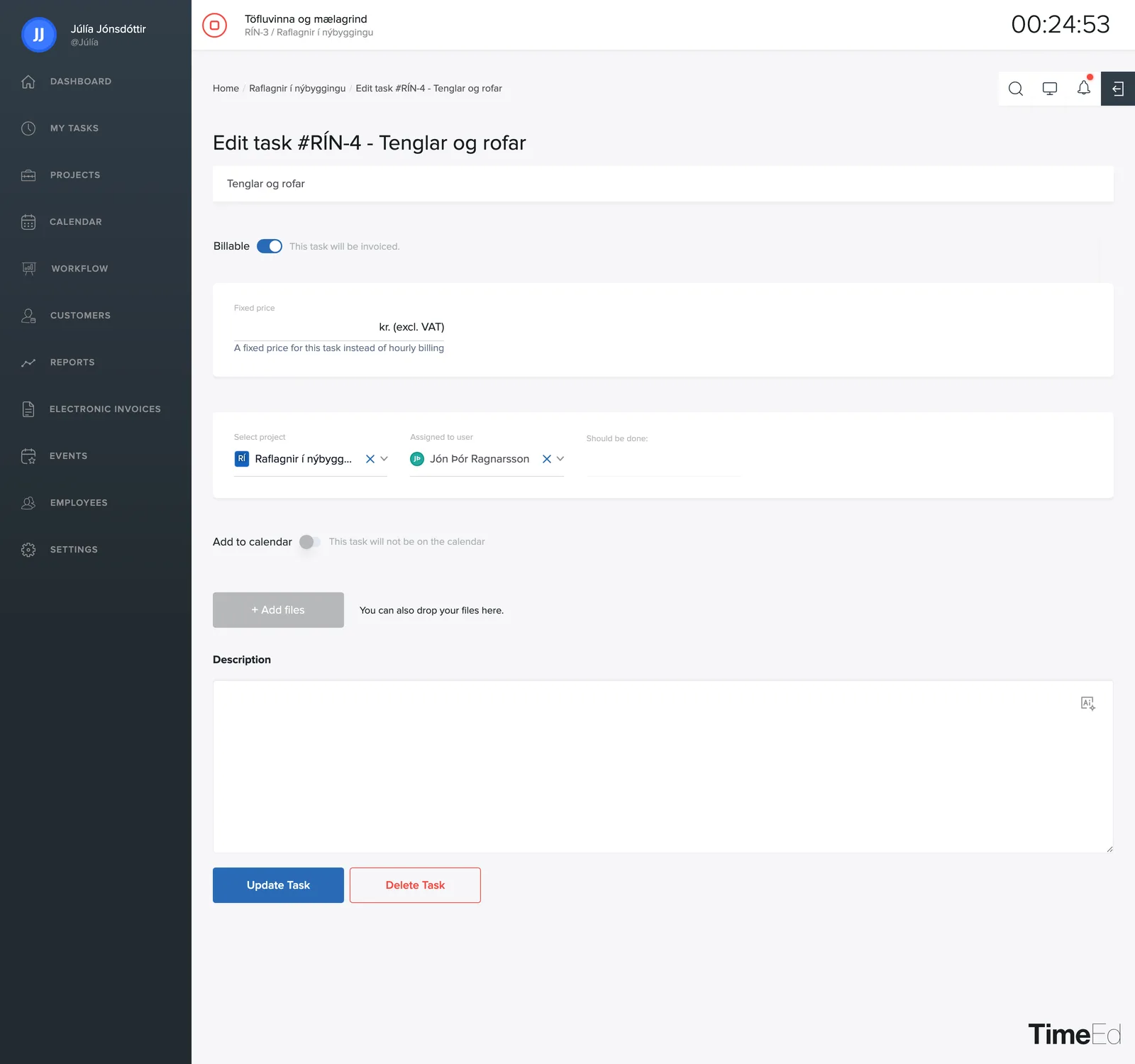
Billable and fixed price
The Billable toggle controls whether the work on the task goes on an invoice. When it's on, the Fixed price field appears. If you enter an amount there, it is charged for the task instead of the billable rate per hour.
The default billing status of new projects can be set under Settings → General → Default billing status for projects.
Project, assignment and due date
- Project: move the task between projects.
- Assigned to user: pick the employee responsible for the work. You can select more than one at a time, and even a whole group; then everyone in the group gets the task.
- Should be finished by: set a due date for the task.
Add to calendar
Turn on Add to calendar to make the task appear on the calendar. You then pick a start date and time, an end date and time, or All day. This is how you plan when the work should be done and who sees it on the team calendar.
Description, files and deletion
At the bottom is the task description itself and + Add file for attaching images and documents to the task. You can also drag files straight onto the area. Images appear as thumbnails, and the X on a thumbnail removes it. Update task saves your changes.
Deleting a task
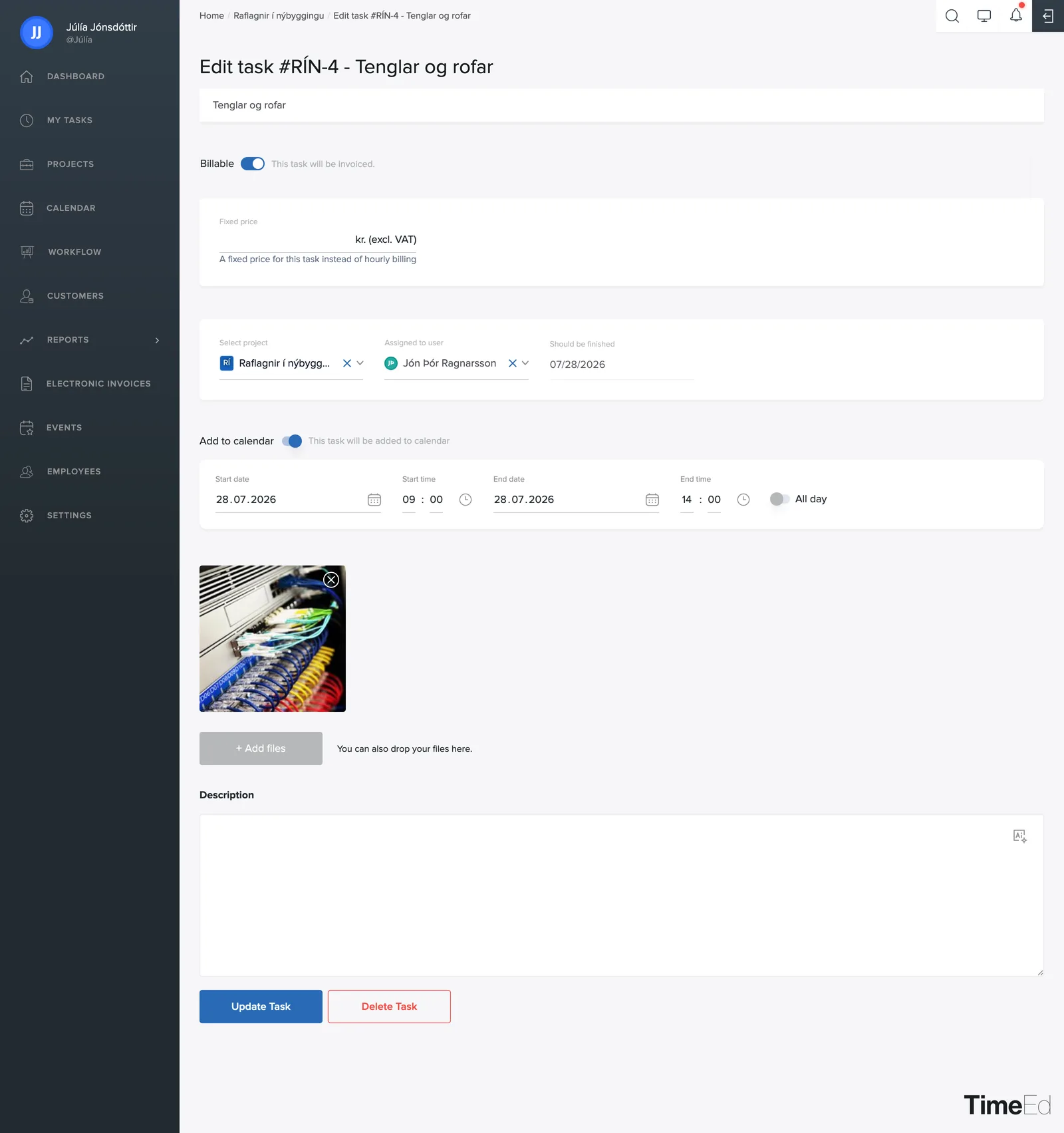
At the bottom of the editing page, next to Update task, is the red Delete task button.
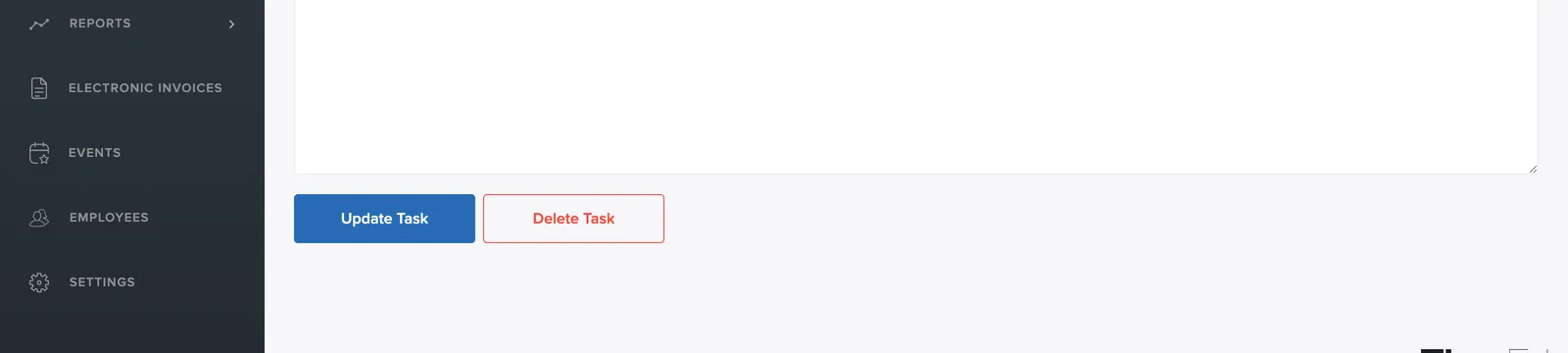
When you click it, a confirmation dialog appears. Note that the deletion is permanent: it cannot be undone, and time logged on the task disappears from reports. If the work is simply finished, it is usually better to mark the task Done and keep the history that way.