Did you use materials or products for the job? Log them directly on the task so they aren't forgotten when the invoice is created.
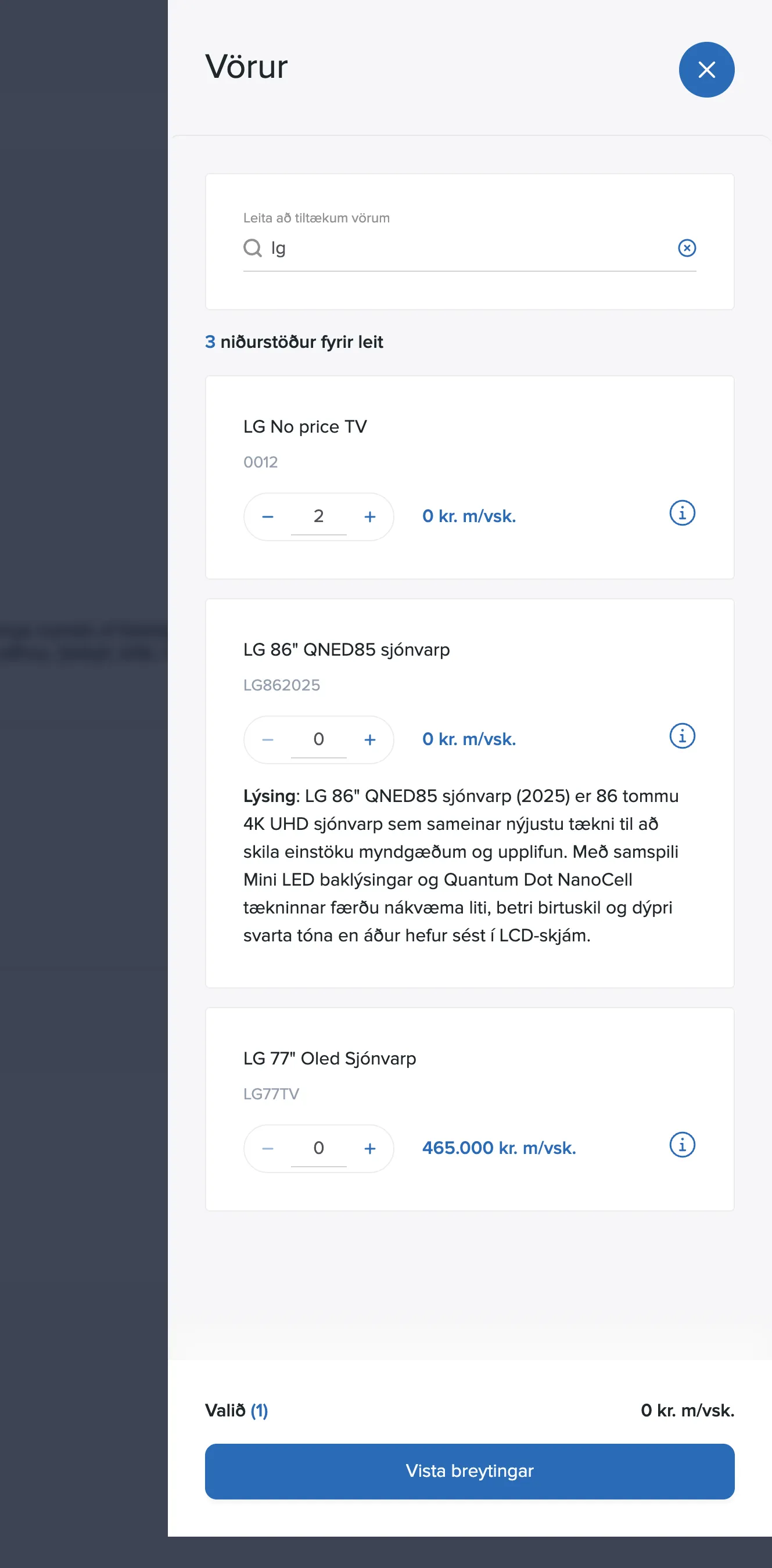
Adding products to a task
- Open the task and click Add products.
- The product panel opens on the right. Search for a product in the search field.
- Set the quantity with the + and − buttons next to the product.
- The price (incl. VAT) is shown for each product, with the total of the selected products at the bottom.
- Click Save changes.
The info icon next to a product shows its description.
Where do the products come from?
The product list comes from a connected accounting system (e.g. DK or Payday) through product suppliers. Under Settings you can hide suppliers that shouldn't appear in TimeEd (Hidden suppliers), and the toggle Show products with zero or negative quantity (Settings → General) controls whether out-of-stock products are shown.