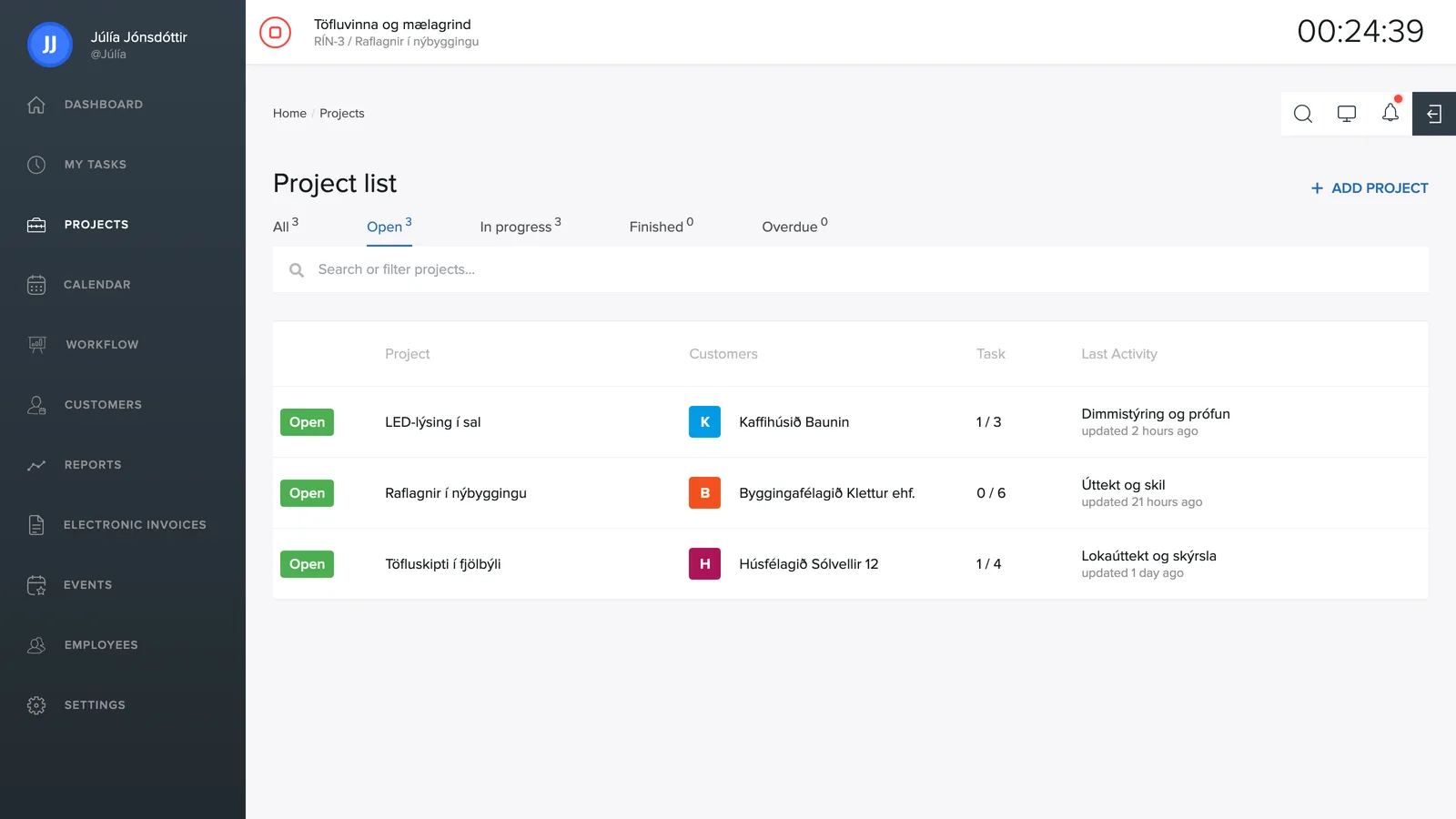
Under Projects in the menu is a list of all the company's projects.
What the list shows
Each project shows a status badge (e.g. Open), the linked customer, the number of open tasks against the total (e.g. 4 / 5) and the latest activity: which task was updated most recently and when. Projects that have fallen behind schedule also get a red clock icon in the list – the same projects that appear under the Behind schedule tab.
Tabs and search
At the top are tabs for filtering the list: All, Open, In progress, Done and Behind schedule, with a count in each category. The search field filters the list as you type.
Opening a project
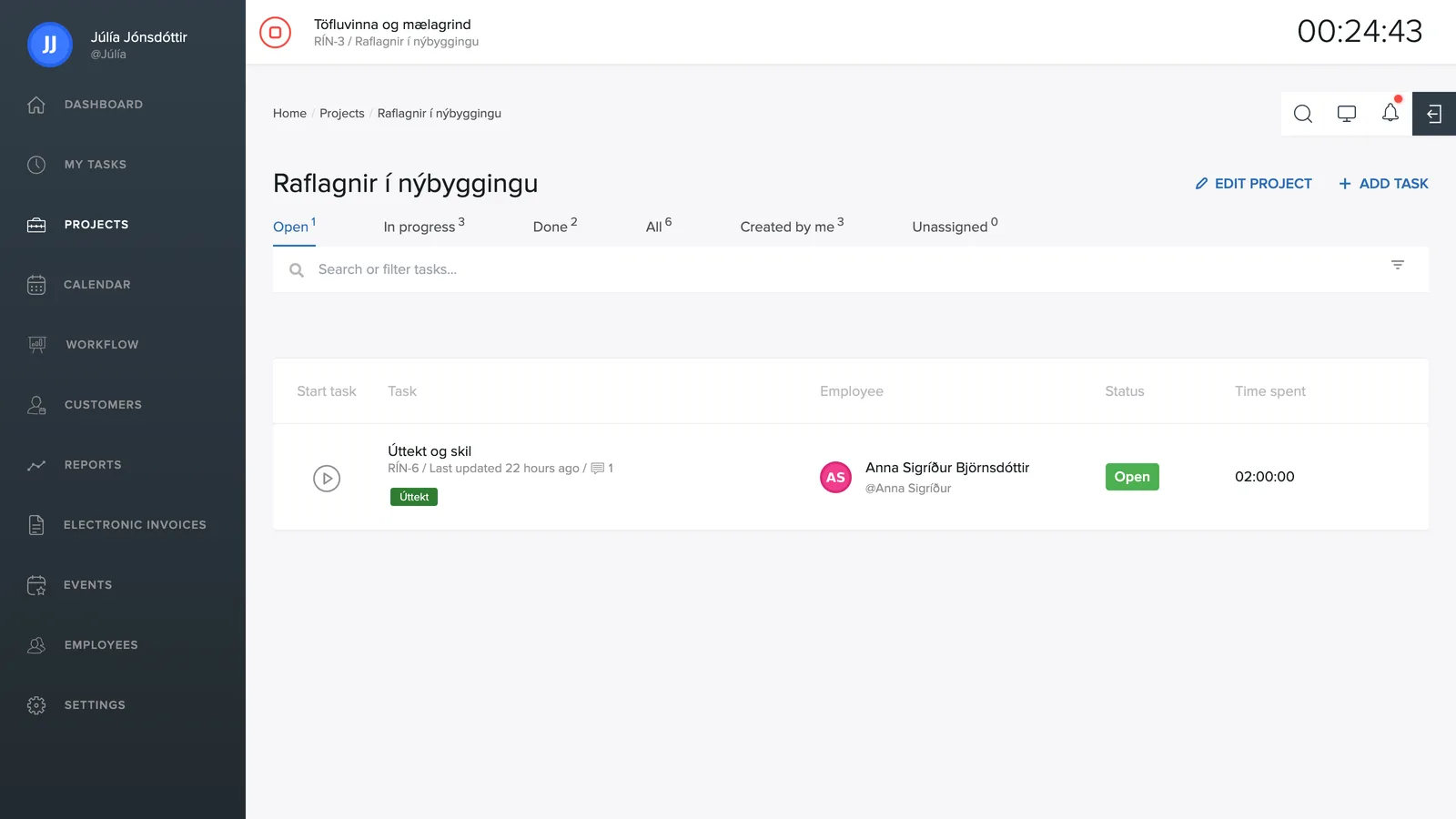
Click a project to see all its tasks. There you'll find the same tabs (Open, In progress, Done, All, Created by me, Unassigned) and the Edit project and Create task buttons in the top right.
My tasks
The menu also has My tasks: a page that gathers the tasks relevant to you in one place, across all projects. At the top are the same tabs with counts (Open, In progress, Done, All, Created by me, Unassigned) and a search field. The funnel icon opens a filter panel where you can narrow the list by Project, Labels and Created by.
Creating a project
Click + Create project in the top right of the project list. A project gets a name, is linked to a customer and receives an ID prefix that its tasks inherit (e.g. tasks in "borgir.is" become BOR-1, BOR-2 and so on). Under Settings → Templates you can also create project templates with predefined tasks.
Deleting a project
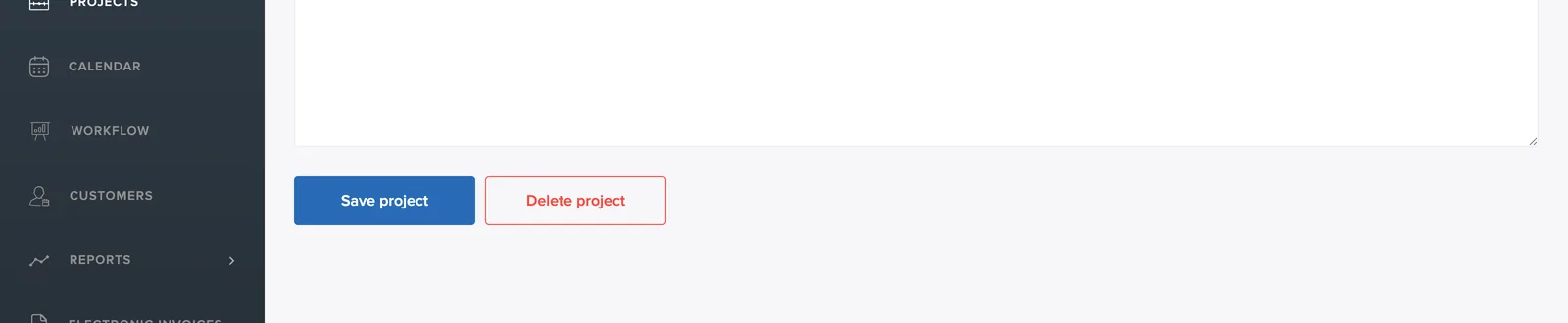
Open the project and click Edit project in the top right. At the bottom of the editing page is the red Delete project button.
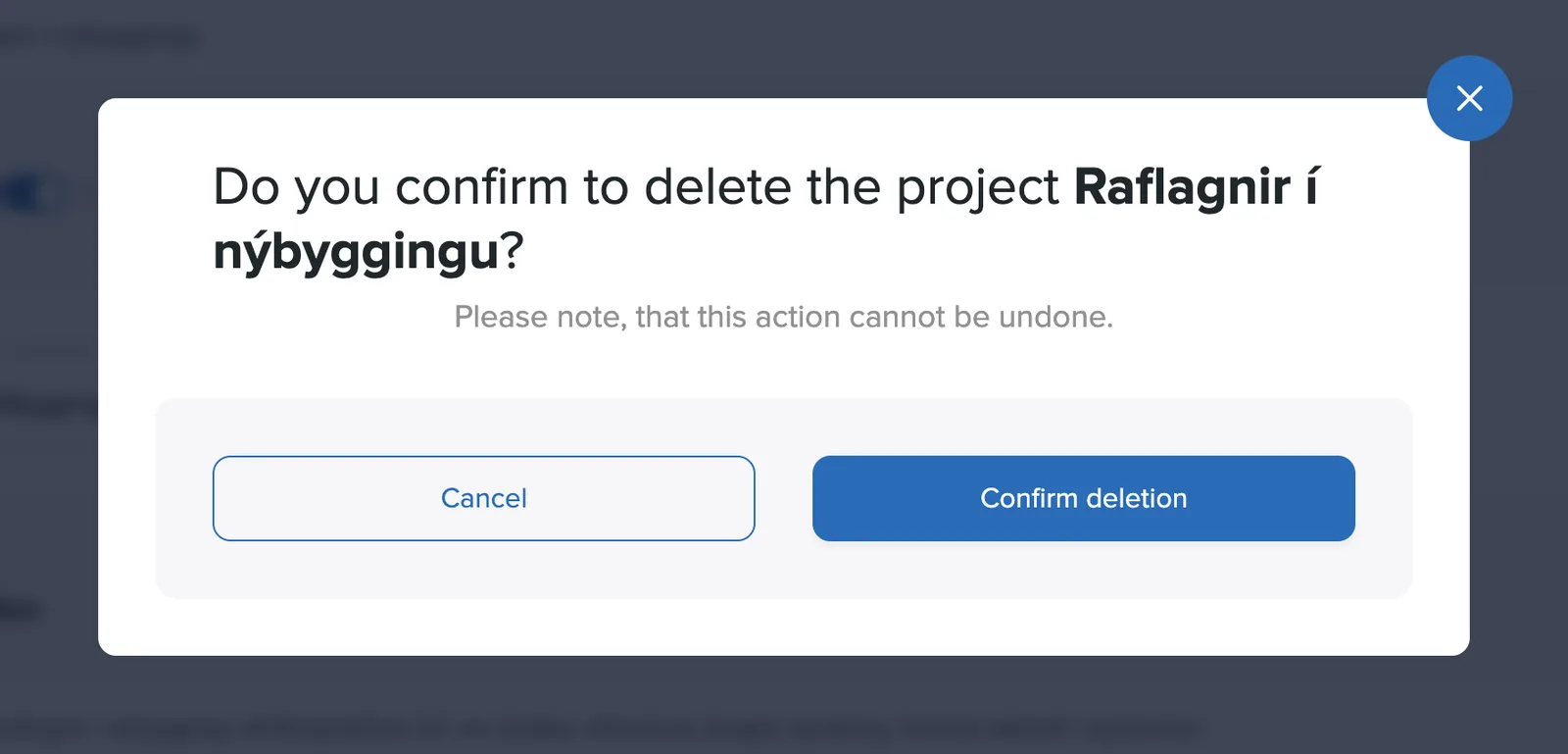
A confirmation dialog appears before anything is deleted. Keep in mind that all the project's tasks are deleted with it and the action cannot be undone. If you want to keep the history, for example for reports or invoices, it is better to mark the project Done instead of deleting it.