Groups
Under Settings → Groups you create user groups (teams) and manage permissions.
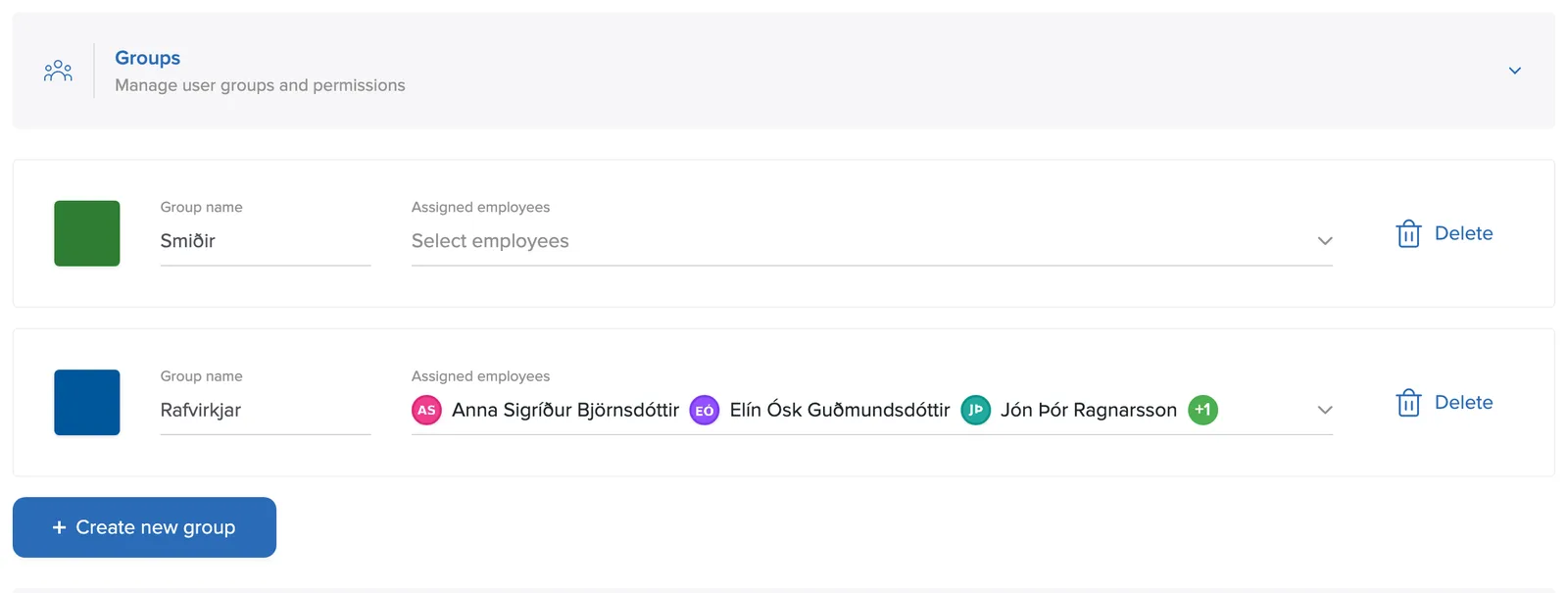
- Click + Create new group.
- Give the group a name (e.g. "Rafvirkjar") and pick its members.
- Delete removes a group.
Each group gets its own colour that identifies it in the system. The owner or a project manager can change the group's colour.
Groups can be selected when assigning tasks; then the whole team gets the task at once. This pays off when staff change: just add the new employee to the group and they get the same access as the others.
Templates
Under Settings → Templates you create project templates, a ready-made project structure with predefined tasks:
- Click + Create new template and give it a name.
- Click Add tasks. The template then opens like a regular project and you create the tasks with + Create task.
- Delete template removes a template that is no longer in use.
Templates save time when the same kind of project is created again and again, e.g. a standard maintenance project or a website build with the same tasks.