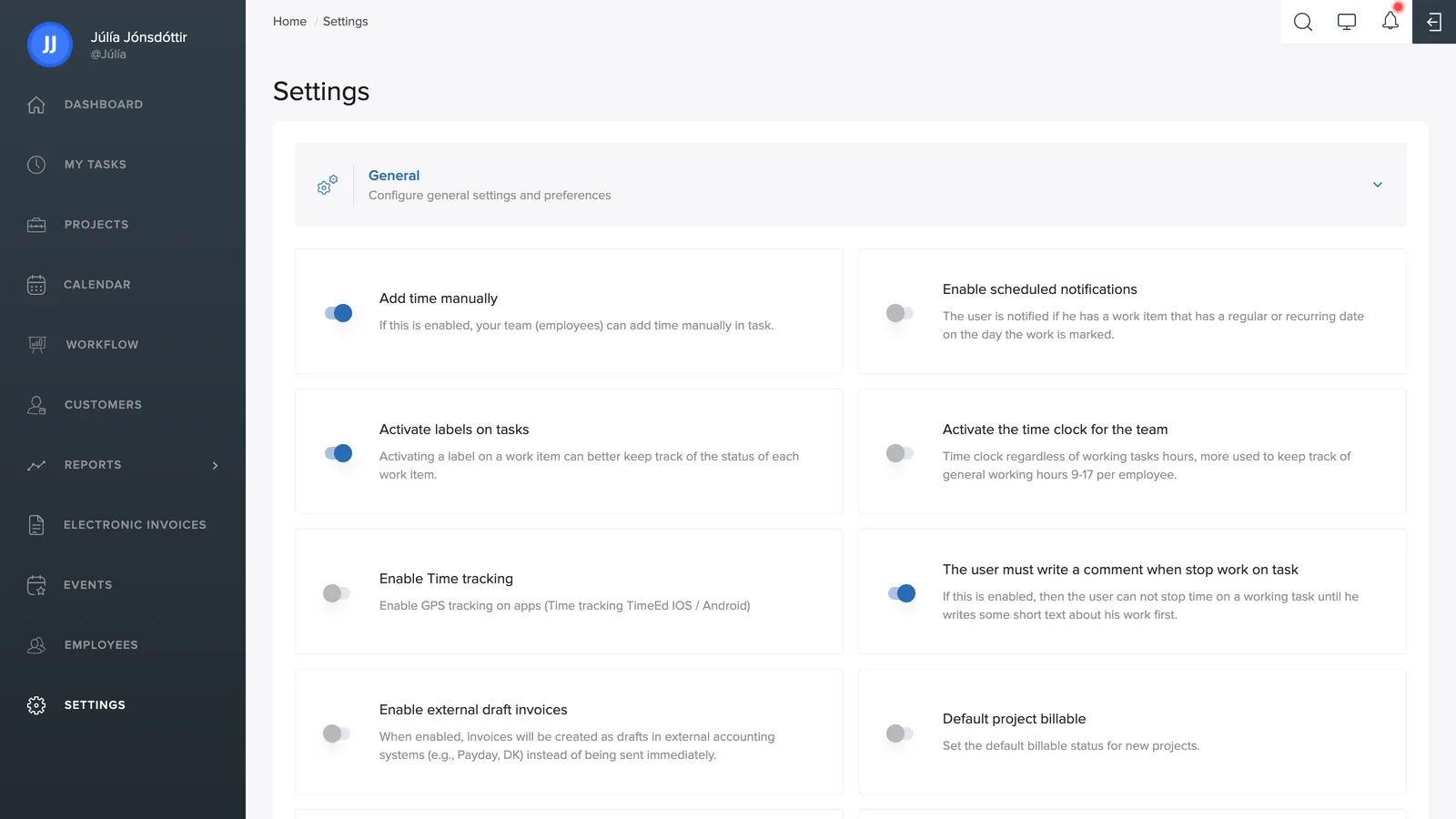
Electronic invoices in the menu keeps track of the company's electronic invoices, both sent and received.
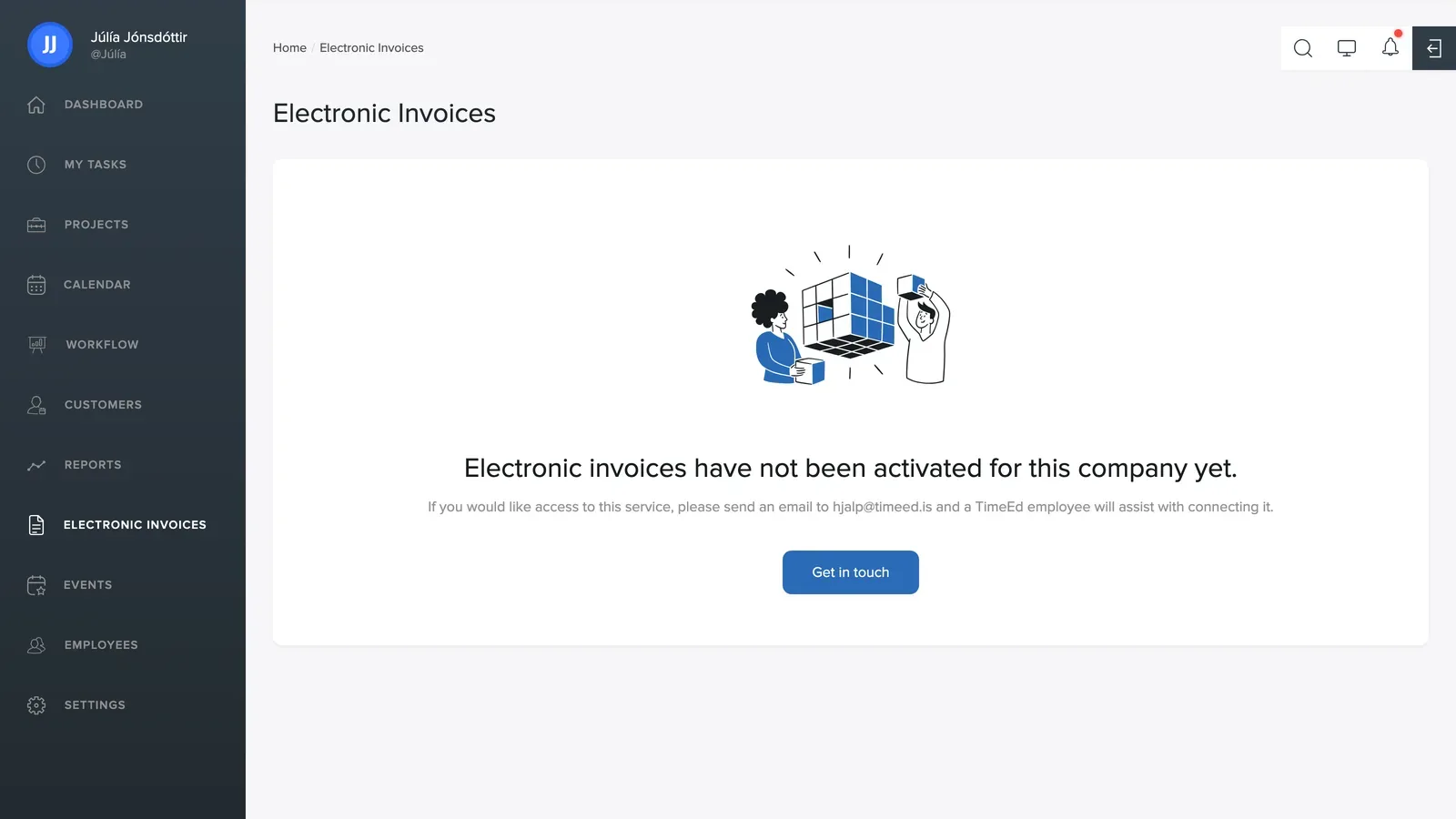
Activating the service
Electronic invoices are an add-on service that TimeEd connects for your company. If it isn't active, you'll see the message "Electronic invoices have not been activated for this company yet":
- Click Contact us, or email hjalp@timeed.is.
- A member of the TimeEd team will help you connect the service.
The electronic invoices are delivered through Unimaze, a document exchange service for electronic business, and TimeEd takes care of that connection for you.
The overview
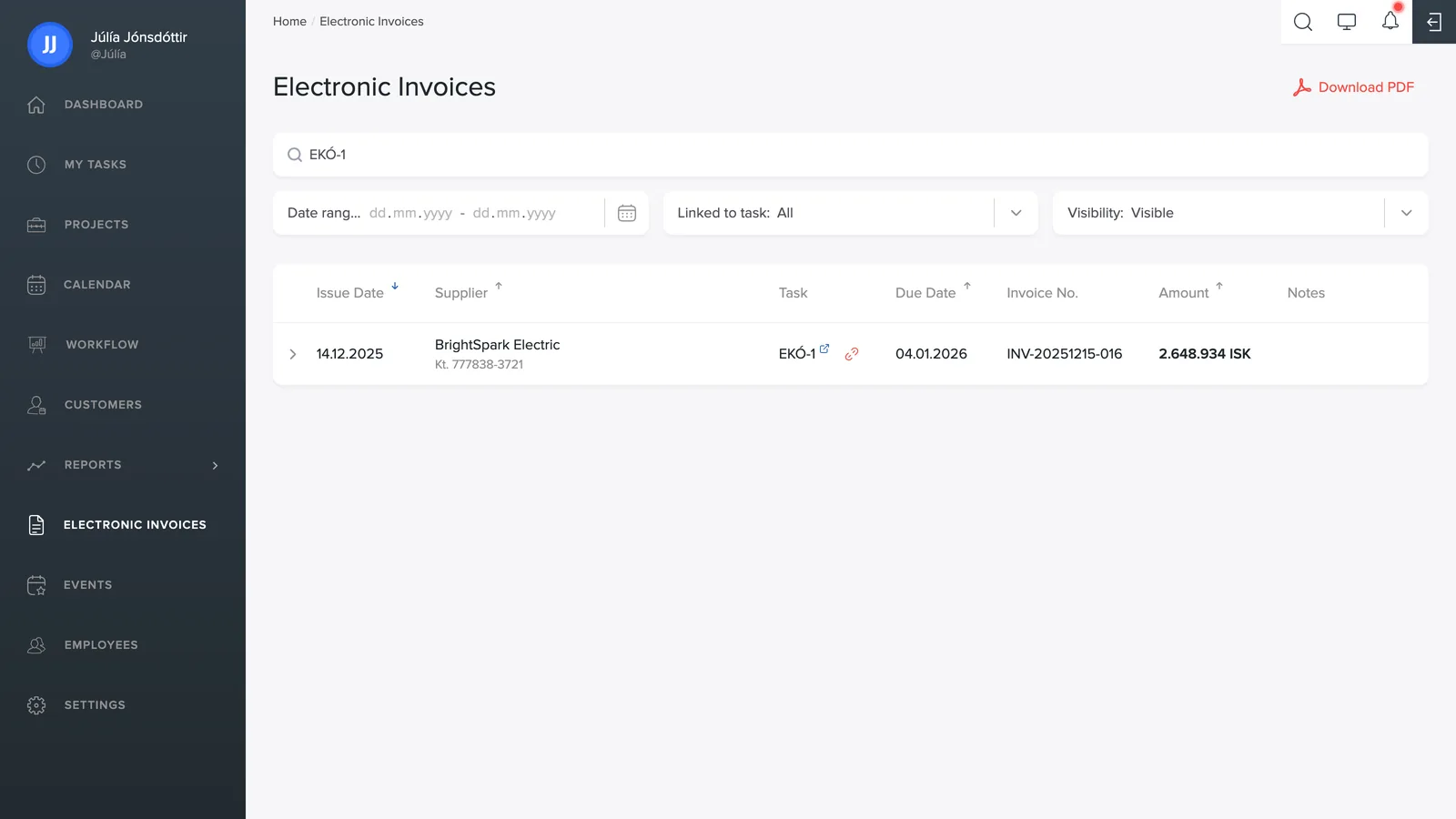
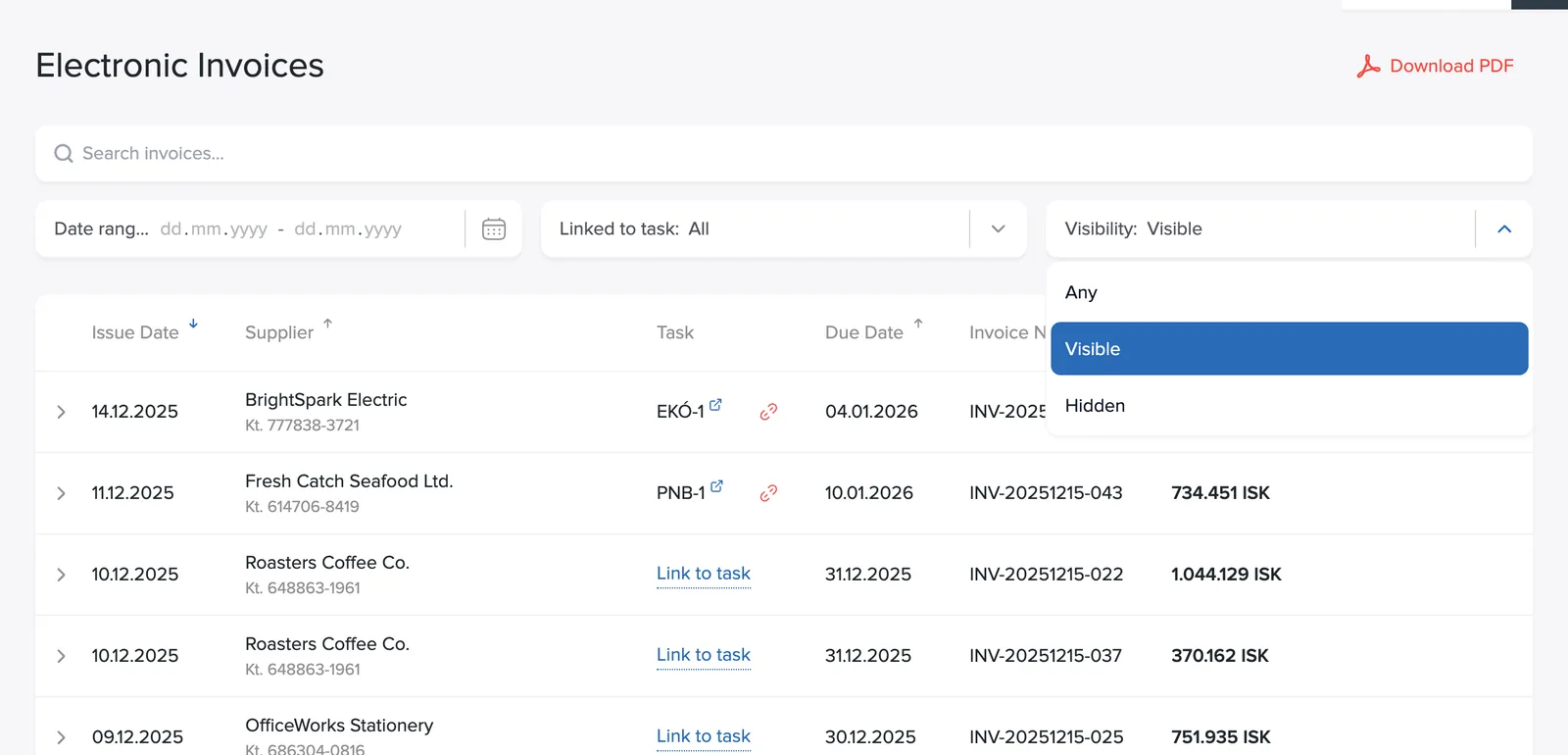
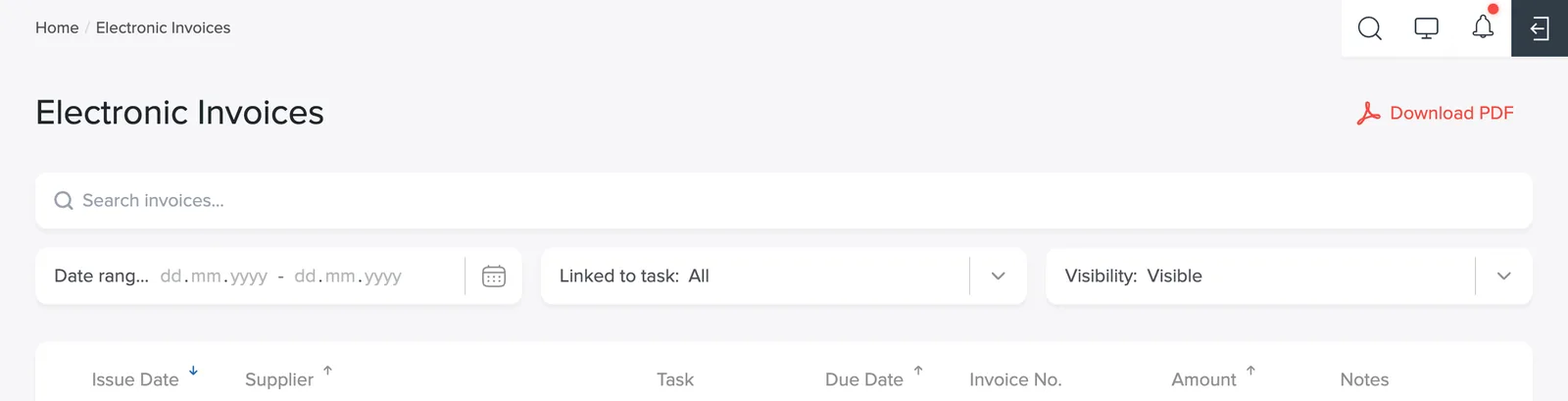
The list shows the issue date, the supplier with their national ID, the linked task, the due date, the invoice number, the amount and comments. There's a search box at the top, and you can narrow the list down with filters:
- Date filter: pick a period of issue dates.
- Linked to task: All, Linked or Unlinked – handy for finding invoices that still need linking.
- Visibility: All, Visible or Hidden.
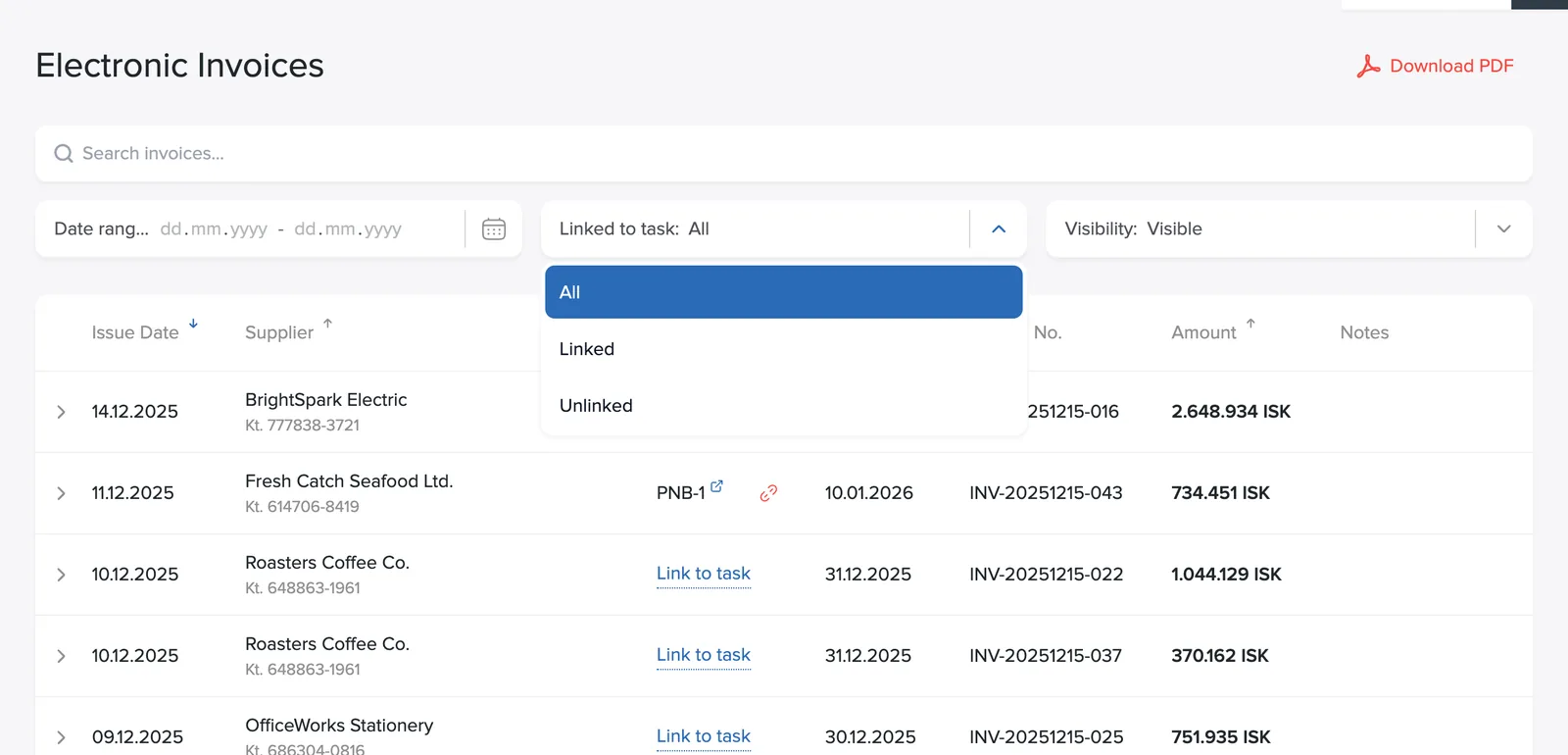
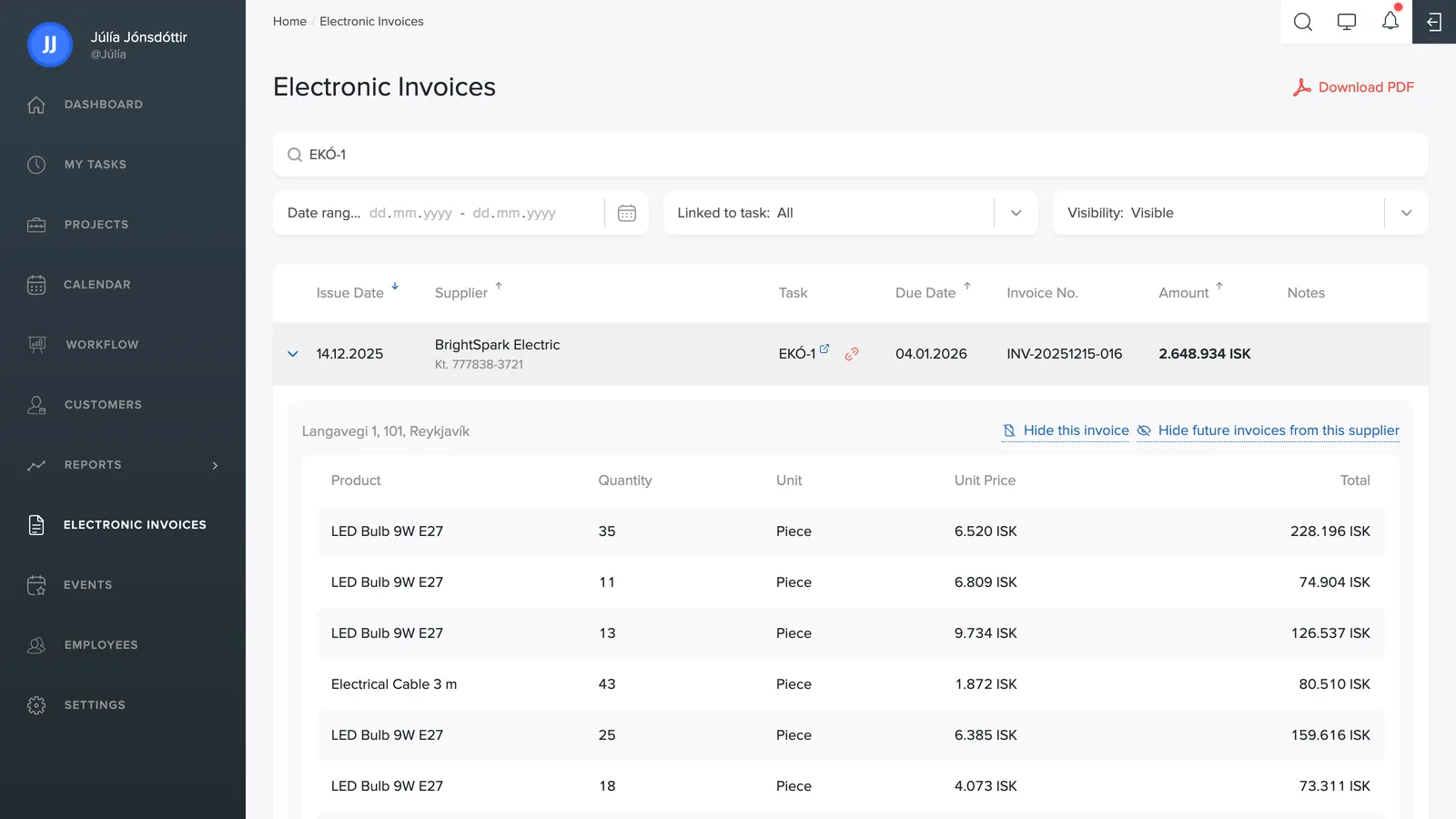
Click a row to open the invoice. You'll see the product lines – product, quantity, unit, unit price and total – along with the supplier's address.
Linking to a task
An invoice can be linked to a task in two ways:
- Automatically: if the task number (e.g. EKÓ-1) is given as the reference or note at the store when the purchase is made, the invoice links itself to the task when it arrives. A good habit is to have your staff give the task number at the till.
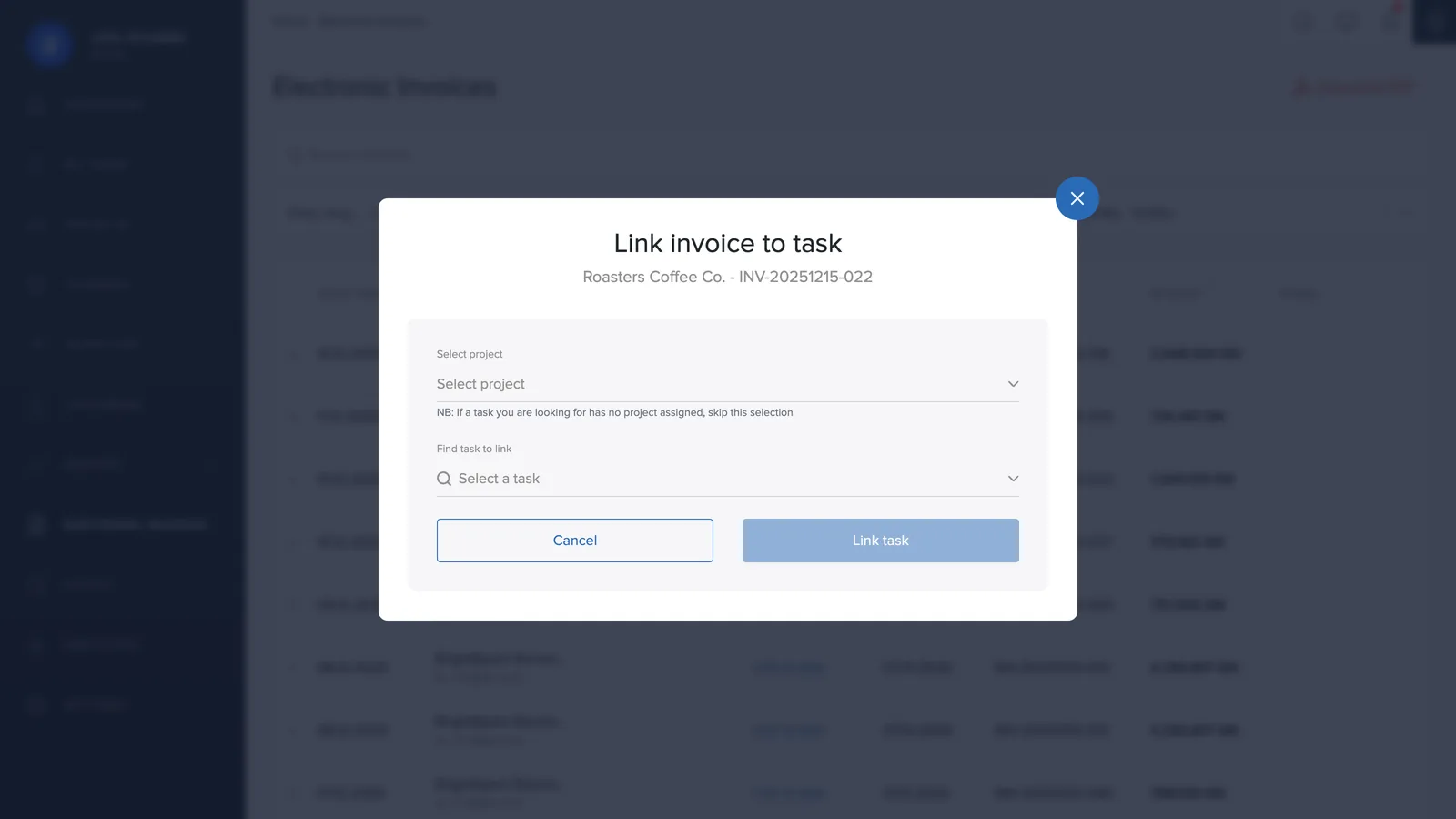
- Manually: click Link to task on the invoice row, pick a project (optional, narrows the task list) and then the task.
A linked invoice shows the task's tag in the list – clicking the tag opens the task in a new tab. The red icon next to it unlinks the invoice.
Hiding invoices
Invoices that have nothing to do with your projects – say the gym or the car wash – can pile up in the list. On an open invoice you have two options:
- Hide this invoice: hides just this one invoice.
- Hide future invoices from this supplier: all invoices from that supplier are hidden automatically from now on.
Hidden invoices aren't gone – under Settings you'll find Hidden invoices and Hidden suppliers to bring them back, or view them with the Visibility filter.