Invoices in TimeEd are created straight from logged time, with no double entry.
How to create an invoice
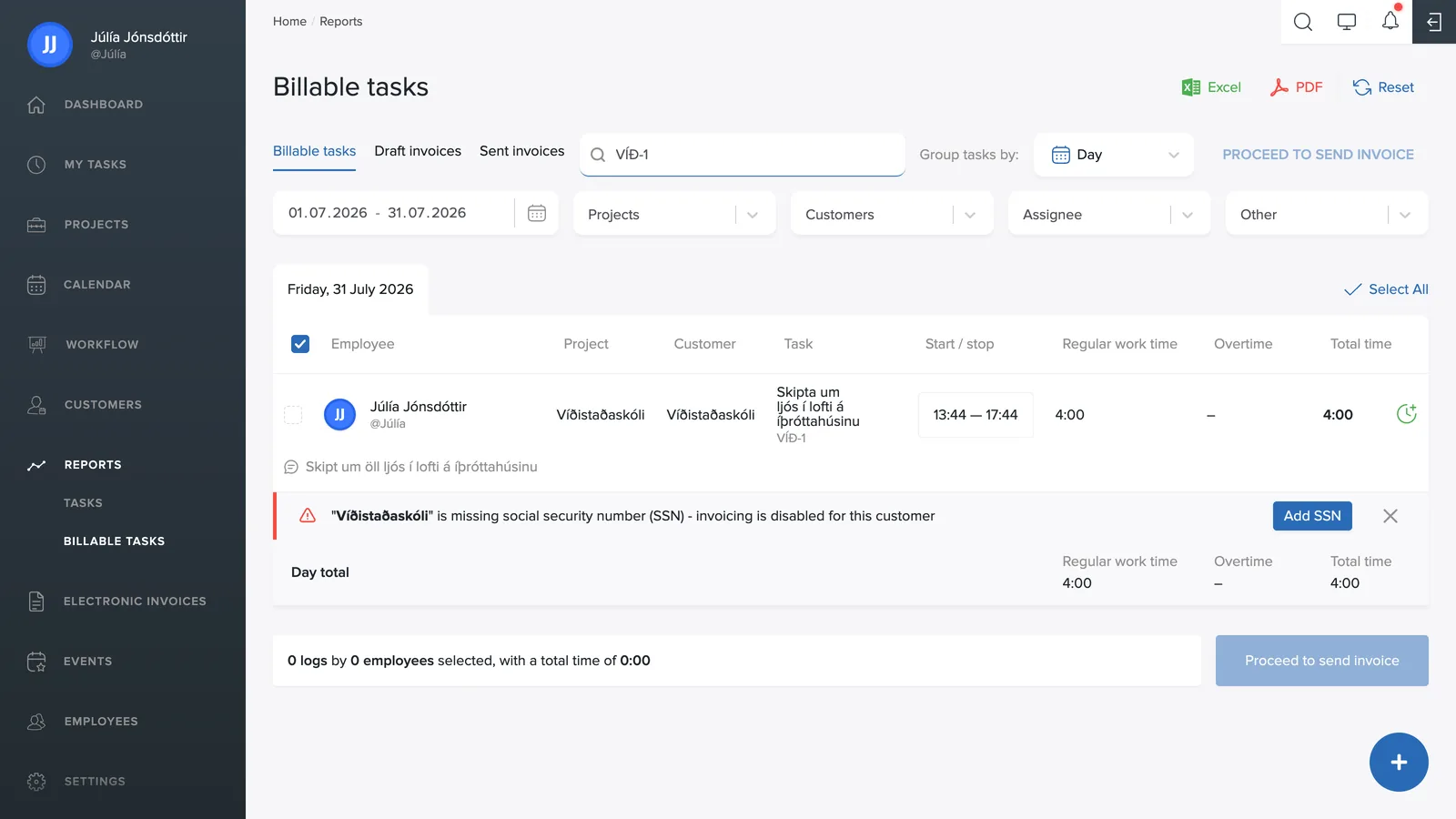
- Go to Reports → Invoices.
- Pick a period and filter by project or customer as needed, using the same filters as in the task report.
- Check the time entries that should go on the invoice. Select all checks the whole period at once.
- Click CREATE INVOICE.
The entries you selected become invoice lines, grouped by task with hours and unit price. You can put several tasks on the same invoice, but only one customer at a time – each invoice goes to a single payer.
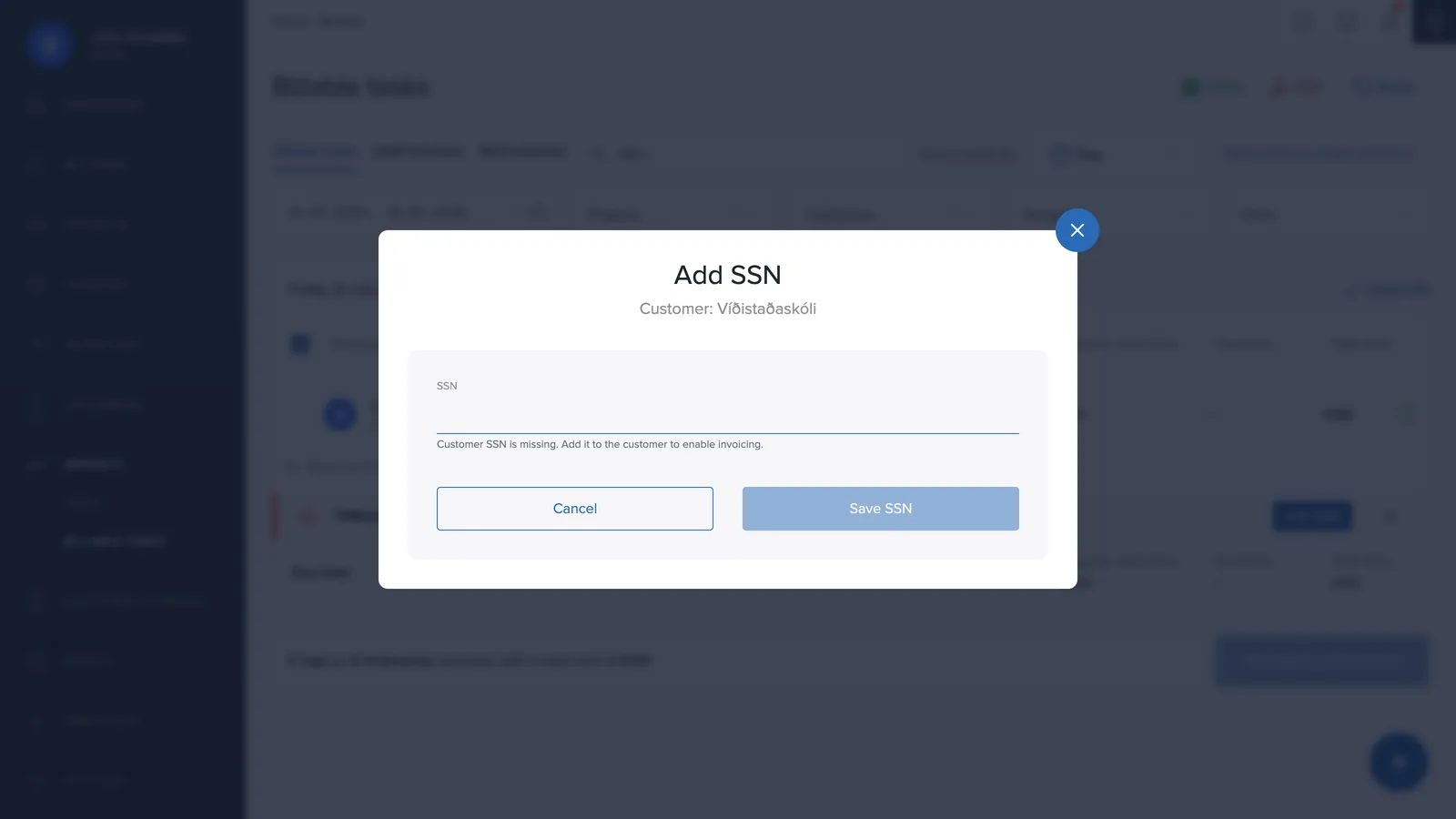
The customer's national ID is required
To create an invoice, the customer's national ID (kennitala) must be on file – the accounting systems require it. If it's missing, a warning appears in the list and invoicing is disabled for that customer. Click Add national ID, enter it and save – then you're all set.
What goes on the invoice?
Only work on billable tasks is included (see Editing a task). Tasks with a fixed price are charged at the fixed amount instead of an hourly rate, and products logged on tasks are carried onto the invoice.
You set the default billable rate, VAT percentage and final due date under Settings → Invoices, and you can create custom hourly rates there too.