At the top of the screen and at the bottom of the menu are four shortcuts that speed up everyday use.
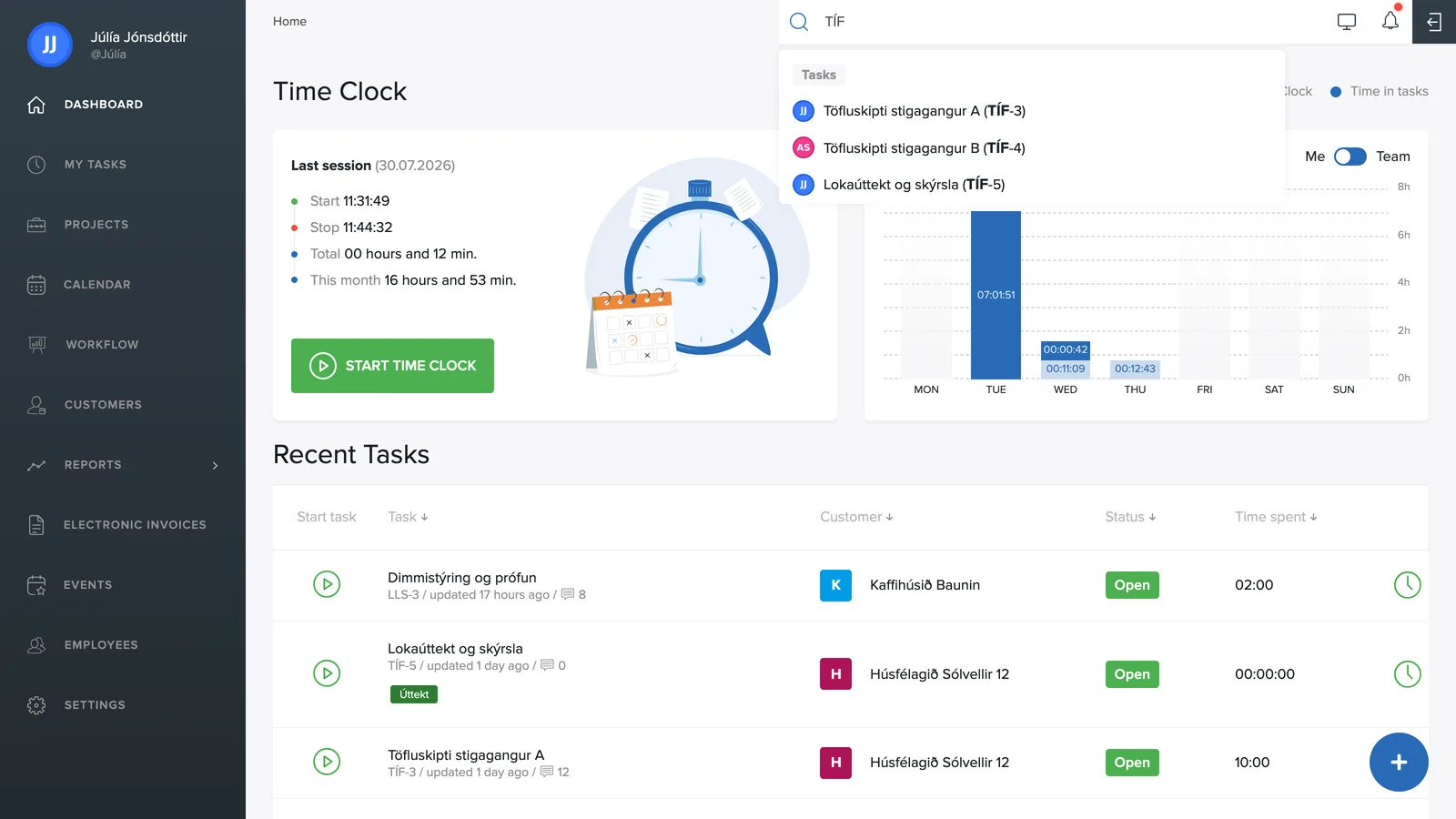
Searching the system
The magnifying glass in the top right opens a search that covers the whole system: type a task name, a task number (e.g. TIM-1), a project name or a customer name and you jump straight to the right place.
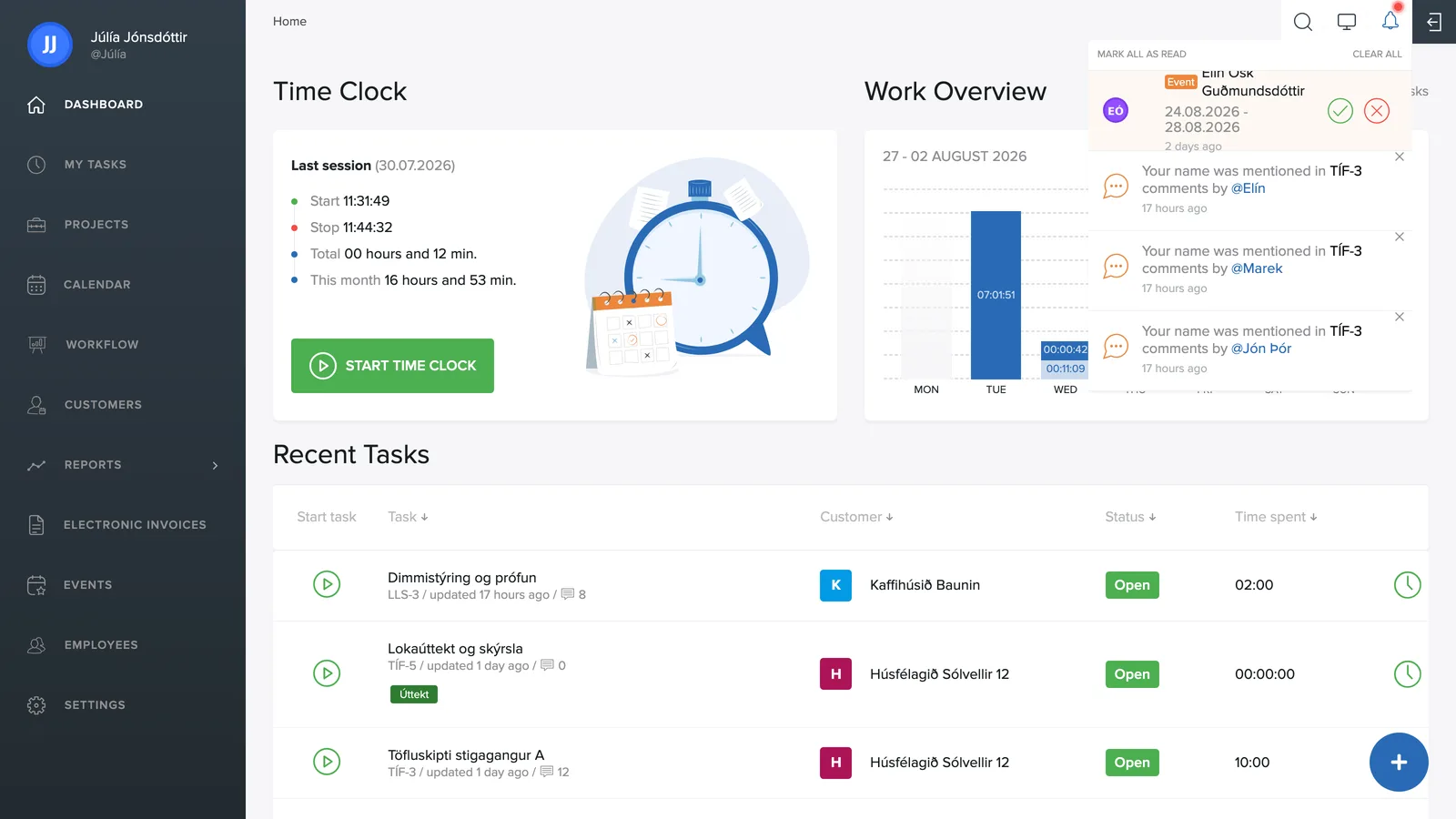
The notification bell
The bell shows notifications, e.g. when you're mentioned with @username in a comment or a task is assigned to you, along with events awaiting approval, such as the team's leave requests.
The blue plus button
The button in the bottom right corner follows you throughout the system and opens quick creation: a new project or a new task in one click, wherever you are.
Connected users
At the bottom of the menu on the left is Connected users. If you have access to more than one company in TimeEd, this is where you switch between them in one click, without signing out and back in.