The dashboard is the front page of TimeEd and appears when you sign in. It gives you the status of your workday at a glance.
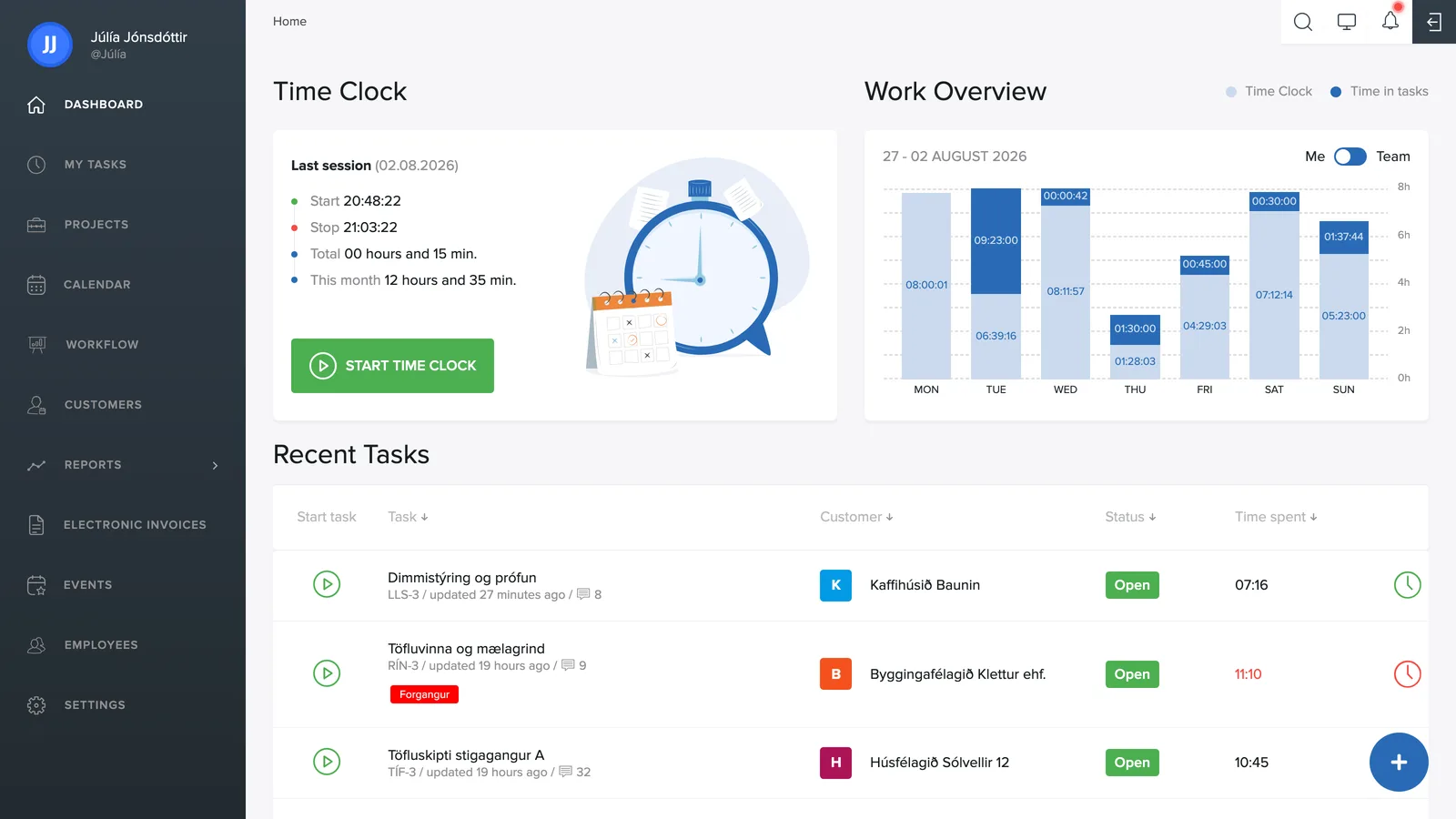
What you see on the dashboard
Time clock: clock in and out with a single click. You can also see when you last clocked in and out, along with your total for the month. See the Time tracking & clock-in category for details.
Work overview: a bar chart of the hours logged this week. The bars have two colours: the light blue part is the time measured by the time clock, the dark blue part is the time logged on tasks. The two do not have to match, since the time clock measures attendance while task time measures what was worked on. Use the Mine / Team toggle to switch between your own hours and the whole team's.
Notifications: when you're mentioned in a comment or a new task is created for you, a notification appears with a View task button.
Recent tasks: a list of the tasks you worked on most recently. The green button in the Start column starts time tracking on the task straight from the dashboard.
The menu on the left
Every part of the system is arranged in the menu on the left: Dashboard, My tasks, Projects, Calendar, Workflow, Customers, Reports, Electronic invoices, Leave, Employees and Settings. An administrator can turn modules on and off under Settings → Features, so the menu can look different from one company to another.
Search and more in the top right
In the top right corner you'll find search, the display mode, the notification bell and sign-out, see more in Search, notifications and shortcuts. The blue + button in the bottom right corner lets you create a new task, project or customer from anywhere in the system.