Under Employees you manage who has access to TimeEd.
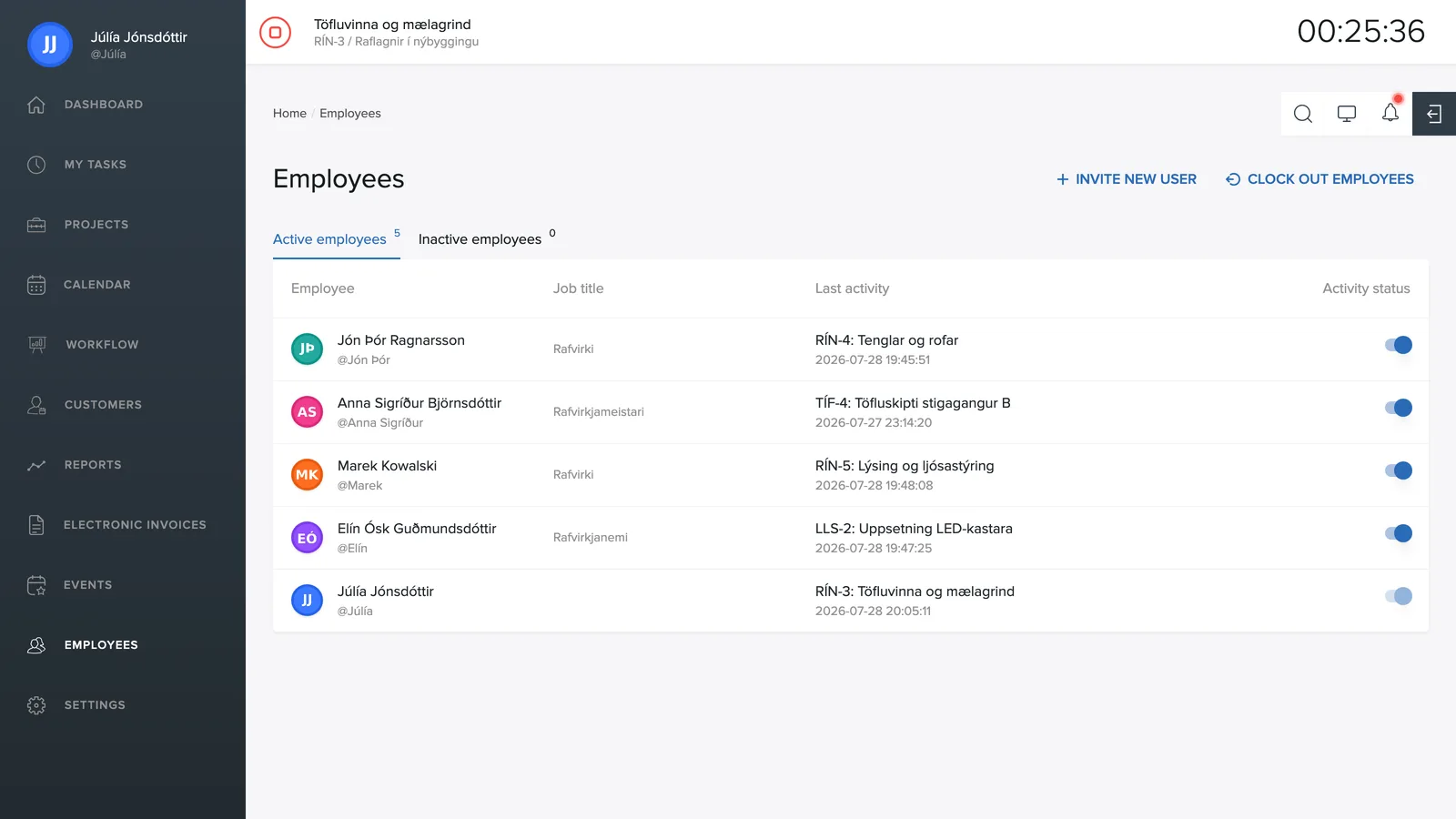
The list
The Active users and Inactive users tabs split up the staff. Each row shows the name, username, job title and when the person last worked on a task.
Inviting a new user
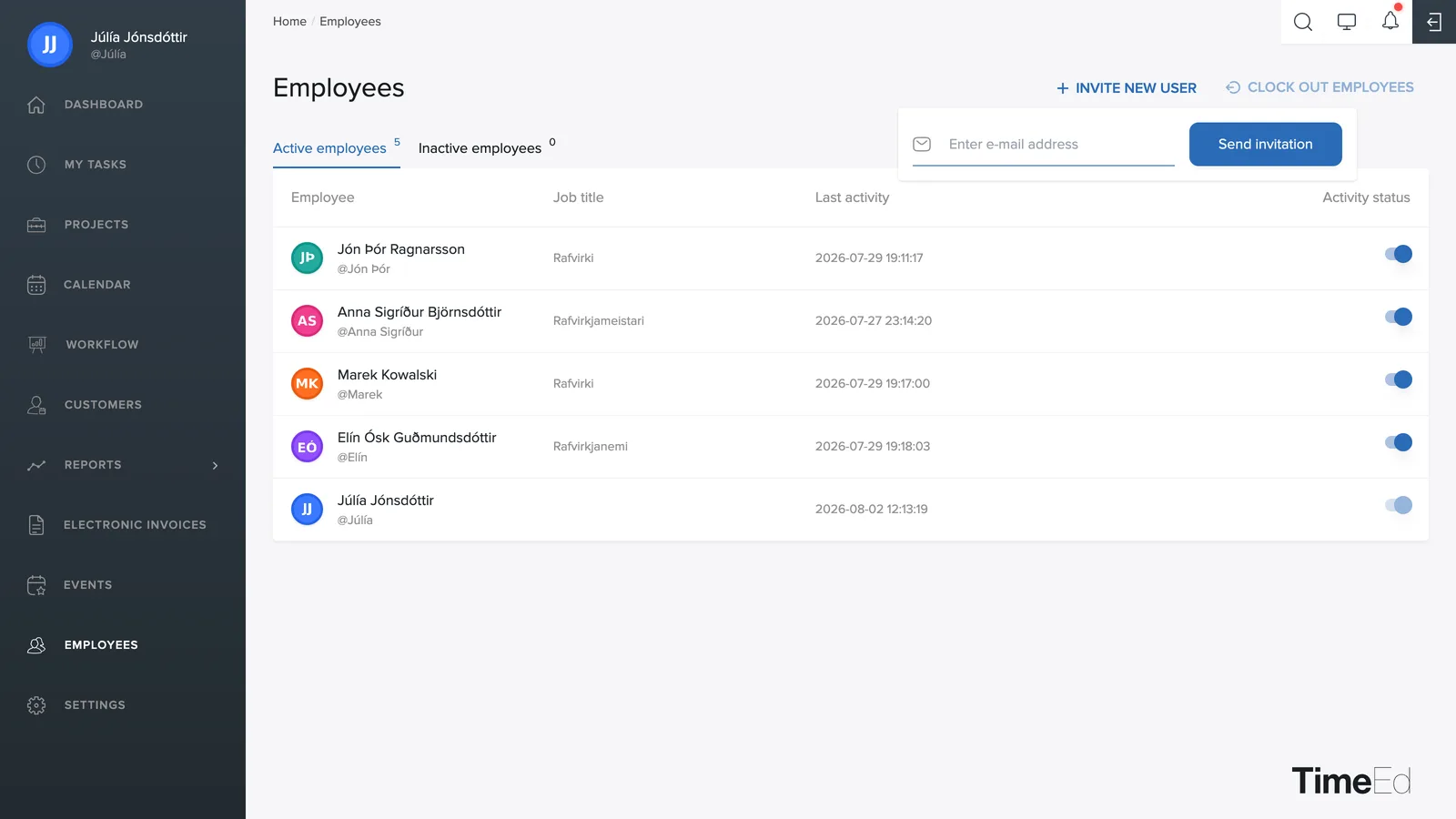
A new user (employee) is added by inviting them by email:
- Click + Invite new user in the top right.
- Enter the employee's email address and details.
- They receive an invitation by email and choose their own password.
While the invitation is pending, the user can already be selected into groups and assigned to tasks. They then appear in Active users once they have completed the registration.
Inactive users and reactivation
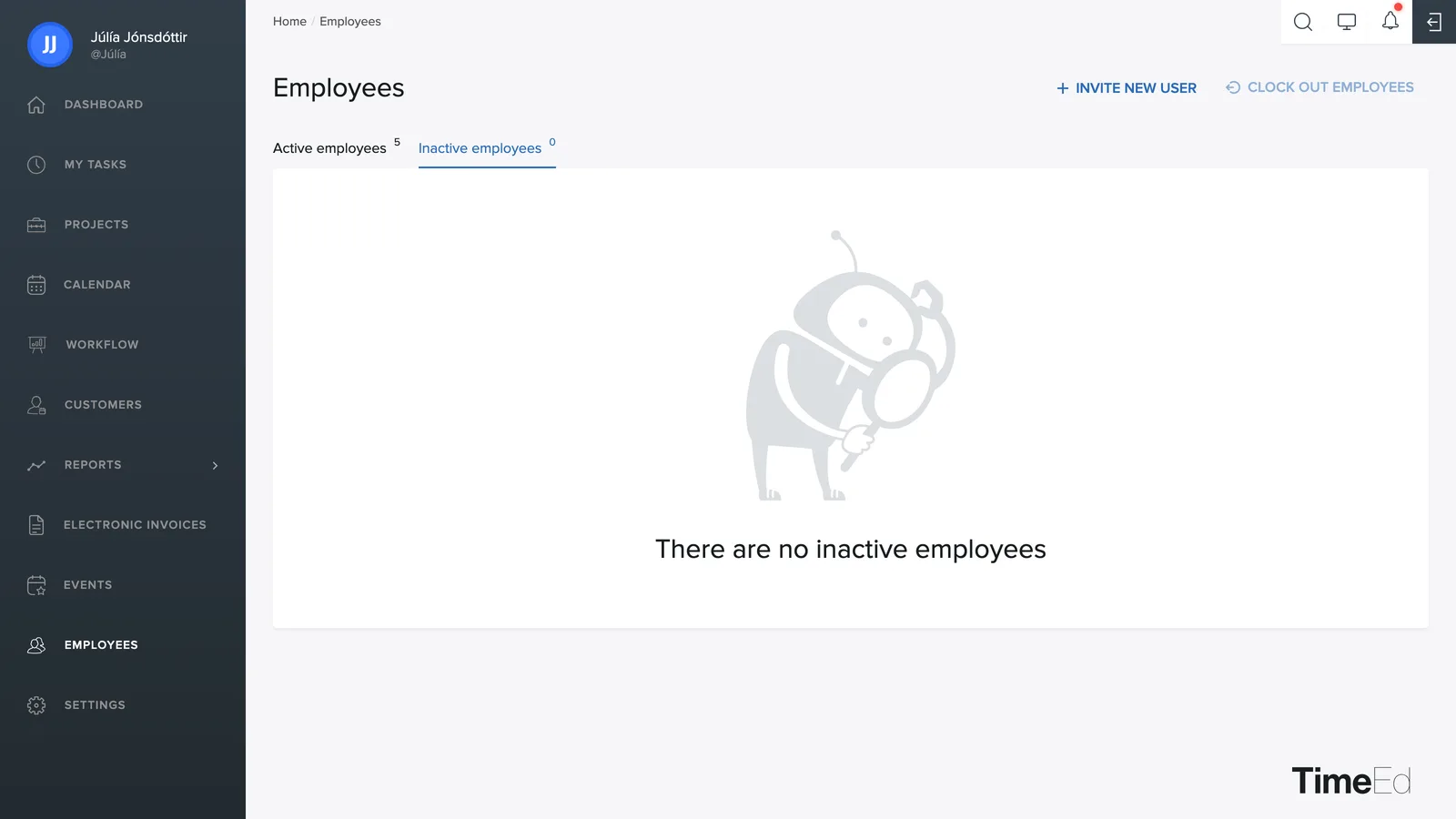
The Active toggle on the far right deactivates a user or reactivates them. An inactive user cannot sign in, but their time entries and history remain in reports. To reactivate a former employee, go to Inactive users and turn the toggle on.
Deleting a user
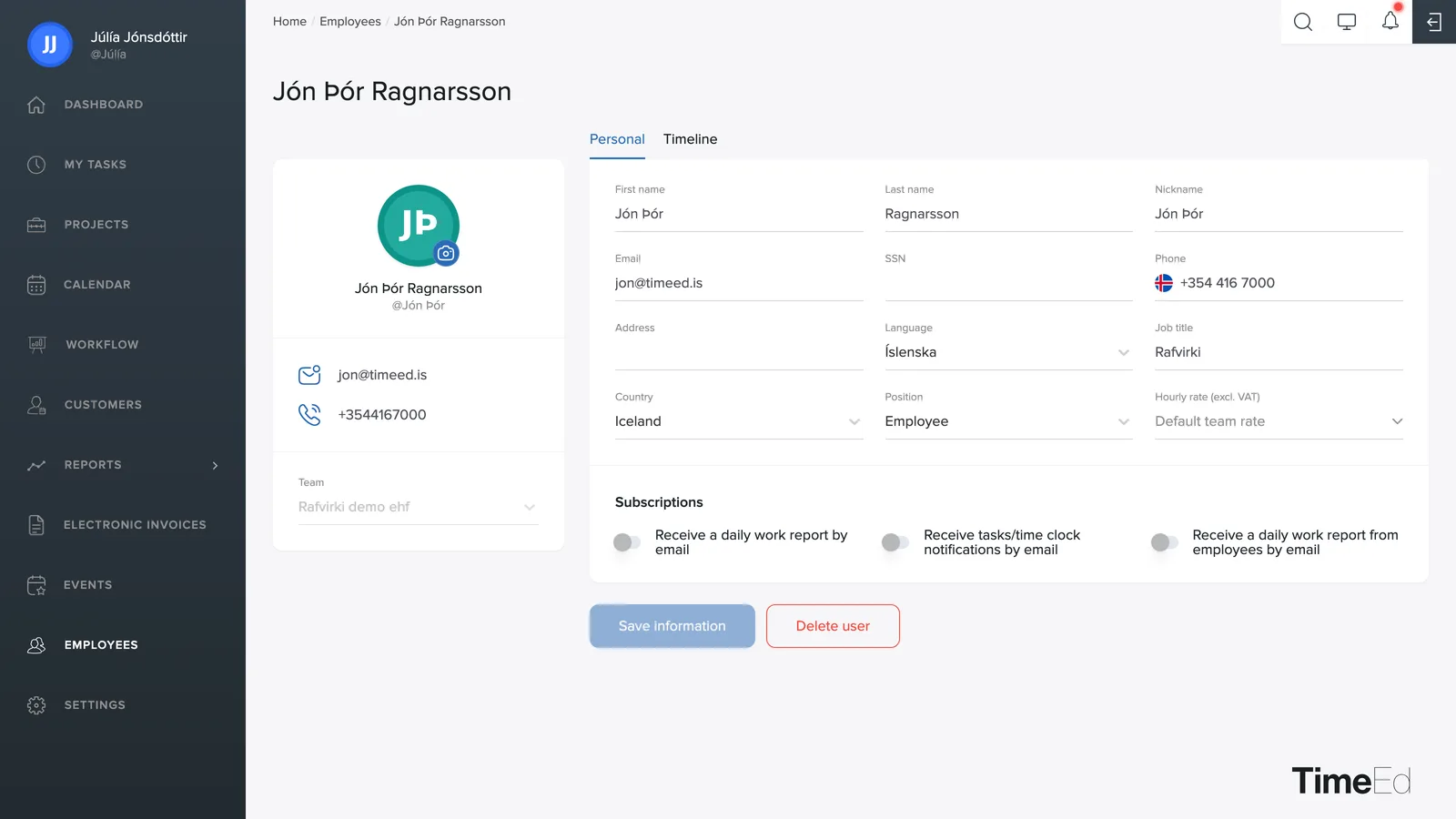
Open the employee, and at the bottom of the page, next to Save information, is the red Delete user button. Deletion is permanent. If an employee has left, it is almost always better to make them inactive instead: the history is kept and they free up a seat in the subscription without the data disappearing.
Clock out employees
The Clock out employees button in the top right clocks out anyone who forgot to clock out, which is handy at the end of the day.
More about each employee
Click an employee to open their page. See the articles Employee settings and Employee timeline.