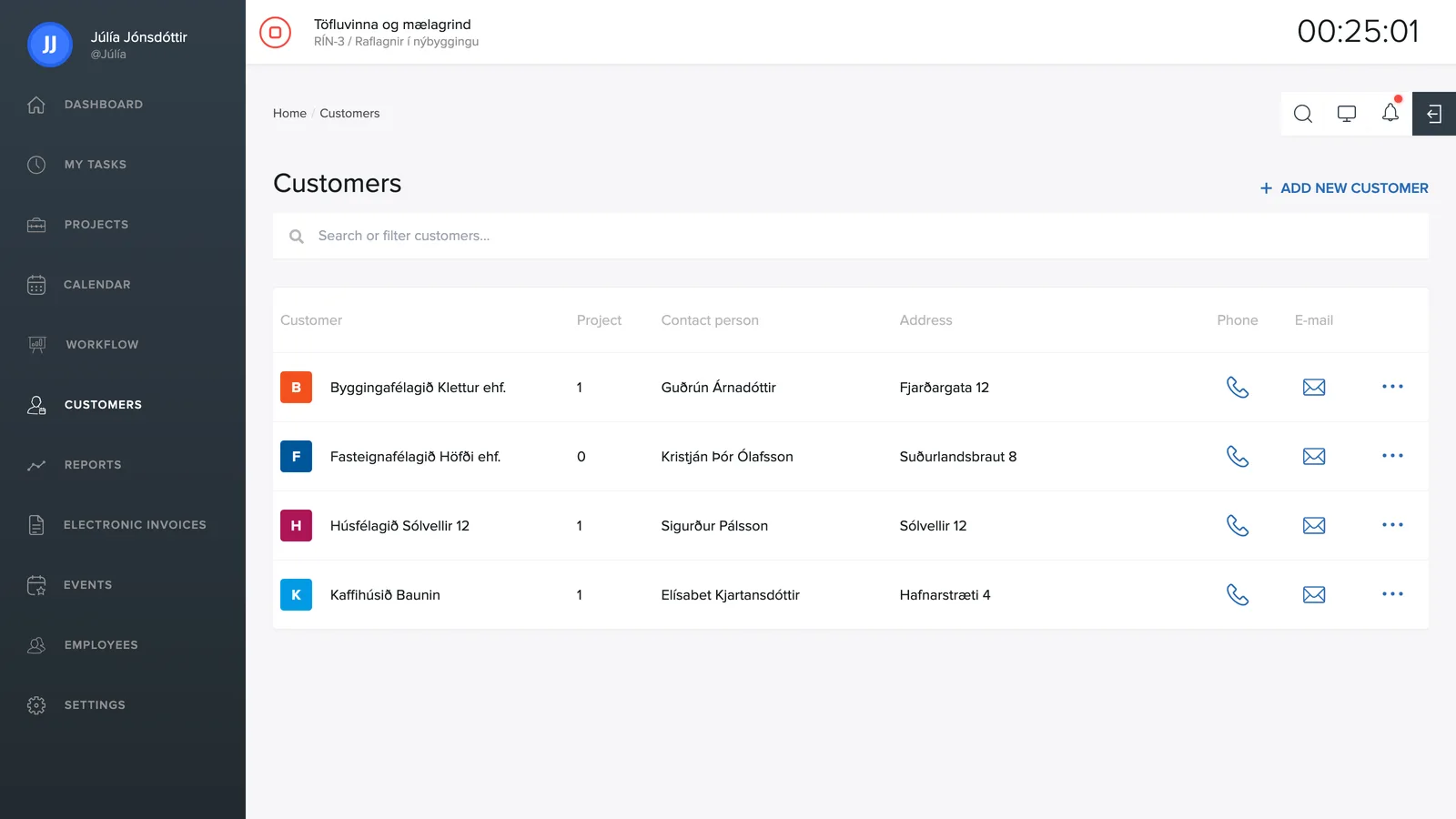
Under Customers is a directory of all the company's customers.
The list
Each row shows the customer's name, the number of linked projects, the contact person and the address. The phone and envelope icons on the right call or open an email to the customer straight from the list, and the three-dot icon opens more actions. The search field at the top filters the list as you type.
Creating a customer
- Click + Create new customer in the top right.
- Enter the name, national ID number (kennitala), contact person, address, phone and email.
- Save. You can now link projects and invoices to the customer.
TimeEd is connected to the national registry and company registry at no extra cost, so details about companies and individuals can be looked up by name or national ID number instead of typing everything in manually. With + Add information manually you enter the details yourself.
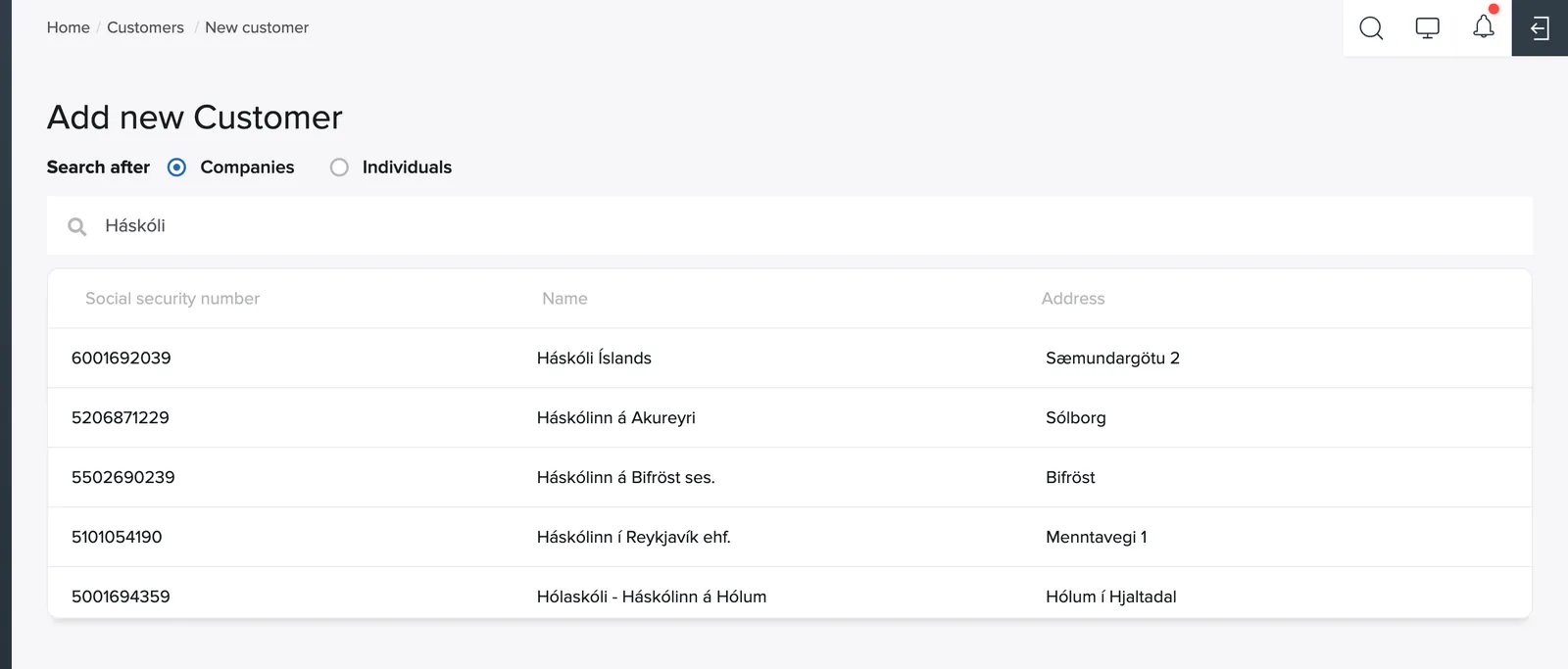
When an address and postal code are entered, the system automatically calculates the customer's GPS coordinates (latitude and longitude) and saves them on the customer card.
Opening a customer
Click a customer in the list to open the customer card. It has three tabs: Customer information with the registered details and contacts, Projects showing the customer's projects with status, task count and logged work and time, and Latest tasks with the most recently updated tasks.
How it connects to the rest of the system
Projects are linked to customers, so logged time automatically flows to the right customer in reports and invoicing. In the reports you can filter and group by customer, and invoices pull the name, national ID number and contact details from the customer directory.
Deleting a customer
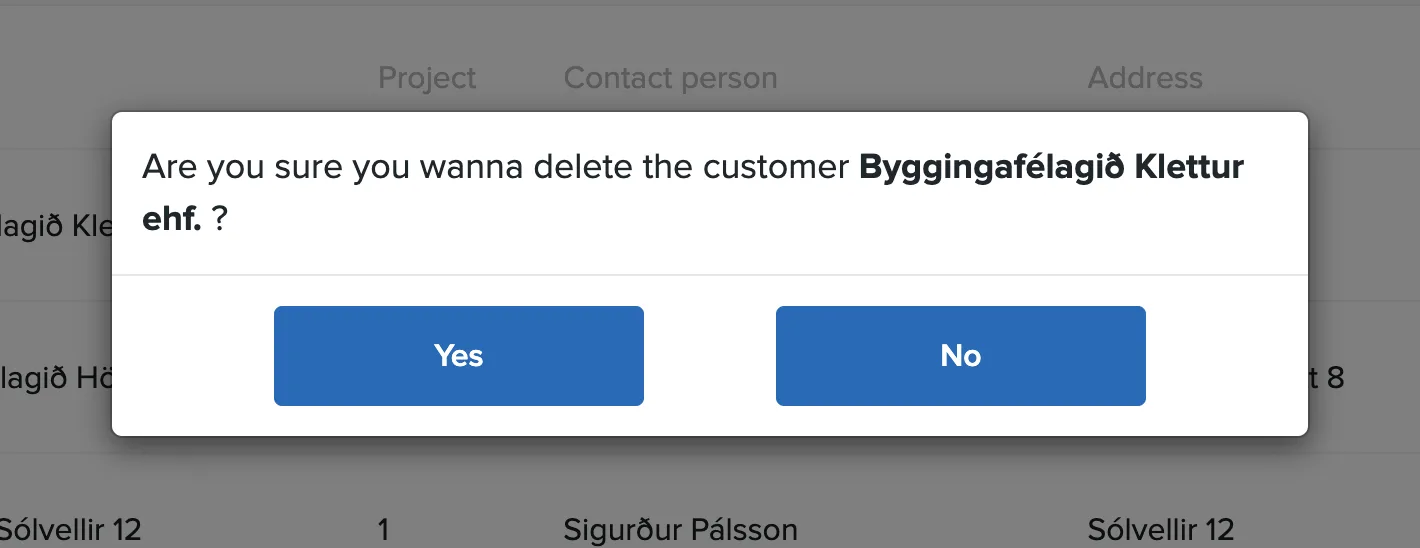
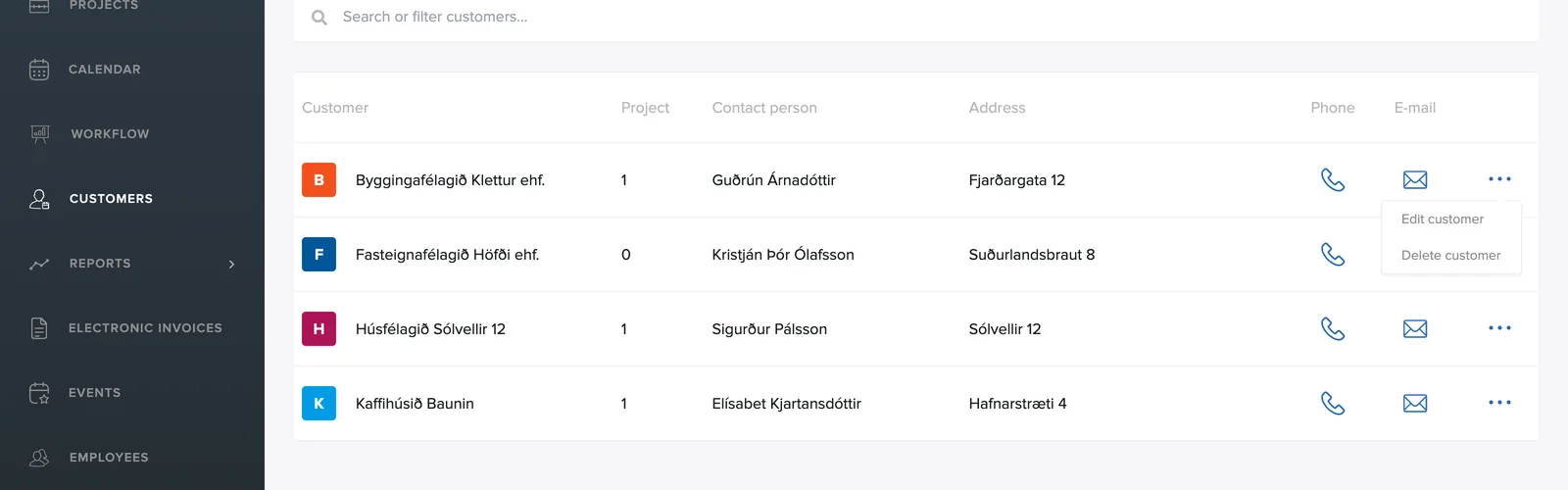
In the customer list, the three-dot icon at the far right opens a menu with Edit customer and Delete customer.
Confirm in the dialog that appears. It is a good idea to delete or close the customer's projects first, and as with projects and tasks, the deletion cannot be undone.