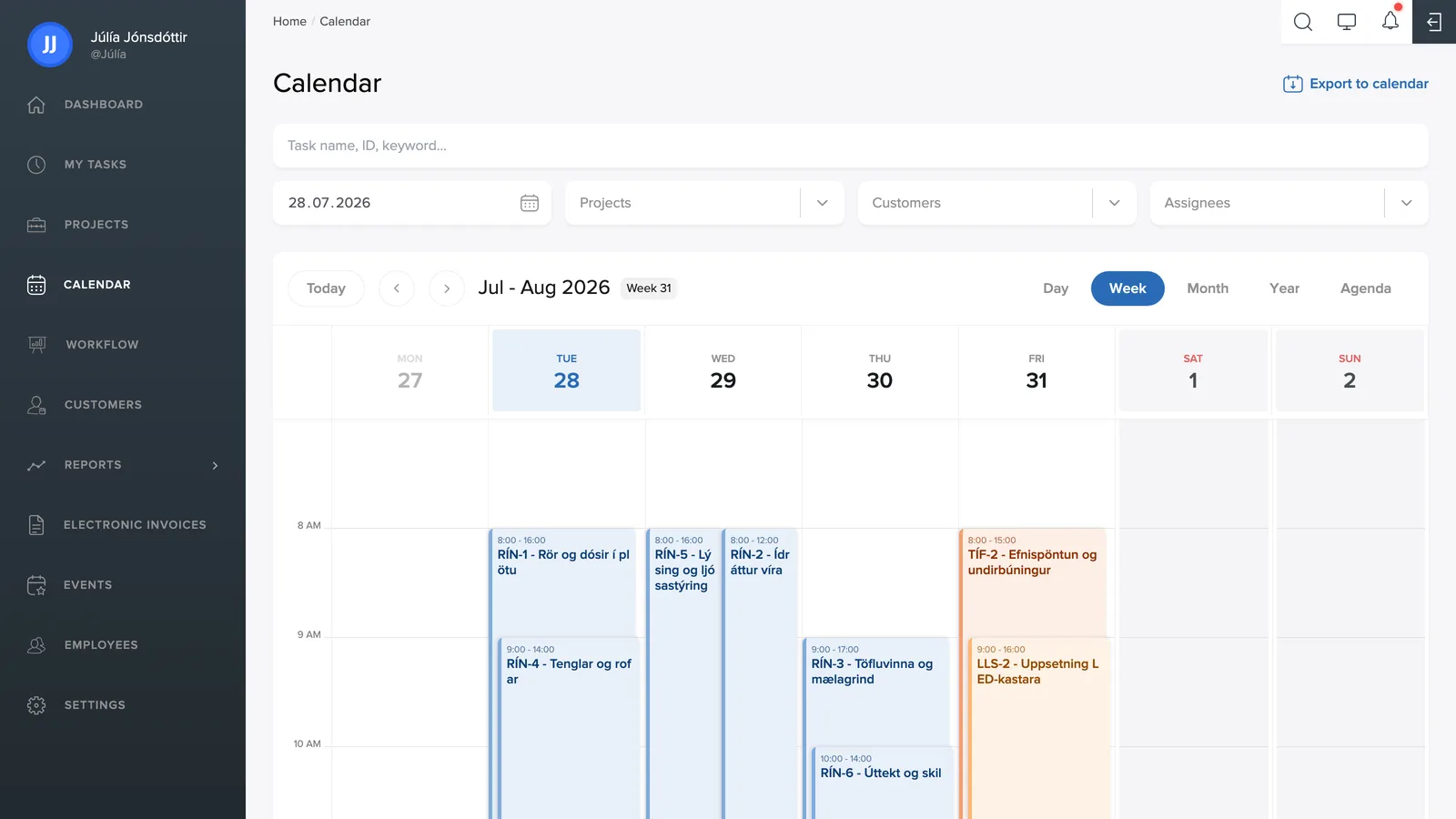
Calendar shows all tasks that have been added to the calendar, so you can see the team's work schedule in one place.
Views
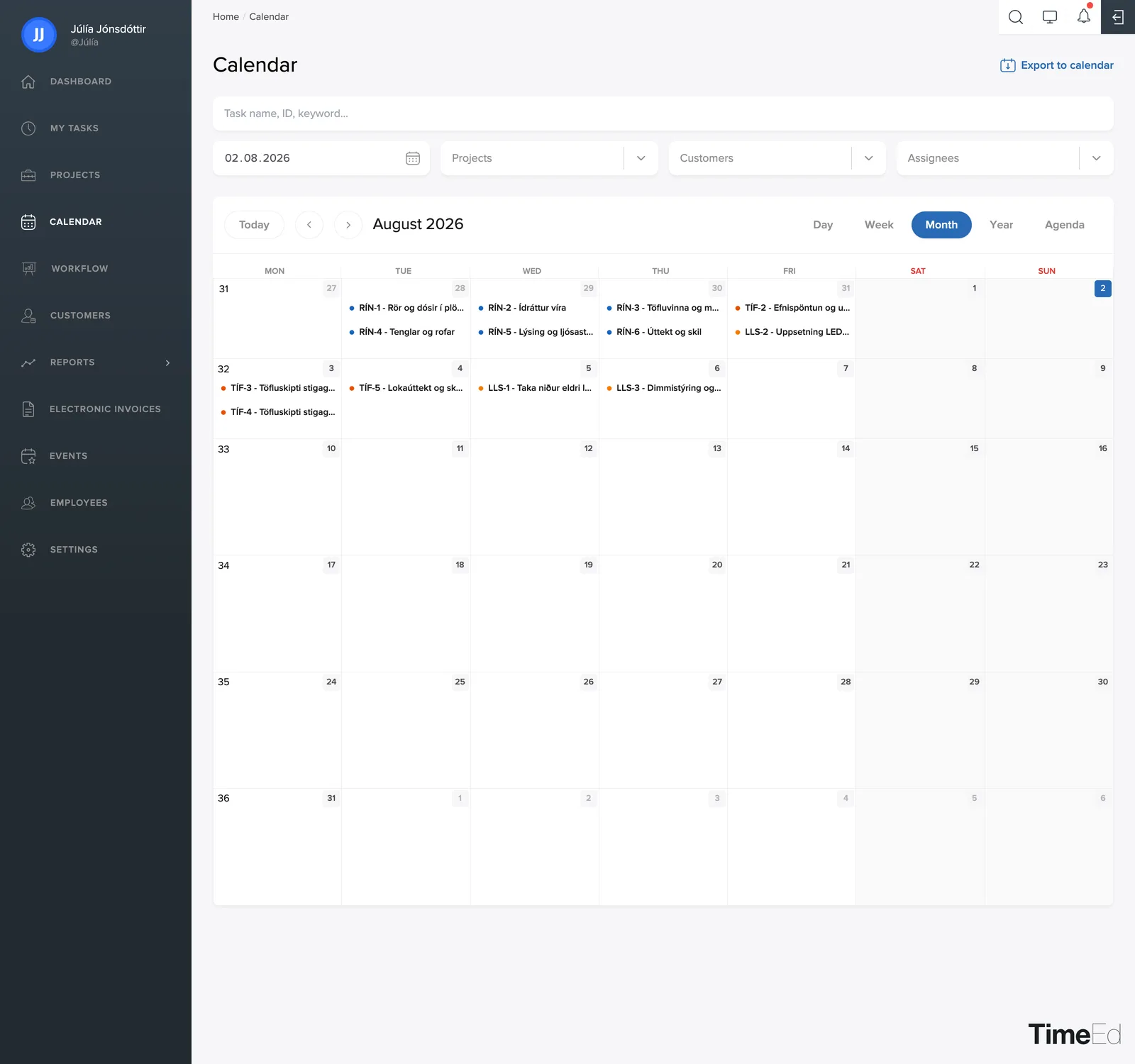
In the top right you switch between Day, Week, Month, Year and Agenda. The arrows next to the month name page back and forth, and Today jumps to the current day.
The month view gives an overview of all the month's tasks:
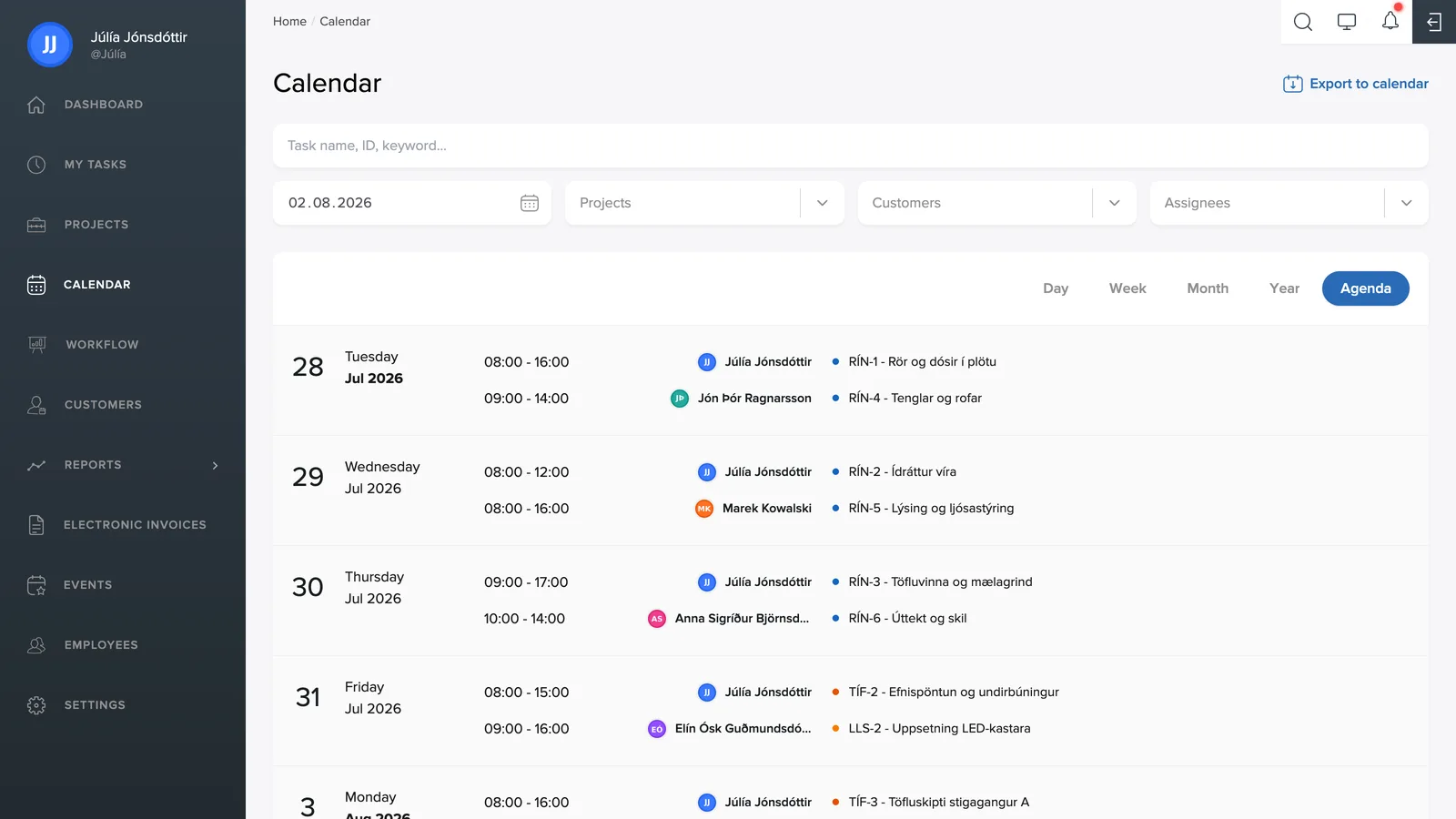
Agenda presents the tasks as a chronological list (each day with its time, employee and task), which is great for skimming the plan for the days ahead:
Filters and search
Above the calendar is a search by project name, ID or keyword, along with filters for date, project, customer and employees. Pick a single employee, for example, to see only their schedule.
Editing a task directly in the calendar
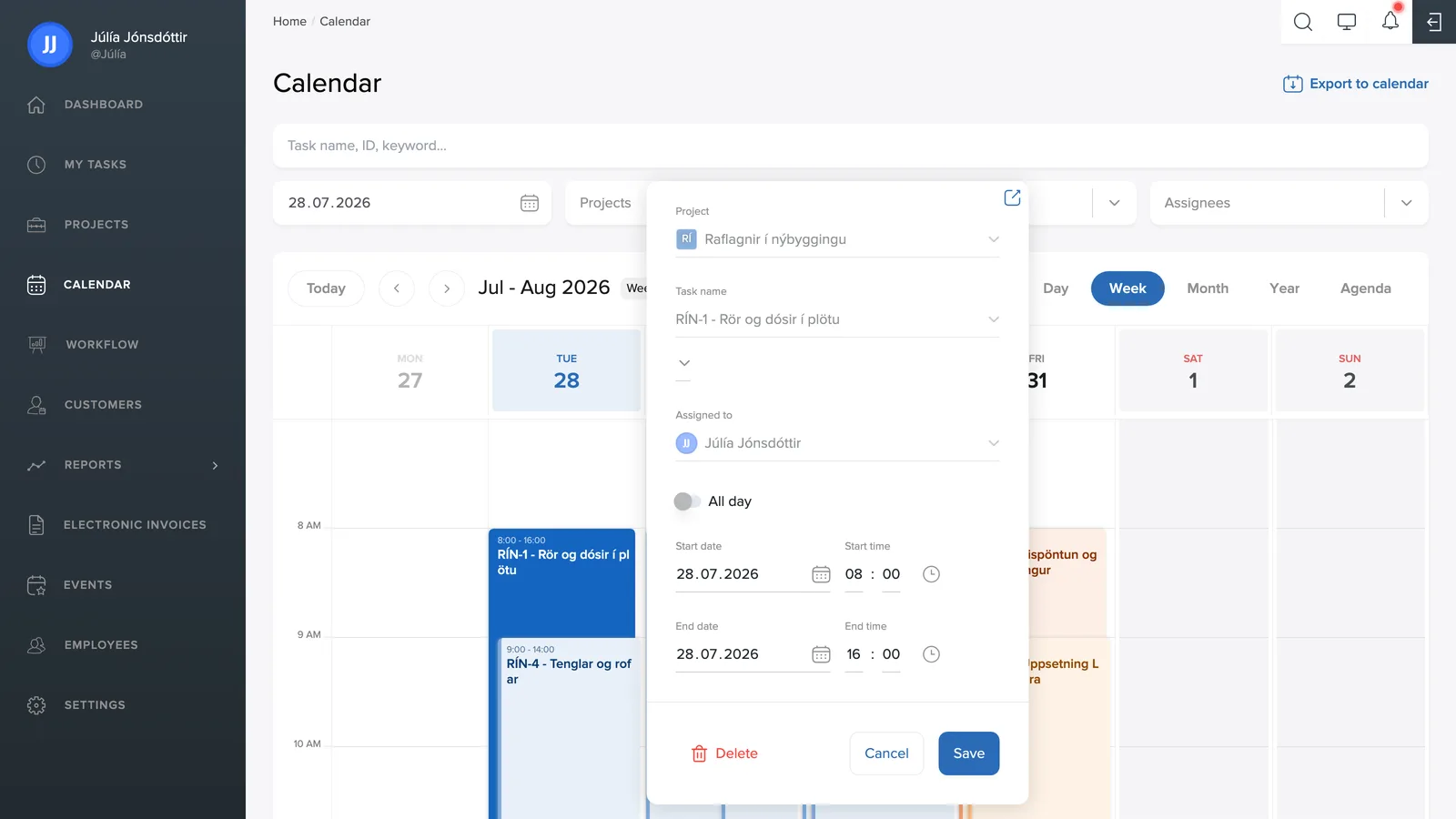
Click a task in the calendar to open an editing window: there you can turn on All day or set the start and end dates and times, then save with a single click. Delete removes the task from the calendar, and the arrow icon at the top opens the task page itself.
How tasks get onto the calendar
A task appears on the calendar when Add to calendar is turned on for it (see Editing a task) and it is given a start and end time or a full day.
Exporting to a calendar
With Export to calendar in the top right, you can bring the calendar into your own calendar app (e.g. Outlook, Google Calendar or Apple Calendar) so the work schedule appears alongside your other meetings. This works on both phone and computer.
The export covers the next 30 days ahead, and changes made in TimeEd afterwards sync automatically to your calendar. Note, however, that after 30 days you need to click Export to calendar again to extend the period.